Record time against a ticket
Availability depends on your Helpdesk settings and permissions.
Open the page
Helpdesk → open a ticket → Ticket Clock. You need Helpdesk access; each action also depends on your access to this ticket and the configured feature permissions.
Start and stop a session
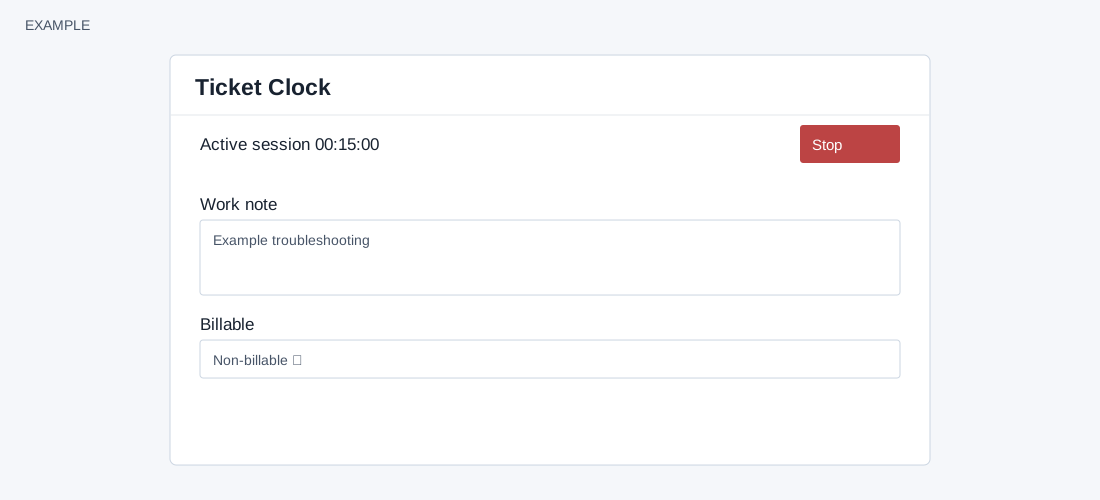
- Where Ticket Clock is enabled, choose Start while working on the ticket. When stopping, provide a Work note if required and select Billable, Non-billable or Internal, then choose Stop. These actions record live time. Work note accepts up to 2,000 characters; the billable selector can be unavailable when agent override is disabled. Location capture can be required by settings. Start and Stop require ticket-clock permission. If a session error appears, reload and verify the clock state before retrying.
- Use Time worked → Refresh to see completed recorded sessions. Expand By agent or Time entries when available. The summary requires the time-report permission, Helpdesk report access and the report setting; visible entries are scoped to allowed users. The panel states active sessions appear in the clock and enter the summary after stopping.
Use time records
- Compare the total and billable breakdown with the work performed. Example: record a 15-minute troubleshooting session as Non-billable with a short work note. Availability and required fields depend on timeclock configuration and access.