Find and manage tickets
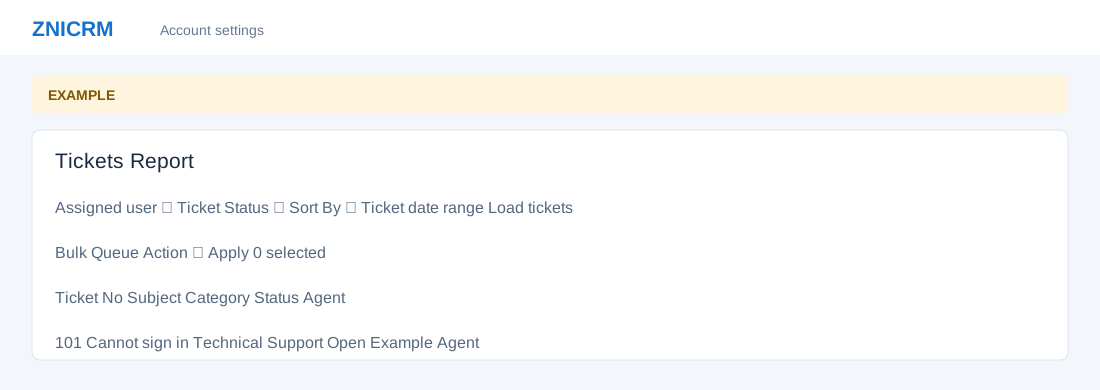
Open the page
Helpdesk → Manage Tickets. Helpdesk report access determines which agents and tickets you can view.
Filter the report
- Choose Assigned user, Ticket Status (Open, On-Hold, Closed, Unassigned or Overdue), Sort By (ASC or DESC), and Ticket date range; select Load tickets.
- Use Search to narrow the loaded table, sort columns and browse Previous / Next. Copy, Excel and CSV export controls can disclose ticket data, so use them only when authorized. Review Ticket No, Subject, Created By, Created On, Category, Status, Last Updated, Agent, Contact Id, Contact Name and Tags. Additional columns vary by status, including age, SLA due, captured or closed timing, resolution time, priority, source and overdue duration. Open a ticket to inspect its workspace.
Apply a bulk action
- Select individual tickets or Select all tickets and verify the selection count. Choose Capture Selected, Move Selected To On-Hold or Reopen Selected; reopening exposes a Reopen reason field. Select Apply only after reviewing selected tickets and action.
- Bulk actions change multiple live records and can be subject to authorization or approval rules. Review the result and any failed items.
Scope, dates and bulk outcomes
The initial range is the first day of this month through today; the picker offers Today, Yesterday, Last 7 Days, Last 30 Days, This Month and Last Month as well as a custom range. Select Apply in the picker, then Load tickets. The assigned-user options and selected scope are constrained by Helpdesk report permissions. The report loads at most 200 records; table search, sorting, paging and exports operate on those loaded records. Default page size is 100, and the table initially sorts by Ticket No descending even though the system Sort By controls the fetched set. The header checkbox acts on row checkboxes currently present in the table; inspect the selected count and page before applying.
Reopen reason is limited to 500 characters; fewer than two characters becomes “Bulk queue reopen”. Apply asks for confirmation and processes each ticket individually. The alert reports success and failure totals but does not display individual failure messages; if any succeed the page reloads. Partial success is possible: inspect each selected ticket’s state before retrying. Bulk actions process at most 100 distinct tickets. Capture checks access then sets the acting user as owner even if the ticket already has an owner; review ownership before selecting it. On-Hold checks access and refuses tickets requiring action approval. Reopen checks access; where lifecycle support is ready it also checks approval, clears resolution code and records the reason and lifecycle event. If lifecycle support is unavailable, it falls back to an Open status update. Status updates synchronize SLA and escalation state and cancel pending action requests. Opening a ticket may record a viewed event.