Link, merge, split and clone tickets
Availability depends on your Helpdesk settings and permissions.
Open the page
Helpdesk → open a captured ticket → Conversation → Link/Merge or Split. You need Helpdesk access; each action also depends on your access to this ticket and the configured feature permissions.
Link or merge
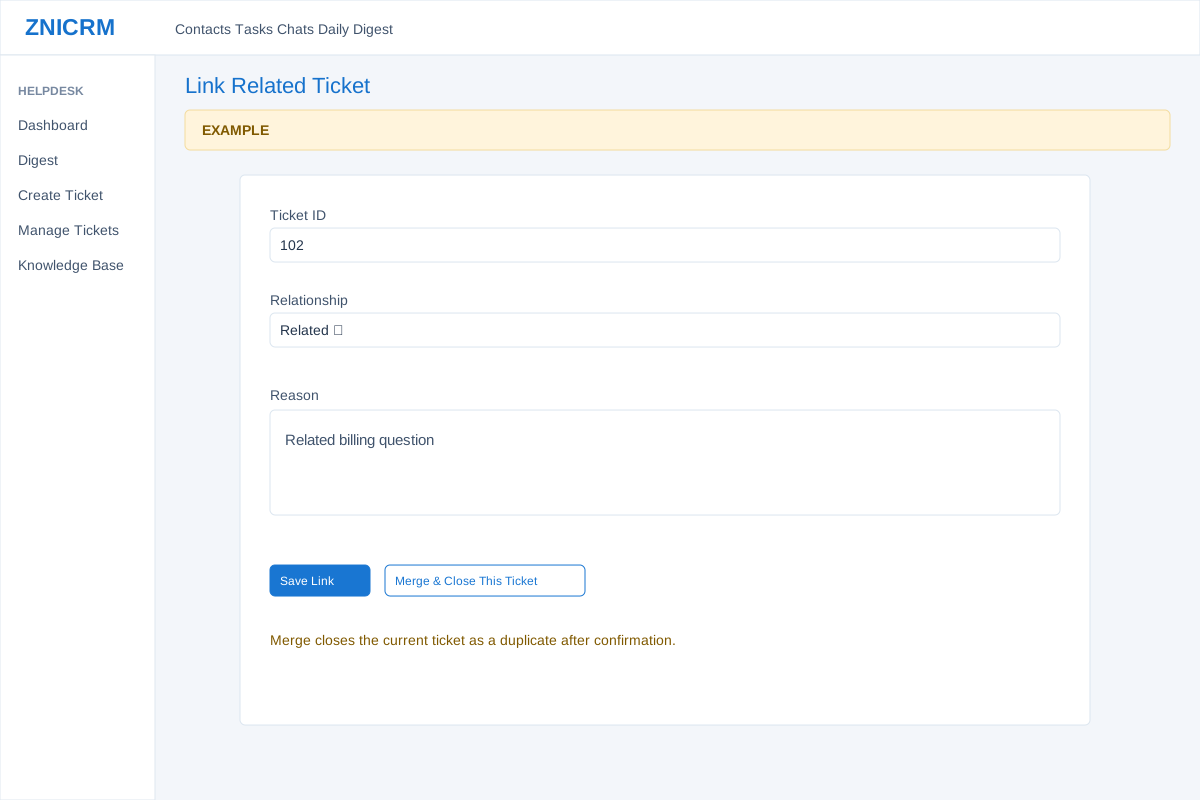
- Choose Link/Merge. Enter the target Ticket ID, Relationship (Related, Duplicate, Parent, Child or Merged Into) and optional Reason. Save Link creates a relationship without choosing the merge action. Related Tickets in History & links shows linked records and may offer Unlink.
- Merge & Close This Ticket is a separate action. Its confirmation says the current ticket is linked into the target and closed as a duplicate. Verify which ticket is current and which is the target before confirming. Both tickets must be accessible and belong to the company; a ticket cannot link to itself. An approval-required ticket cannot be merged directly. The link is written before closure, so if closure fails inspect both records and the relationship before retrying.
Split or clone
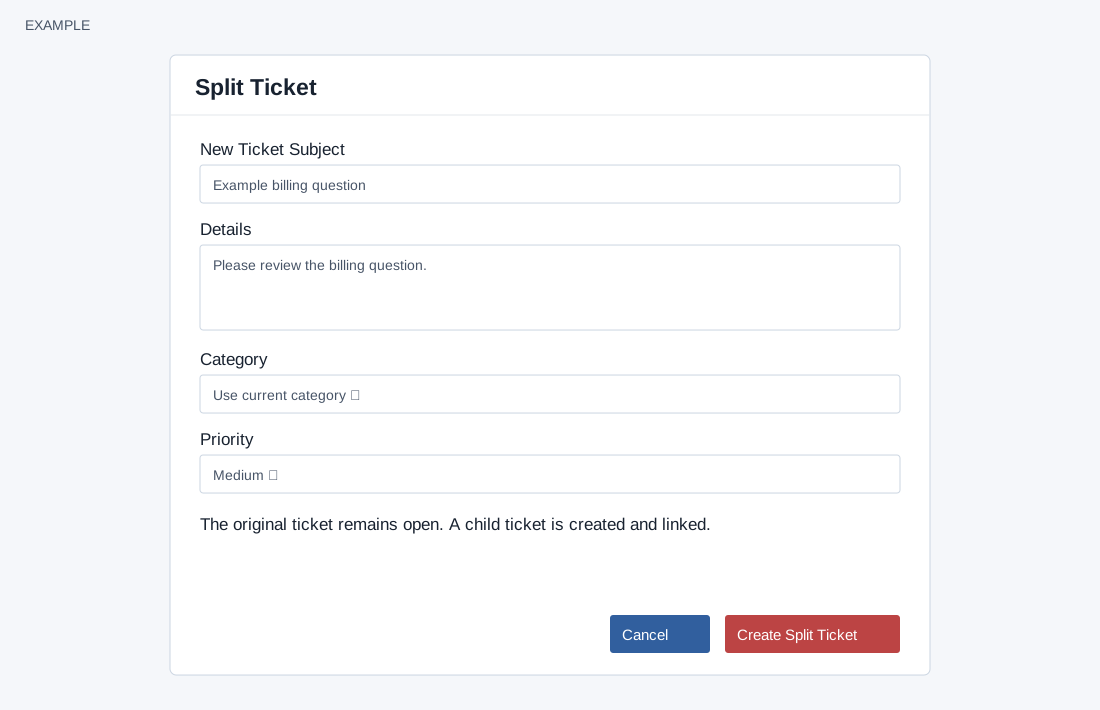
- Choose Split and enter New Ticket Subject and Details, then choose Category and Priority. Subject is limited to 120 characters and Details is sanitized to 5,000. Category can use the current category; Priority choices are Low, Medium, High, Urgent and Critical. The split operation does not change the original ticket’s status. Create Split Ticket creates a child ticket; the form requires subject and details. The new ticket starts Open, inherits contact, owner and source, and can trigger a new-ticket workflow and email attempt. It does not copy custom fields in the split path. The page opens the new ticket on success; verify its content and relationship. A new ticket can exist even if its link to the original ticket was not saved; check both records before retrying.
- Clone prompts for an optional note and creates an Open related ticket with a copied-subject prefix and copied custom fields; its initial message can attempt email delivery and the new-ticket workflow can run. The page opens the new ticket on success. These actions create or modify live records. Example: split a billing question from an access issue to track two independent requests.