Knowledge base categories and search
Find content
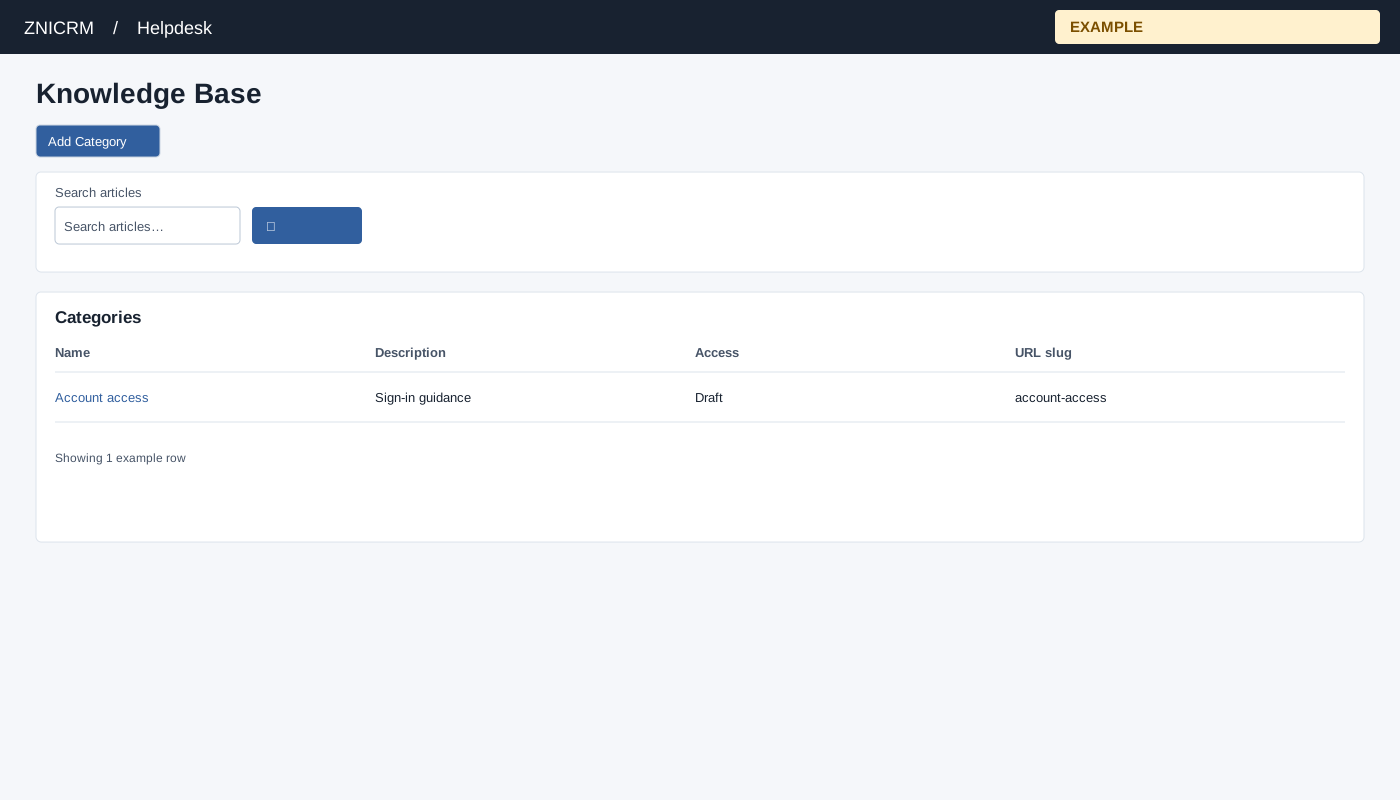
Open Helpdesk → Knowledge Base. Helpdesk access is required. The Categories table shows Name, Description, Access and URL slug; select a name to open its articles.
- Enter at least two characters in Search articles (up to 160) and choose Search. Results show the article title, category and summary; select a title to open it. Search returns up to ten results and may record a search event when analytics storage is ready.
- Choose Clear search to remove the search view and return focus to the field. If a search returns nothing, try another term or browse the category list.
Create a category
An ADMIN sees Add Category. Select it, enter a nonempty Name and Description, and choose Public, Private or Draft under Access. Choose Add Category. On success the page reloads; verify the new category in the list. Close dismisses the dialog. If validation fails, complete both text fields and select an access value; an error message reports a failed save.
Public portal listings require a Public category and Public articles inside it. Private and Draft categories are excluded from that listing. A category URL slug is generated from the normalized name; an existing equivalent slug causes a duplicate-name error. Choose a genuinely distinct category name or use the existing category.
For example, create a Draft category called “Account access” to organize sign-in guidance. Check the category and article access values before making content available.