Helpdesk billable time report
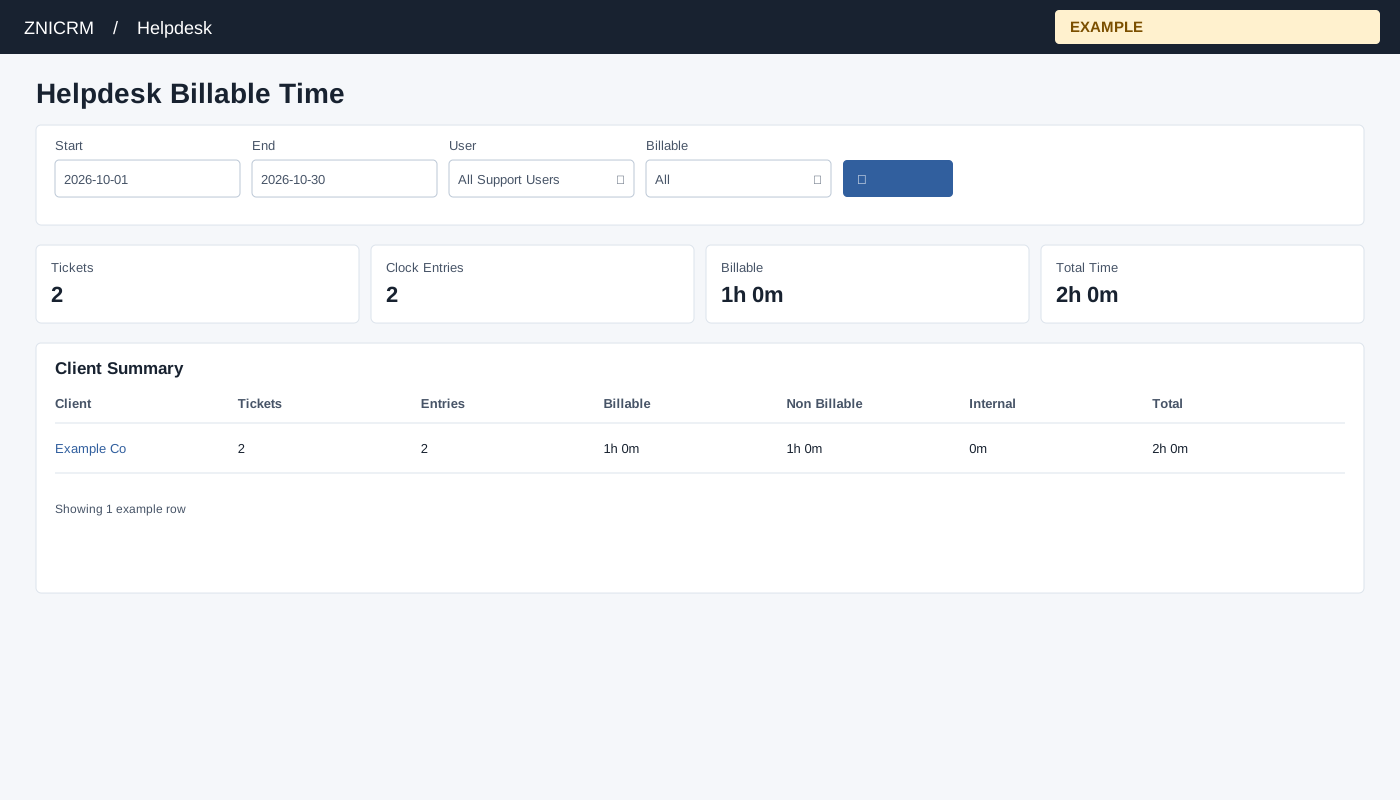
Open and filter
Open Helpdesk Billable Time from Reports. Helpdesk access, Helpdesk report scope, the billable time reports permission and the enabled ticket clock report setting are required.
Choose Start, End, User (All Support Users or a permitted user), and Billable (All, BILLABLE, NON_BILLABLE or INTERNAL), then select search. The initial range is month-to-date; the page limits End to Start plus 366 days and changes an End before Start to the Start date. Helpdesk access and report scope are required. Non-administrators are limited to their permitted support scope; an administrator can review broader scope. If access is denied, ask an administrator to review access and support membership.
Drill into work
Client Summary columns are Client, Tickets, Entries, Billable, Non Billable, Internal and Total. Select a client to show Ticket Breakdown: Ticket, Category, Agent, Entries, Billable, Non Billable, Internal, Total and Last Entry. Select a ticket subject to show entries: Agent, Started, Ended, Duration, Billable, Source and Work Note. The ticket number opens the ticket workspace and records viewing activity. All Clients clears the client selection while retaining filters.
Example and verification
Select a month and BILLABLE, then open Example Co and a ticket subject. Compare the client and ticket breakdown with recorded entries; the entry detail is not passed the report date range or selected User, although it still applies the permitted-user scope and Billable filter. Inspect each entry’s date and agent before reconciling totals. Client and ticket totals count completed sessions by their start date; active sessions are excluded.