Facebook Lead and Form Detail
Inspect attribution, CRM ownership and conversion evidence for individual leads.
Controls depend on your account and permissions.
Open and prepare
- Facebook Reporting → Lead and Form Detail
- Reporting visibility and filters depend on accessible accounts and owners.
Filter and inspect
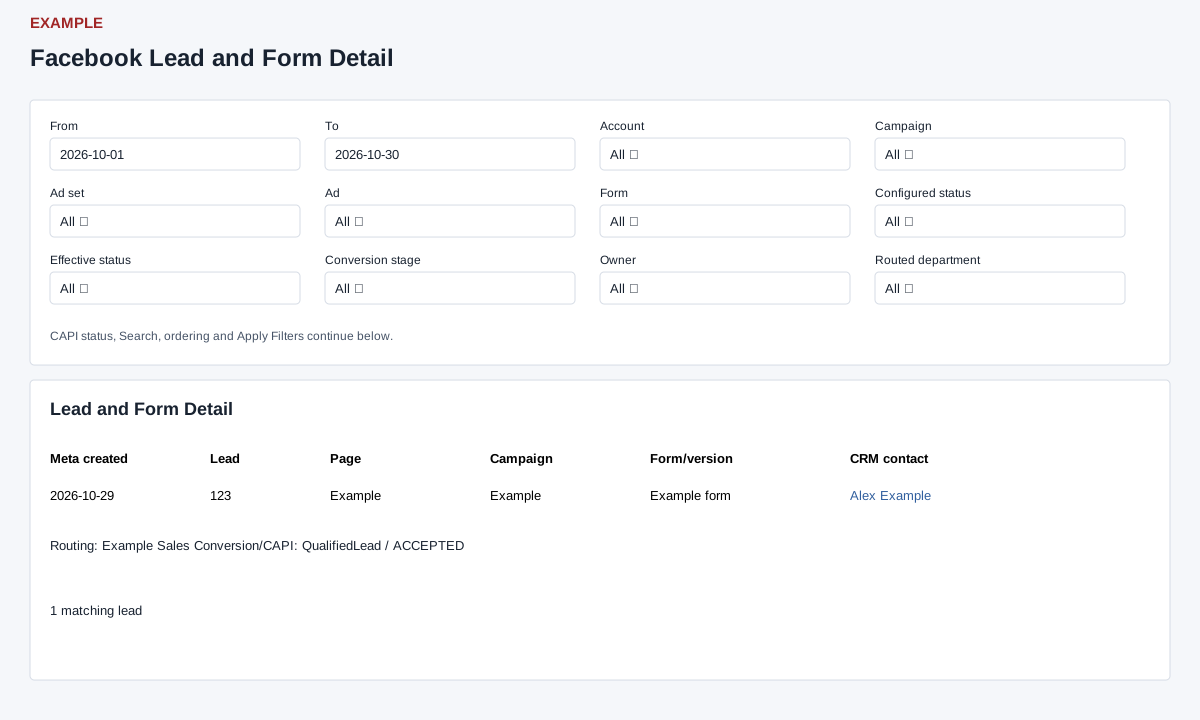
- Set From and To, then narrow by Account, Campaign, Ad set, Ad, Form, configured or effective status, Conversion stage, Owner, Routed department, CAPI status or Search. Choose an order and direction, then Apply Filters.
- Review Meta created time, Lead, Page, Campaign, Ad set, Ad, Form/version, CRM contact, Owner/status, Routing and Conversion/CAPI. The contact link opens the CRM conversation when a contact is linked; unlinked leads can appear when scope allows. Form/version includes the definition at lead time and current definition, when available; Routing shows route, rule, department and fallback details. Conversion/CAPI shows the latest event and status, not a complete event history.
Dates, paging and evidence
The date filter uses Meta lead creation time, falling back to webhook receipt; end date is inclusive. Search matches lead and advertising identifiers, object names or contact name. Order by offers Meta creation time or Campaign name, ascending or descending. Results show 100 per page by default with Previous and Next. Export CSV uses the applied filters, up to 5,000 rows and a 93-day span; narrow the range if it is rejected or may be truncated. Date ranges longer than 366 days are narrowed. If a lead is missing, check viewer/owner scope, date, synchronized objects and filters; use CAPI events for individual delivery status.