Facebook marketing assets and sync
Choose ad accounts, reporting features and synchronization settings.
Controls depend on your account and permissions.
Open and prepare
- Facebook Integration → Manage assets and sync
- Version 1 integration and authorized company administrator access are required for this operations area.
Select ad accounts
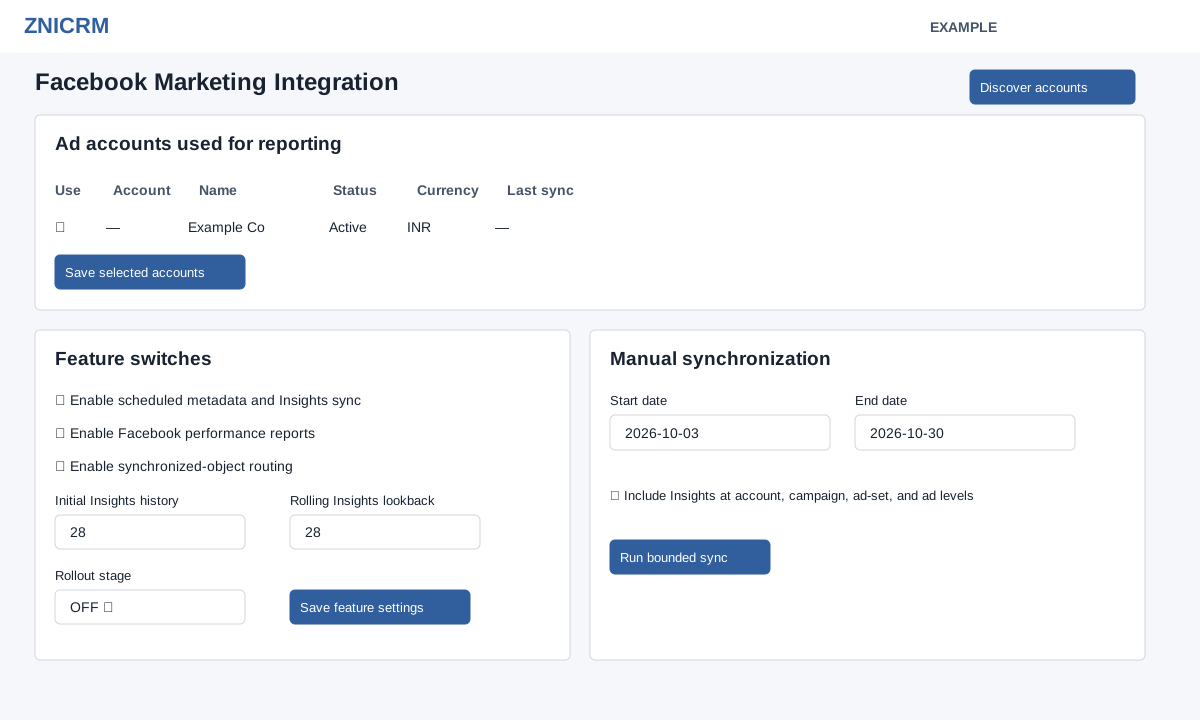
- Review Mode, Token, Graph API version, Last validated, Granted scopes and Missing required scopes in Connection and safe rollout. Select Discover accounts or Discover authorized ad accounts and review account ID, name, status, currency and last sync. Select the accounts intended for reporting and choose Save selected accounts. Discovery refreshes authorized account metadata and does not enable scheduled sync, reports, routing or CAPI. Saving the checked accounts selects them for synchronization.
Set up synchronization
- Under Feature switches, choose scheduled metadata and Insights sync, Facebook performance reports and synchronized-object routing as appropriate. Set Initial Insights history (1–366 days), Rolling Insights lookback (28–93 days) and Rollout stage (OFF, INTERNAL, CANARY, OPT_IN or GENERAL), then Save feature settings. To enable any switch, you need Marketing authorization, at least one selected account and a successful manual full synchronization; synchronized-object routing additionally requires Lead Routing access. Enabling a switch while OFF changes the stage to INTERNAL; disabling all switches sets it to OFF. Availability depends on the account and rollout.
- For an on-demand run, enter Start date and End date, decide whether to include Insights at account, campaign, ad-set and ad levels, and choose Run bounded sync. This starts a real synchronization; dates must be valid, not in the future, and the maximum range is 366 days. The page defaults to the last 28 days and Include Insights is checked. Review the returned result and Recent synchronization runs. A FULL run with MANUAL or REVIEW trigger and SUCCEEDED status is required before enabling switches. A run status describes that run; it does not by itself prove future scheduled jobs are running. Check Diagnostics and the deployment’s scheduler if later expected runs are absent.
Rollout and history reference
| Setting | Effect on reporting and routing |
|---|---|
| Rollout stage: OFF | Reporting, synchronized-object routing and scheduled-worker tenant selection require a non-OFF stage in addition to their respective switch and other permissions. Saving all three switches off sets OFF. Saving any switch on while OFF changes the stage to INTERNAL. |
| INTERNAL, CANARY, OPT_IN, GENERAL | These values are saved and displayed in diagnostics. Reporting and routing distinguish OFF from enabled values; these four values do not assign users to cohorts. Do not assume a stage alone limits who sees or uses a feature. |
| Initial Insights history | Saved as 1–366 days, default 28. Manual sync uses its selected Start and End dates. Do not rely on this setting to start an automatic initial backfill; select the intended dates when syncing. Setting it alone does not start a sync. |
| Rolling Insights lookback | Saved as 28–93 days, default 28. The scheduled worker uses the company value only when configured with its company-rolling-lookback option; even then it caps the value at its own configured lookback. Without that option the worker uses its own setting. |
| Manual Start / End and Include Insights | These apply to that bounded run independently of the two saved history fields. Include Insights requests the selected date range; leaving it unchecked runs without Insights. |
For example, an administrator can select an Example Co account, run a full manual sync for an explicit date range, confirm SUCCEEDED, and then save the reporting switch. Check the report permission and diagnostics after saving; the INTERNAL label itself does not create a test-user cohort. To confirm rolling coverage, inspect scheduled run dates and the scheduler configuration rather than inferring them from the saved field.
Review results
- Recent synchronization runs show type, status, times, objects, API calls, errors and last error. Use the Facebook reporting and diagnostics links for further investigation.
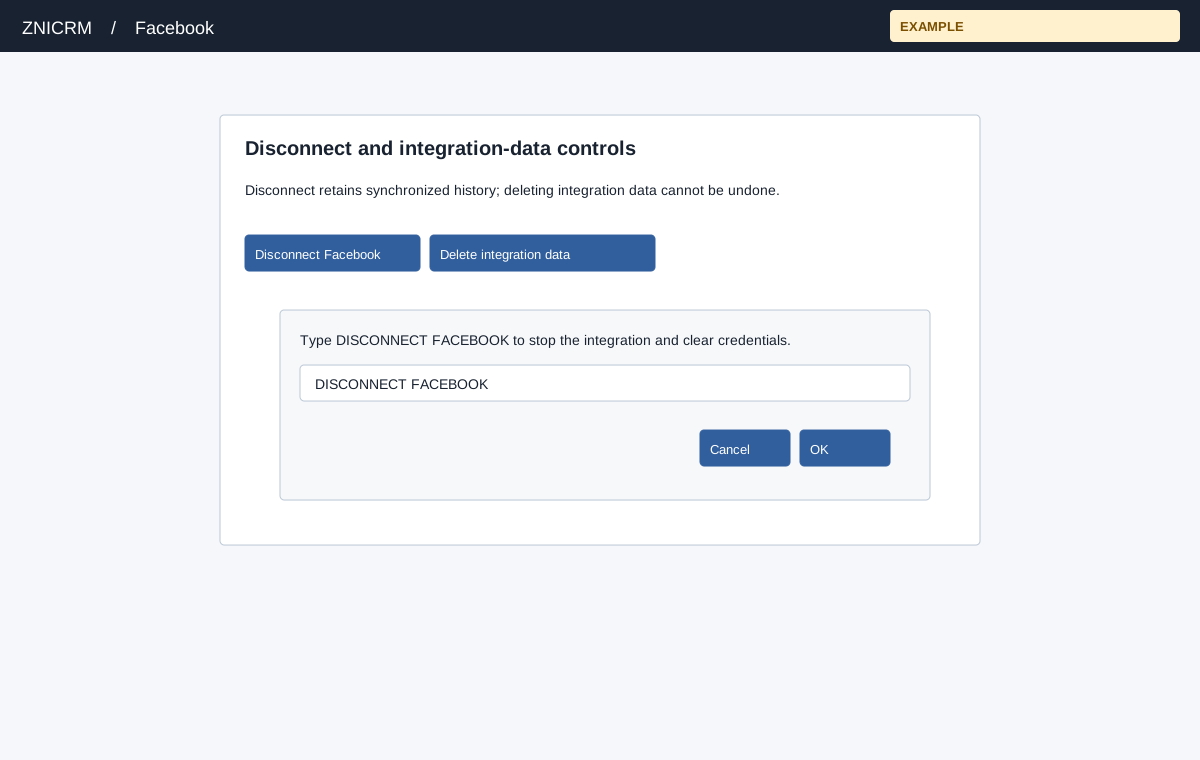
- The data controls can disconnect Facebook or delete integration data; disconnect stops Page subscriptions and clears credentials while retaining synchronized history; deletion is available after disconnect and removes integration data. Confirmation requires typing DISCONNECT FACEBOOK or DELETE FACEBOOK DATA. Review Recent data actions and the displayed result. If a request expired, refresh and retry; if sync fails, review last error and Diagnostics before another run.