Facebook Conversions API
Configure CRM-to-Meta conversion signals and review delivery status.
Open and prepare
- Facebook Integration → Configure Conversions API
- Requires appropriate administrator access and Meta authorization. Plan consent, data sharing and event mappings before activation.
Authorize and configure
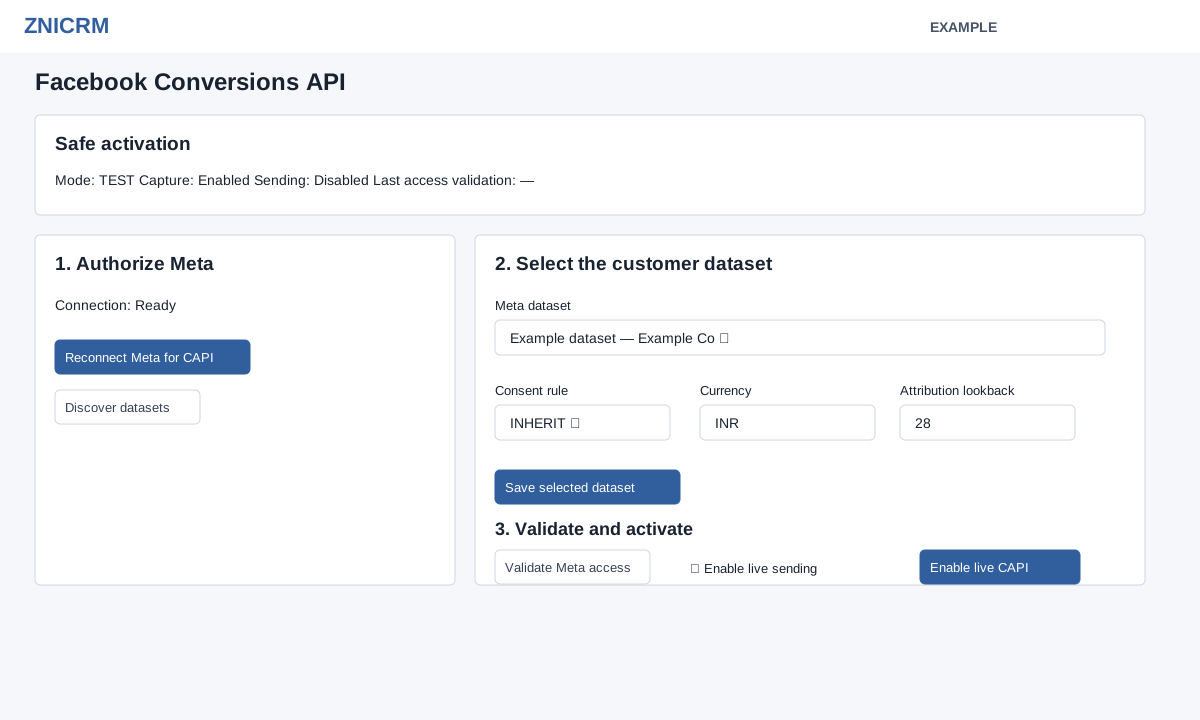
- In Authorize Meta, connect or reconnect and review missing scopes. Select Discover datasets, then choose a Meta dataset.
- Set Consent rule (INHERIT, REQUIRED or NOT_REQUIRED), three-character Currency and Attribution lookback (1–90 days), then Save selected dataset. Saving validates access and prepares recommended mappings; a new selection starts in TEST with capture enabled and sending disabled. A previously live configuration for the same dataset can remain live. The screen uses Meta authorization and says it does not ask you to paste dataset IDs, access tokens, environment-variable references or Test Events codes.
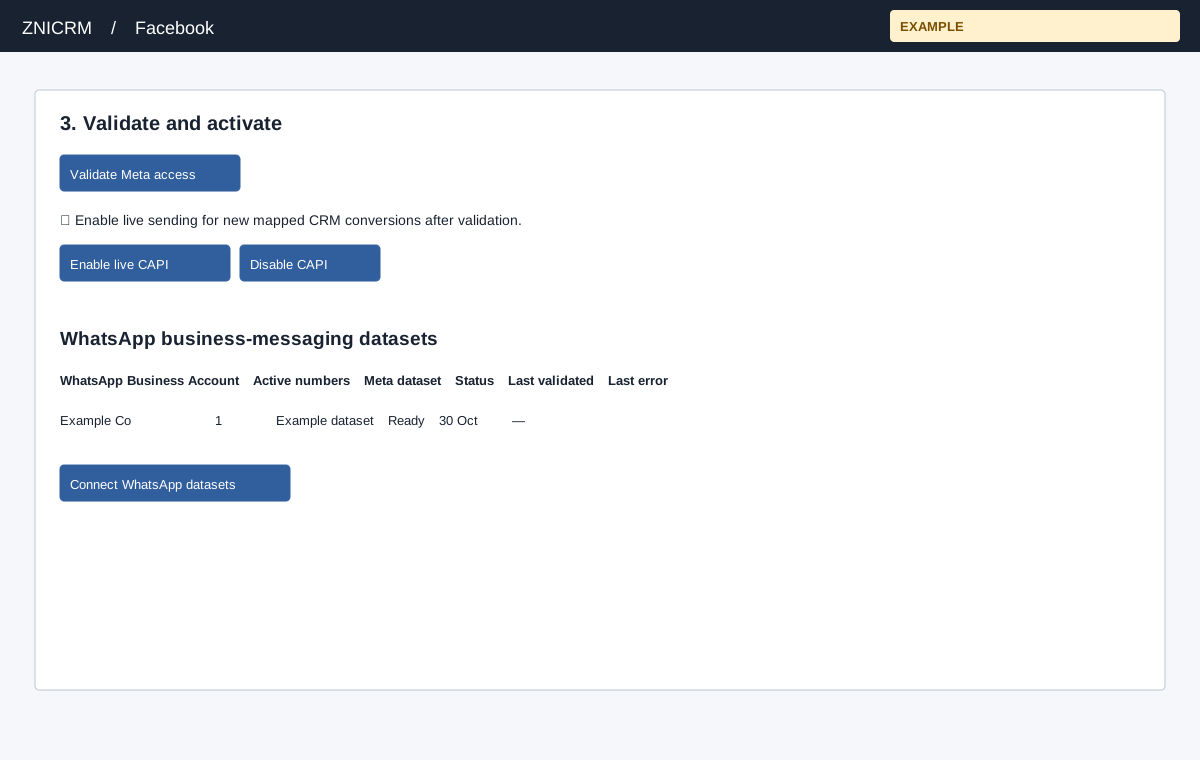
- Choose Validate Meta access. Dataset discovery can be partial; retry to check remaining accounts if needed. The attribution lookback is separate from the maximum seven-day event send-age window. For a new selection, Validate Meta access must succeed while configuration is in TEST. Check the live-sending confirmation box, choose Enable live CAPI and confirm the browser prompt; this enables capture and sending for new mapped events. Disable CAPI asks for confirmation and disables both capture and delivery. A successful configuration or validation is not proof that Meta received an individual event; inspect the event log and diagnostics.
Consent, capture and delivery
| Consent rule | Effect on captured events |
|---|---|
| INHERIT (default) | No explicit consent-flag check is applied by this capture function. The name alone does not establish that a separate company policy is inherited or that consent was granted. |
| REQUIRED | Each captured event must carry a truthy consent-granted flag. Without it, the event is recorded INELIGIBLE with CONSENT_REQUIRED and is not queued for delivery. Contact and deal transitions do not supply that flag, so do not assume those transitions will be eligible under REQUIRED. |
| NOT_REQUIRED | No explicit consent-flag check is applied by this function. Other attribution, payload, age, dataset and sending checks still apply. |
These options describe application behavior, not a determination of legal consent. Configure consent according to your organization’s policy and verify that the relevant source supplies the flag before relying on REQUIRED. Changing a setting affects newly captured events; it does not rewrite prior event snapshots.
At capture, the application first requires capture enabled, an enabled mapping and Facebook attribution within the configured 1–90-day lookback. Without these, an event may not appear in the log at all. A captured event can then be ineligible for consent, age or payload reasons, remain report-only, or be queued. A mapped event is queued only when its mapping permits sending, configuration sending is enabled, mode is TEST or LIVE and the appropriate dataset is present. TEST and LIVE are recorded on each event; enabling LIVE later does not turn old TEST events into LIVE events.
For example, if a contact changes to an eligible INPROGRESS status mapped to QualifiedLead, confirm attribution and mapping first. Under REQUIRED, a transition without an explicit consent flag is recorded CONSENT_REQUIRED; review the source and policy before expecting delivery. A blocked status or Do not send selection prevents capture for that mapping, rather than creating a queued event.
Map and inspect signals
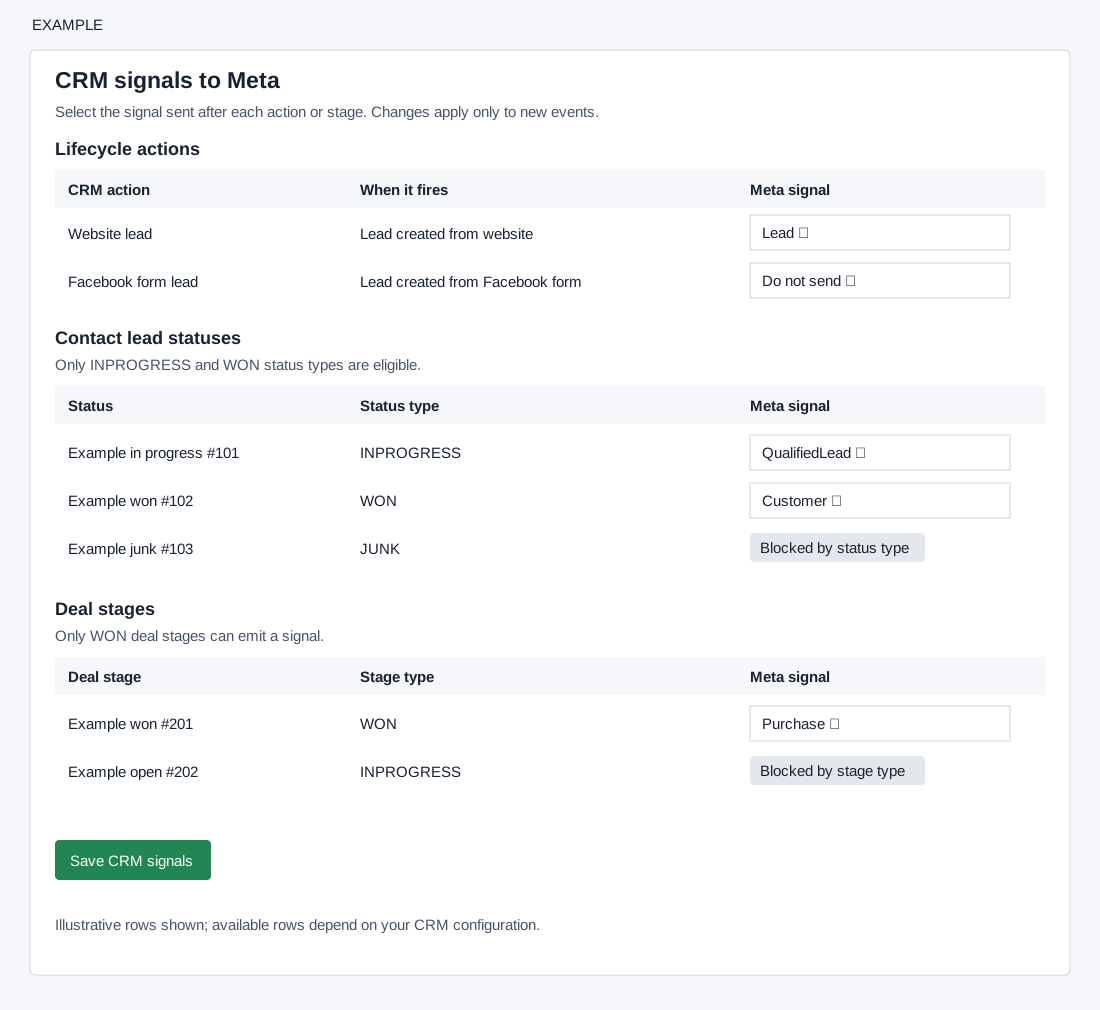
- Under CRM signals to Meta, choose a Meta signal or Do not send for each available lifecycle action, contact lead status and deal stage; choose Save CRM signals. Lifecycle options are website lead → Lead, Facebook form lead → Lead (disabled by default), first attributed click-to-WhatsApp message → LeadSubmitted, first inbound WhatsApp reply → Contact, and meeting scheduled → Schedule. Eligible INPROGRESS contact statuses offer Contact, QualifiedLead or Schedule; WON contact statuses offer Customer. Only WON deal stages offer Purchase or Customer. Ineligible types are blocked. Purchase uses stored deal value and configured currency. Changes apply to new events and do not rewrite event history.
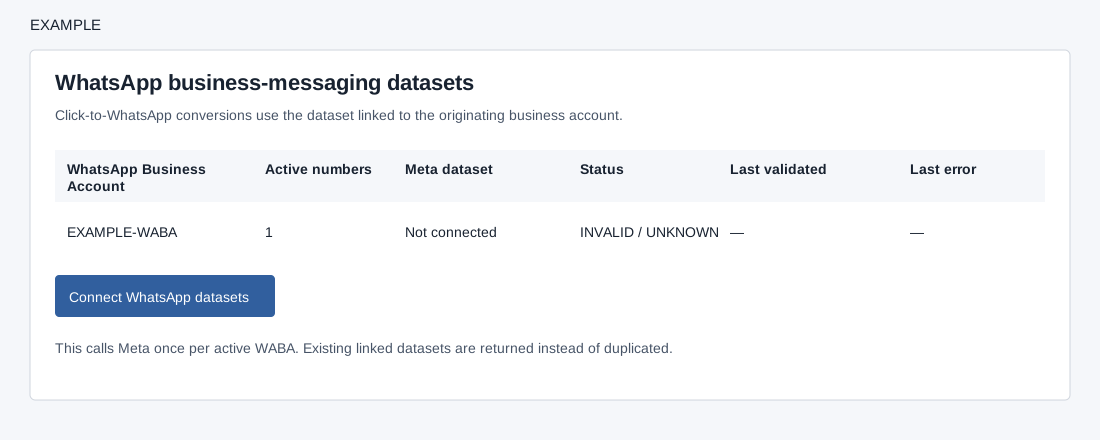
- The WhatsApp business-messaging datasets section lists business accounts, active numbers, datasets, status and errors; Connect WhatsApp datasets requires WhatsApp integration access and an active business account, asks for confirmation, and retrieves or creates a dataset per active account. Existing linked datasets are reused. Review its scope before use.
Signal mapping reference
| Control/state | Effect |
|---|---|
| Do not send | Disables capture and sending for that row. A later matching action or stage is not captured by that mapping. |
| Selected permitted signal | Enables capture and sending for the mapping; the global mode, sending switch, attribution and eligibility still decide whether an event is queued. |
| Blocked by status or stage type | No signal selector; an old mapping for an ineligible type is not used for capture. |
| Purchase on a WON deal | Includes the saved deal value and configured currency. Business-messaging Purchase validation requires a numeric value and a three-letter currency. |
Save CRM signals persists the selection for future events. Verify the chosen row after saving, then use the event log to distinguish missing attribution, ineligible capture and delivery outcomes; changing a mapping does not replay old transitions.
Review delivery
- Read the last-30-days queue-status table and recent immutable conversion events, including eligibility, status, attempts and last error. The control center shows the latest 20 events; the separate log loads 100 at a time. Scheduled workers handle delivery and stale locks; these screens do not expose a per-event retry button. Open View all conversion events for the full log; use reporting diagnostics when needed.