Engage widget settings
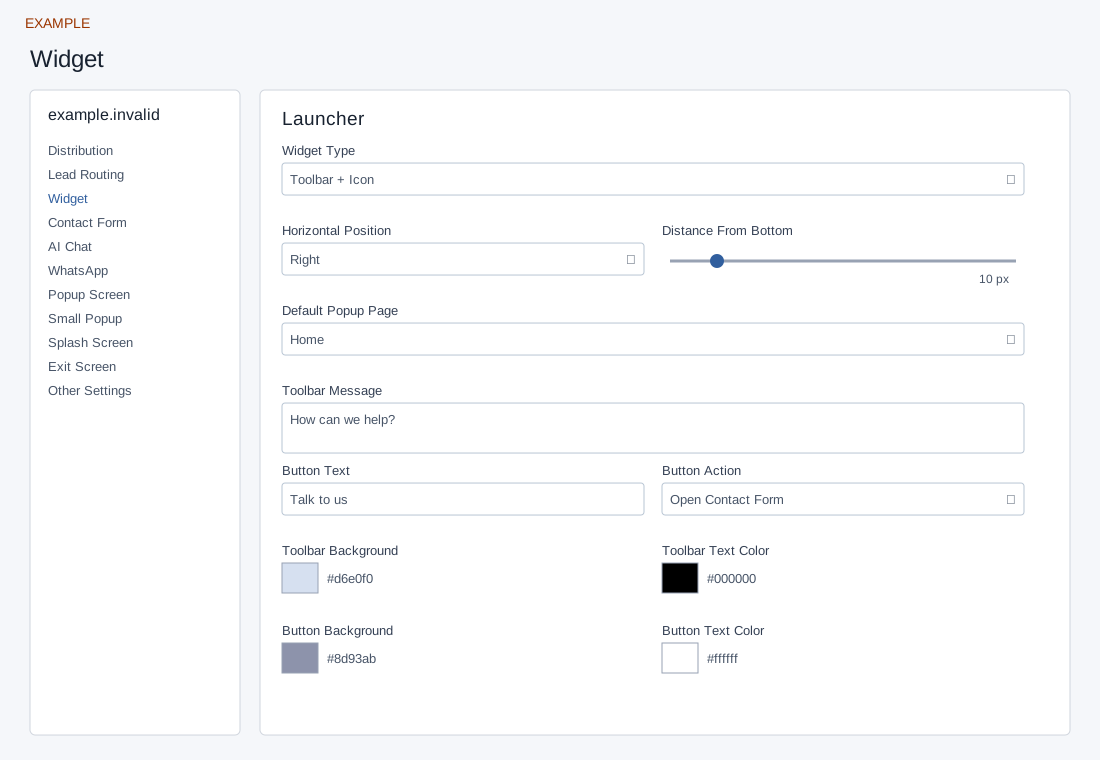
Open the page
Engage → website → Manage Settings → Widget. Administrator access is required.
Choose launcher behavior
- Under Launcher, choose Widget Type: Toolbar + Icon or Icon Only; choose Horizontal Position Left or Right, Distance From Bottom (10–100 px), and Default Popup Page Home, Chat, Contact or Support.
- With Icon Only, enable Small Help Bubble if desired and enter its message (up to 90 characters). With Toolbar + Icon, enter Toolbar Message (required, up to 120 characters), Button Text (up to 20) and Button Action: Forward To URL, Open Engage Popup or Open Contact Form. Provide an HTTPS Forward URL when selected.
Set colors and verify
- Set Toolbar Background, Toolbar Text Color, Button Background and Button Text Color with readable contrast. Example: a service website uses a right-side launcher and Open Contact Form.
- Controls save automatically; text saves when you leave the field, while selectors and switches save on change. Check the save status and use Retry saving if a field is not saved. Verify the public page after an authorized change.
Conditional controls and defaults
For Icon Only, Small Help Bubble appears; when enabled its Help Bubble Message must be 15–90 characters. For Toolbar + Icon, Toolbar Message is required and at most 120 characters, Button Text at most 20, and Button Action selects Forward To URL, Open Engage Popup or Open Contact Form. Forward URL appears only for forwarding; clearing it resets the stored action to Open Engage Popup. Use a complete HTTPS destination and confirm the saved action after changing the URL. The widget can fall back to Open Engage Popup even when a different action was selected; check the public widget after saving. Check the deployed button behavior after selecting Contact or Popup.
Toolbar color defaults are background #d6e0f0, text #000000, button background #8d93ab and button text #ffffff. Use the color picker and its Save control. Distance From Bottom ranges 10–100 px; invalid submitted input is normalized to 10. When no value is stored, the widget falls back to 5 px; its other empty-value fallbacks include Icon Only and Right. Example: choose a right-side toolbar and Open Contact Form, save its message, and verify the actual installed site. If the bubble or toolbar controls disappear, check Widget Type and the dependent switch.
Saving: text, URL, number and textarea fields save when you leave the field; selectors, switches and ranges save on change. Gallery selection and color picker Save also save the chosen value. Each field is separate, so a later failure does not undo earlier saves. Wait for saving to finish; if an error appears, entries remain in the form and Retry saving retries failed fields. Leaving with unsaved or failed changes prompts a warning. Reopen the same site and check the saved value before testing the installed widget.