Engage WhatsApp action
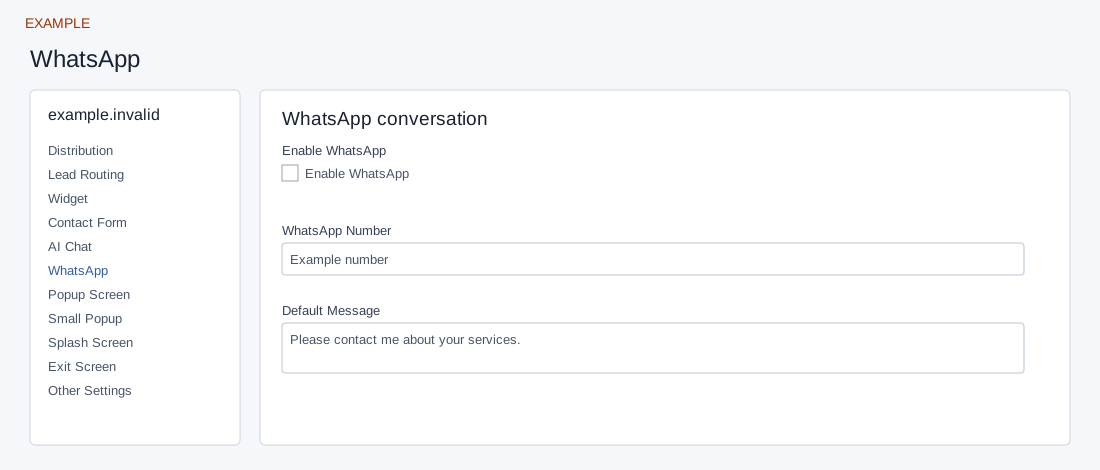
Open the page
Engage → website → WhatsApp. Administrator access is required.
Configure the visitor action
- Enter WhatsApp Number with country code as 9–15 digits without plus, spaces or dashes, and enter a Default Message of up to 90 characters. Save the number before enabling Enable WhatsApp.
- Controls save automatically; text saves when you leave the field, while selectors and switches save on change. Enter your authorized business number when configuring the prompt. Verify the action opens the intended conversation.
Number and visitor message
Enter the authorized WhatsApp Number with country code, 9–15 digits, and Default Message (up to 90 characters); leave each field to save it before enabling the separate switch. Non-digits are removed before the minimum length is checked. The action opens a visitor WhatsApp conversation with a prefilled message; it is not a CRM template send. For Example Co, use a message such as “Please contact me about your services.” Verify the selected site opens the intended business conversation without sending a real message. If saving fails, check number length and retry.
Saving: text, URL, number and textarea fields save when you leave the field; selectors, switches and ranges save on change. Gallery selection and color picker Save also save the chosen value. Each field is separate, so a later failure does not undo earlier saves. Wait for saving to finish; if an error appears, entries remain in the form and Retry saving retries failed fields. Leaving with unsaved or failed changes prompts a warning. Reopen the same site and check the saved value before testing the installed widget.