Engage splash screen
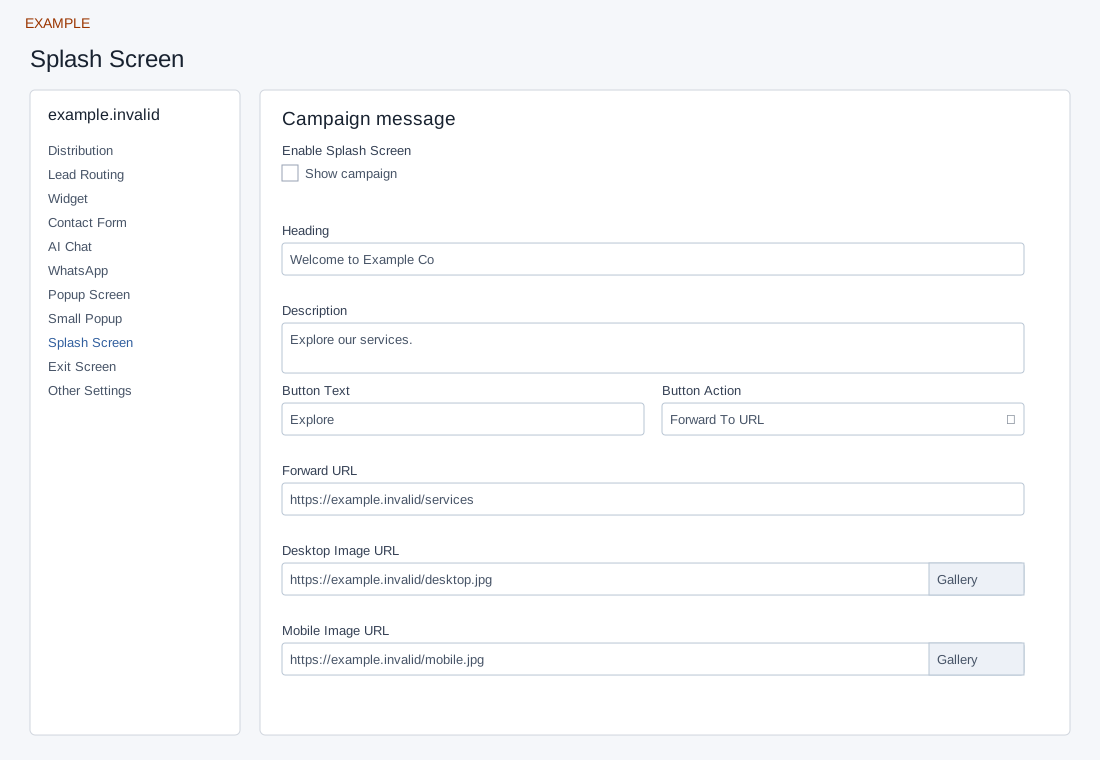
Open the page
Engage → website → Splash Screen. Administrator access is required.
Configure the campaign
- Enable Splash Screen for first-time visitors. Enter Heading (up to 90 characters), Description (up to 160) and Button Text (up to 45).
- Choose Button Action: Forward To URL or Open Contact Form. Provide an HTTPS Forward URL when forwarding. Add separate Desktop Image URL and Mobile Image URL or choose assets from Gallery.
- Controls save automatically; text saves when you leave the field, while selectors and switches save on change. Review the result on desktop and mobile after an authorized change.
Action and images
Enable Splash Screen, Heading, Description and Button Text save separately. Button Action offers Forward To URL or Open Contact Form; Forward URL appears for the first choice. Desktop Image URL and Mobile Image URL accept a public image URL or Gallery selection. In the public splash screen, the forwarding link uses the Exit Screen button text rather than Splash Button Text; the contact-form button uses Splash Button Text. It shows heading and description only when both are nonempty. Verify the deployed result before relying on those labels. Gallery selection saves that field; closing the gallery returns focus. For Example Co, select a contact form action and two approved images, then verify the installed campaign on desktop and mobile. If images or the action are missing, check each field’s save result and public asset availability.
Saving: text, URL, number and textarea fields save when you leave the field; selectors, switches and ranges save on change. Gallery selection and color picker Save also save the chosen value. Each field is separate, so a later failure does not undo earlier saves. Wait for saving to finish; if an error appears, entries remain in the form and Retry saving retries failed fields. Leaving with unsaved or failed changes prompts a warning. Reopen the same site and check the saved value before testing the installed widget.