Engage small popup
Open the page
Engage → website → Small Popup. Administrator access is required.
Set content and timing
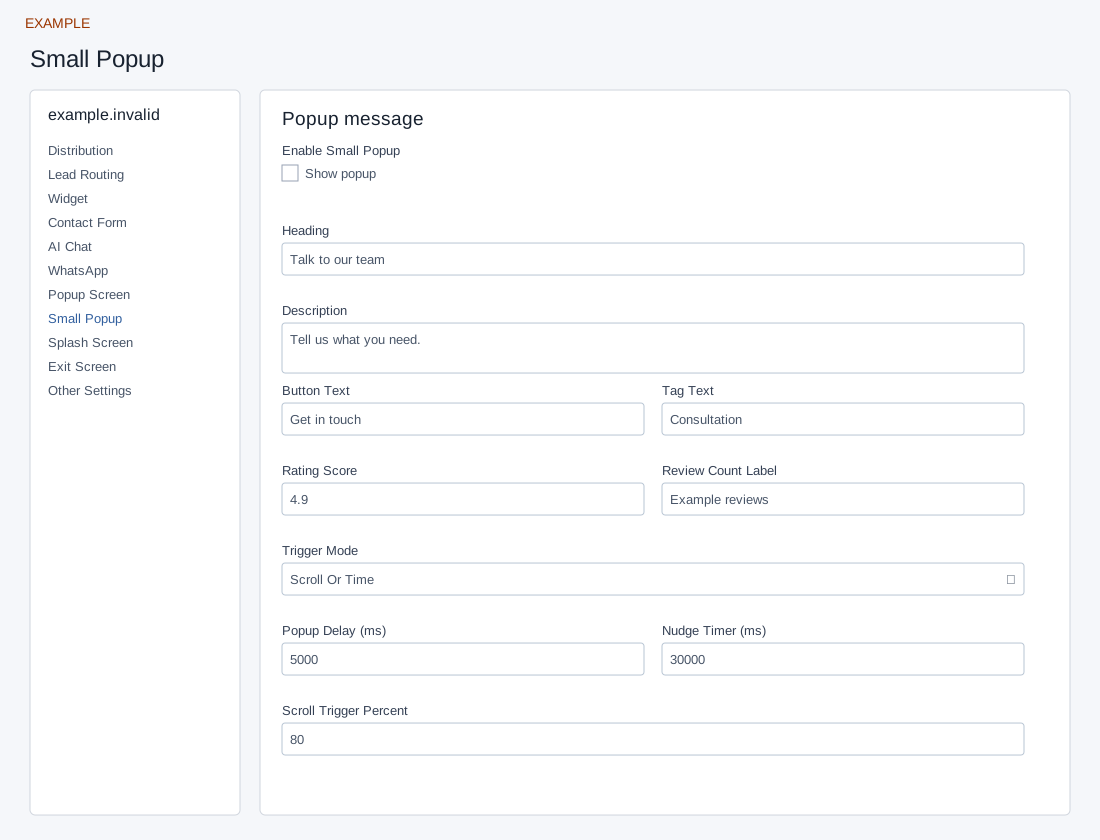
- Enable Small Popup and enter Heading (up to 120), Description (up to 255), Button Text and Tag Text (up to 45 each). Rating Score and Review Count Label should reflect actual reviews.
- Choose Trigger Mode: Time, Scroll or Scroll Or Time. Set Popup Delay and Nudge Timer in milliseconds, and Scroll Trigger Percent from 1 to 100; the public widget clamps 100 to 99. For example, 5,000 ms means five seconds.
- Controls save automatically; text saves when you leave the field, while selectors and switches save on change. Verify timing and the linked contact experience on the intended website after an authorized change.
Content, social proof and timing
Enable Small Popup is separate from Heading (120 characters), Description (255), Button Text and Tag Text (45 each). Rating Score is text up to 10 characters and Review Count Label is text up to 45; use actual evidence for published claims. Trigger Mode offers Time, Scroll or Scroll Or Time. Popup Delay and Nudge Timer are non-negative milliseconds; Scroll Trigger Percent is 1–100. An invalid percentage is changed to 80. Placeholder examples such as 5000 are not proof of saved defaults. The dashboard uses 25,000 ms and 15,000 ms when stored values are empty or zero. Some Engage versions use different defaults: it preserves numeric zero, defaults missing delay to 5,000 ms and nudge to 30,000 ms, defaults an empty trigger to Time, and clamps scroll percentage to 1–99. Its side-popup runtime treats zero nudge as disabling the repeat animation. Behavior varies with the installed Engage version; check the popup on your site. The public popup can also show sample social-proof text when empty; replace it with accurate evidence before enabling a published popup.
Example: choose Time and 5000 ms for a five-second invitation, save each field and verify on the authorized site. If saving reports missing Small Popup storage, ask your administrator for help before retrying.
Saving: text, URL, number and textarea fields save when you leave the field; selectors, switches and ranges save on change. Gallery selection and color picker Save also save the chosen value. Each field is separate, so a later failure does not undo earlier saves. Wait for saving to finish; if an error appears, entries remain in the form and Retry saving retries failed fields. Leaving with unsaved or failed changes prompts a warning. Reopen the same site and check the saved value before testing the installed widget.