Engage lead routing
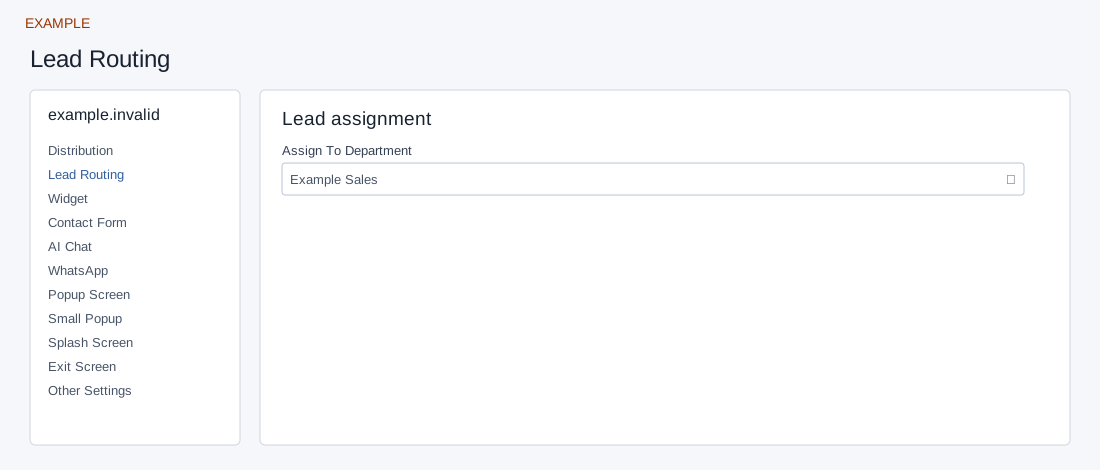
Open the page
Engage → website → Lead Routing. Administrator access is required.
Choose a team
- Under Lead assignment, select Assign To Department. Any Department leaves routing unrestricted by department; choose a named department to direct website leads to that team.
- Controls save automatically; text saves when you leave the field, while selectors and switches save on change. Check the save status. Example: assign a service site to Example Sales and verify with an authorized sample enquiry.
Assignment and verification
Assign To Department lists Any Department and company departments. Selecting a value saves on change. The screen describes routing new Engage leads; existing contacts are not changed by saving this setting itself. For example, select Example Sales, wait for the saved result, then have an authorized tester submit the linked form and verify the resulting owner and department. If routing differs, inspect the selected site, department and broader lead assignment configuration.
Saving: text, URL, number and textarea fields save when you leave the field; selectors, switches and ranges save on change. Gallery selection and color picker Save also save the chosen value. Each field is separate, so a later failure does not undo earlier saves. Wait for saving to finish; if an error appears, entries remain in the form and Retry saving retries failed fields. Leaving with unsaved or failed changes prompts a warning. Reopen the same site and check the saved value before testing the installed widget.