Engage contact form
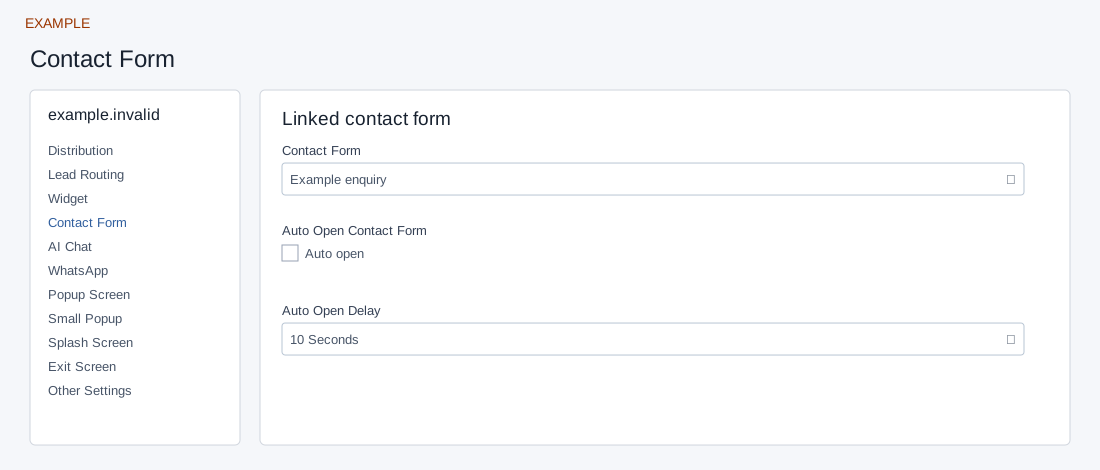
Open the page
Engage → website → Contact Form. Administrator access is required.
Link the form
- Choose an existing Contact Form from the account; create or configure forms in Contact Forms if needed.
- Optionally enable Auto Open Contact Form and select Auto Open Delay: 5, 10, 15, 20, 25, 30, 45 or 60 seconds. The screen states Small Popup takes priority when enabled.
- Controls save automatically; text saves when you leave the field, while selectors and switches save on change. Example: link an enquiry form and test its fields and routing with authorization.
Form and timing
Contact Form lists forms from this account; a selected form must be valid. Auto Open Contact Form is a separate switch, and the delay selector offers 5, 10, 15, 20, 25, 30, 45 or 60 seconds. Enabling Small Popup suppresses automatic contact-form opening. Autoload is also disabled when no form key is available. A prior completed-form cookie or an already-visible overlay can prevent automatic opening. For example, link Example enquiry, choose 10 Seconds and enable auto open; check the published site to confirm the form opens and the enquiry reaches the intended team. If the form list is empty or selection fails, create or check the account’s Contact Form.
Saving: text, URL, number and textarea fields save when you leave the field; selectors, switches and ranges save on change. Gallery selection and color picker Save also save the chosen value. Each field is separate, so a later failure does not undo earlier saves. Wait for saving to finish; if an error appears, entries remain in the form and Retry saving retries failed fields. Leaving with unsaved or failed changes prompts a warning. Reopen the same site and check the saved value before testing the installed widget.