Compose an email campaign
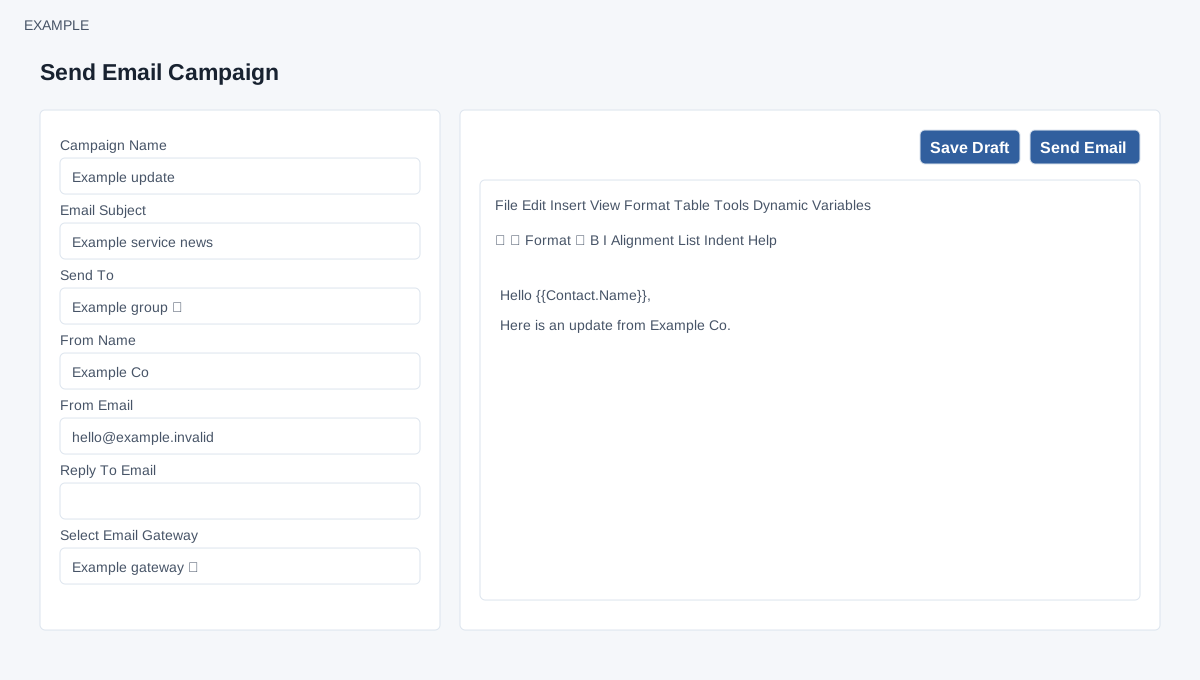
Open the page
Email → New Campaign. See the access requirements below.
Set campaign and sender
- Enter Campaign Name to identify the campaign internally and Email Subject for recipients. Under Send To, select an Email Group. The link beside the field opens group management.
- Enter From Name and From Email. The email gateway must permit the chosen sender. Reply To Email is optional; although the page says an empty value uses From Email, sending has the defect described below. Select the Email Gateway; its link opens gateway settings.
- The page states a maximum of 10,000 emails per campaign and asks users to use a paid bulk gateway instead of free or standard business email services. Check current limits and gateway policies for your account.
Write and review the message
- Write Email Message in the rich-text editor. The menus include File, Edit, Insert, View, Format, Table, Tools and Dynamic Variables. Use toolbar controls for paragraph style, bold, italic, background colour, alignment, lists, indentation and clearing formatting. Undo and redo reverse or restore edits.
- Dynamic Variables inserts Staff Name, Staff Email, Staff Phone, Contact Name, Contact Email, Contact Phone or Company Name tokens at the cursor. For example, insert Contact Name in a greeting. Preview and confirm the result and recipient data before sending; token substitution depends on available data.
- Choose Save Draft to save the campaign without scheduling it. On the composer, Send Email saves the campaign and opens a separate review page. This first action creates or updates a saved campaign even though delivery is not yet scheduled.
Validation and actual behavior
EMAIL access, allow email and bulk-email permission are required. Campaign Name, Email Subject, Send To, From Name and From Email are marked required in the form; a group, gateway, sender and subject are also required. Select an owned group and available gateway. No attachment upload, test-send or recipient-preview control is present on this composer. The rich-text Insert menu can insert content such as links and images; this is not a file attachment workflow.
Reply To Email has a limitation: the field submits a different name from the one the page reads, so an entered value is not saved by this form. The campaign does not use the saved reply-to value for queued messages. Do not rely on this control to direct replies; ask an administrator to verify the configured sender behavior. Preview shows template content rather than a recipient-specific rendered delivery.
Save Draft creates or updates the draft. The first Send Email also saves it but goes to review; the review page’s Send Email schedules delivery immediately. There is no future date selector. The campaign processes at most 10,000 matching contacts, uses the first email for each contact, skips contacts without email or with bulk email disabled, and appends a ZNICRM signature. A saved filter’s population may change before processing, so the group count is not an exact send preview. Check the saved draft before retrying an uncertain save.