Dialer telephony and Power mode
Availability depends on your account configuration and permissions.
Open the page
Dialer > Workspace > an AUTO working queue. Dialer access and the relevant action permissions are required.
Prepare a session
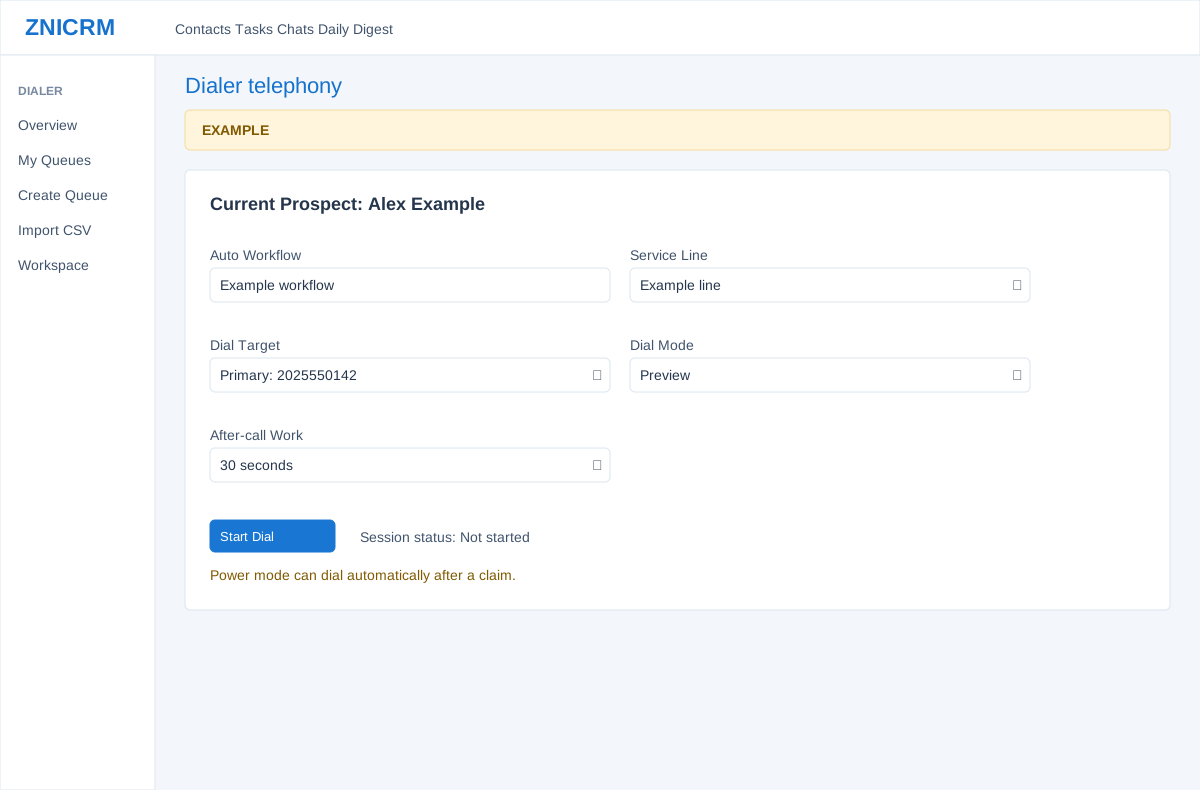
- Where available, review Auto Workflow, choose Service Line, Dial Target (primary or alternate), Dial Mode and After-call Work. Claim an item before using Start Dial. Access depends on the queue, user permissions, telephony account and configuration.
- Start Dial initiates a telephony session for the selected claimed prospect and can place a call. Verify target and line before starting. The call mode and session status determine available controls; provider behavior can differ.
Understand Power mode
- In POWER mode, a successful Claim Next can start dialing automatically. After wrap-up, the configured after-call countdown can lead to the next claim and another call. Skip and Schedule Callback Only can also lead to a next claim, so review the mode before using them.
- Example: an authorized agent works a preview queue, selects the primary number and an approved line, and starts dialing only after reviewing the prospect.
Session choices
Preview Dial starts the webhook-backed session when Start Dial is selected. Power Dial automatically starts the workflow on claims and can continue after wrap-up. After-call Work offers 15, 30, 45, 60 or 90 seconds, default 30. Dial Target offers a claimed prospect’s primary and, when present, alternate number; Service Line lists permitted telephony accounts. These controls require an AUTO queue, auto-session and outgoing telephony access and an available line. Inspect the session status and error before retrying; a request or provider timeout can leave call outcome uncertain.