My Callback Due
Open and filter
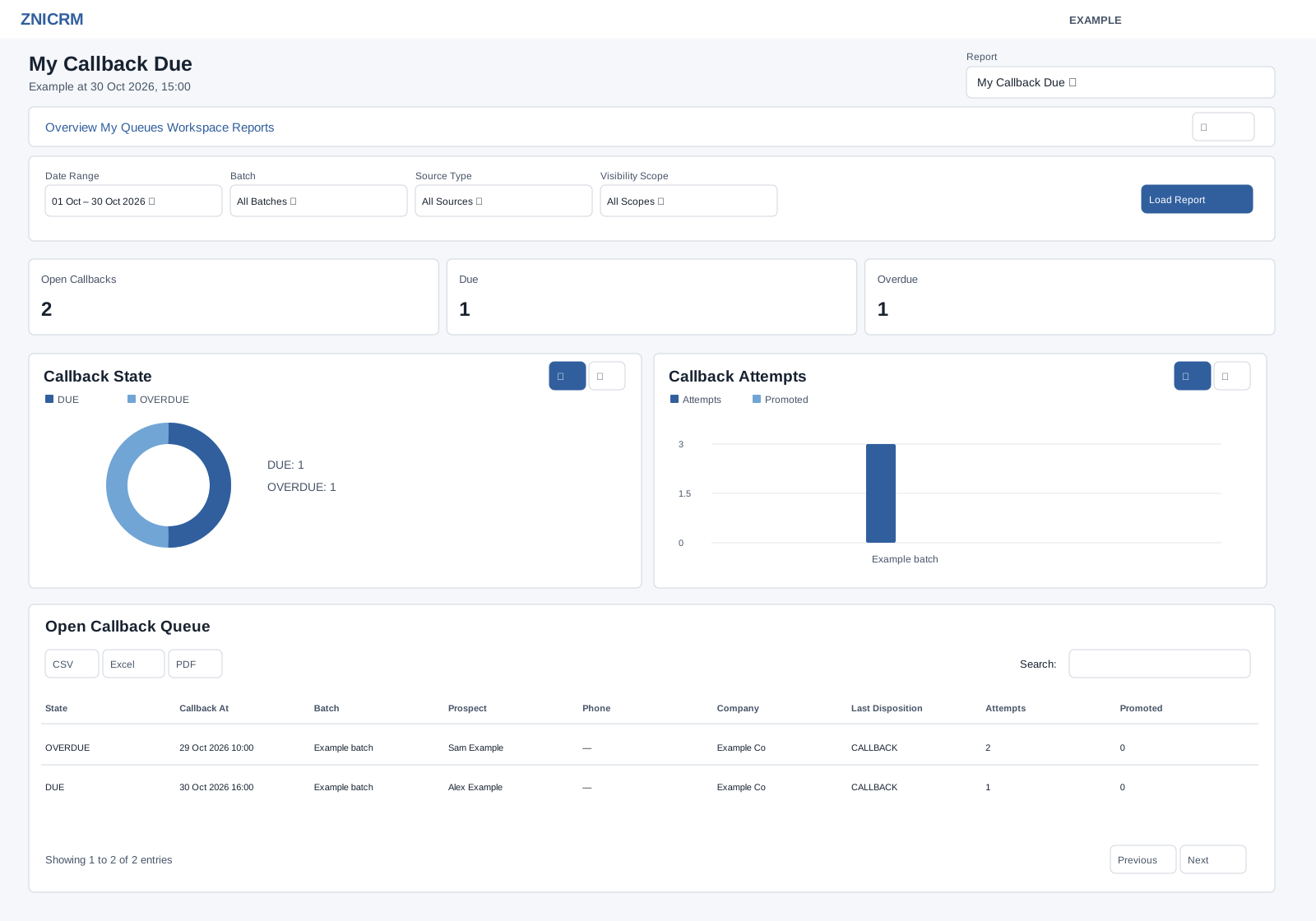
Open Dialer → Reports and choose My Callback Due in the Report selector. CRM Dialer access and the dialer reports permission are required; results include only permitted work. Choose Date Range and Batch, Source Type, Visibility Scope, then select Load Report. The initial dates are 30 days before today through today; the picker also offers Today, Yesterday, Last 7 Days, Last 30 Days, This Month and Last Month. User, department and batch choices depend on access. Source, scope and import status choices are fixed; see the filter reference.
Read the report
State, Callback At, Batch, Prospect, Phone, Company, Last Disposition, Attempts and Promoted describe each open callback. State is OVERDUE when callback time is before now, otherwise DUE; rows are ordered by callback time.
The report forces the signed-in user and filters by callback date; it includes CALLBACK items attributed to your last action. Cards show Open Callbacks, Due and Overdue. DUE does not necessarily mean the callback time has arrived.
The table supports search, sorting and pagination (100 rows per page), plus CSV, Excel and PDF exports after the report enhancement loads. Export only where authorized. Rows in the shared table are text, not drill-down links; use the dialer workspace for queue or prospect work. Changing Report opens the chosen report without retaining the current filters.
Use the charts
Read the chart definitions for this report and use the chart type buttons to compare measures. Table search redraws linked charts across matching loaded rows; summary cards retain the full report totals. See chart, search and export procedures and all dialer filters and navigation.
Use and verify
Choose a range containing tomorrow; a callback for Example Co appears DUE even before its time arrives. Use the dialer workspace to act and refresh the report; a past callback time is marked OVERDUE.