Create or manage a dialer queue
Availability depends on your account configuration and permissions.
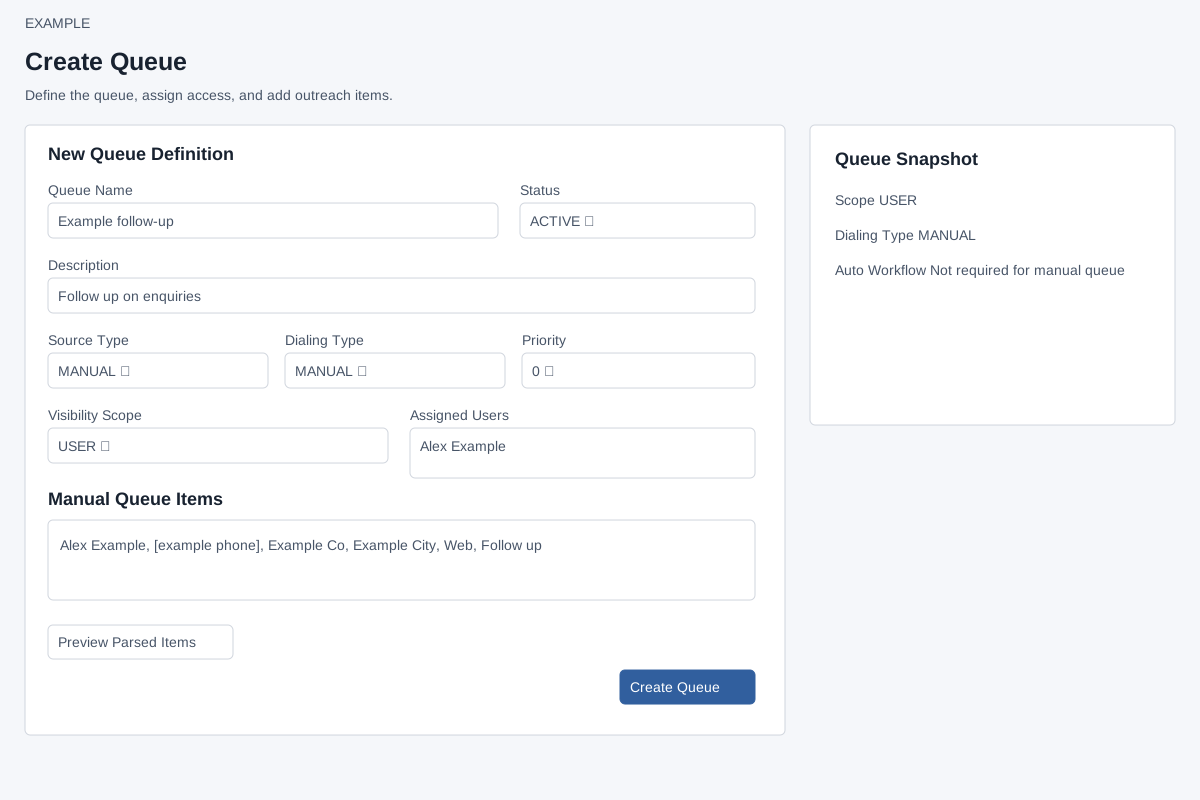
Open the page
Dialer > Create Queue, or My Queues > manage a queue. Dialer access and the relevant action permissions are required.
Define the queue
- Enter Queue Name and Description; choose Status, Source Type, Dialing Type, Priority (0 through 9) and Visibility Scope. USER and DEPARTMENT scopes expose corresponding assignment selectors; choose authorized users or departments.
- MANUAL dialing is available by default. AUTO may require the Start Auto Dialer Sessions permission and an active Dialer Call Placed workflow containing a WEBHOOK action; select the Auto Workflow when shown. Availability varies by account.
Add or preview the audience
- For MANUAL source, enter one line per item as name, phone, company, city, source, remarks; only phone is mandatory. Select Preview Parsed Items to review the parsed values. Example: Alex Example, 2025550142, Example Co., Example City, Web, Requested a callback.
- For a FILTER source, start this flow from CRM Reporting Filters. Review preview, callable and missing-phone counts. Creating freezes the current callable filter results as queue items; later CRM changes do not automatically rewrite membership. Use Import CSV for a file-based queue.
- Review Queue Snapshot and Existing Items. When managing an existing manual queue, newly entered lines are appended on save while existing items stay untouched. Select Create Queue or Save Queue to save changes.
Queue fields and saving
| Control | Meaning |
|---|---|
| Status | ACTIVE, DRAFT, PAUSED, COMPLETED or ARCHIVED describes queue lifecycle; choose the intended state before assigning work. |
| Source Type | MANUAL parses entered lines; FILTER uses the selected CRM filter snapshot; IMPORT is managed through the CSV flow. Source may be locked on an existing or filter-origin queue. |
| Dialing Type | MANUAL does not require an auto workflow. AUTO requires auto-session permission and an eligible active Dialer Call Placed workflow; it can initiate webhook-backed calls from the workspace. |
| Priority 0–9 | Stored queue priority; claim order is based on callback maturity, item date, sequence and ID, not this value. |
| Visibility Scope | PRIVATE is creator-only; USER grants assigned users and defaults to creator if none valid; DEPARTMENT requires at least one valid permitted department; GLOBAL grants dialer users access. Assignment permissions are checked separately. |
For an existing queue Save Queue first updates the definition, then assignments, then appends manual items in separate requests. If a later step fails, earlier steps can already be saved: reopen and inspect definition, assignments and items before retrying to avoid duplicate entries. Preview Parsed Items only parses the text; it is not proof every number will be accepted. Queue creation can skip invalid, duplicate or suppressed numbers; inspect its resulting counts.