Contact timeline and conversation records
Controls and availability depend on permissions, plan and version.
Open the page
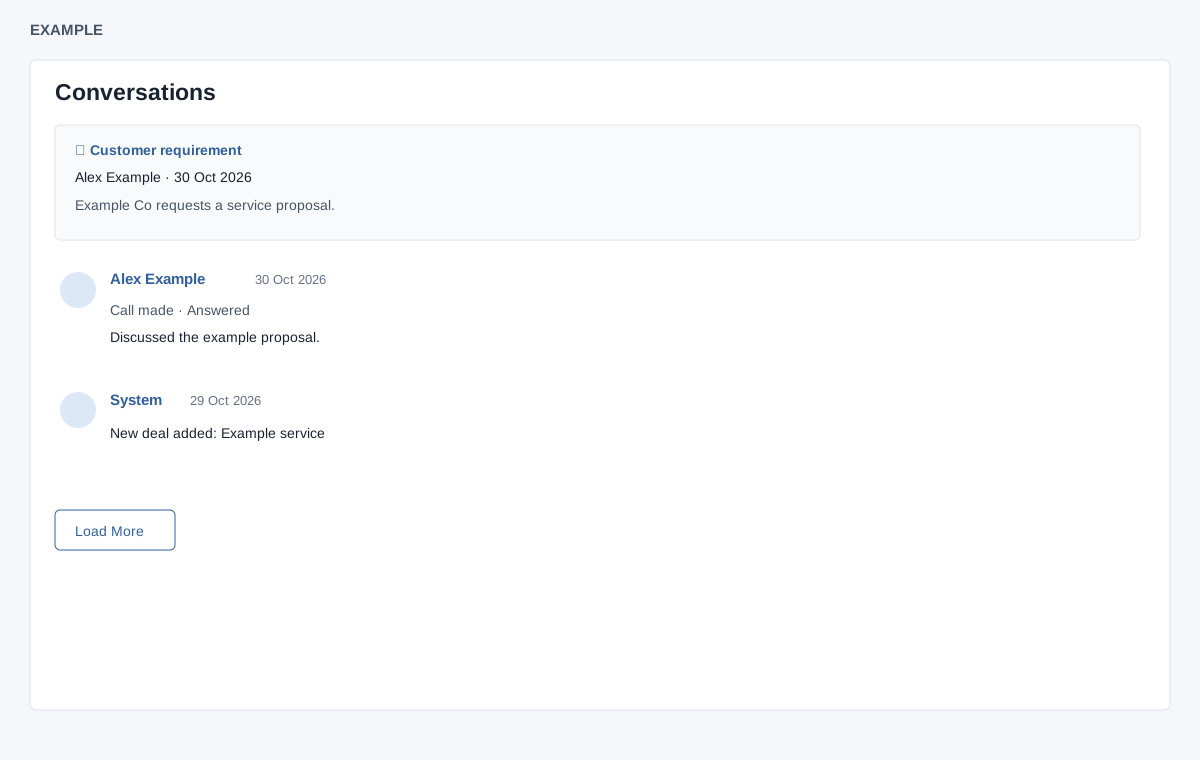
Contact conversation → Timeline
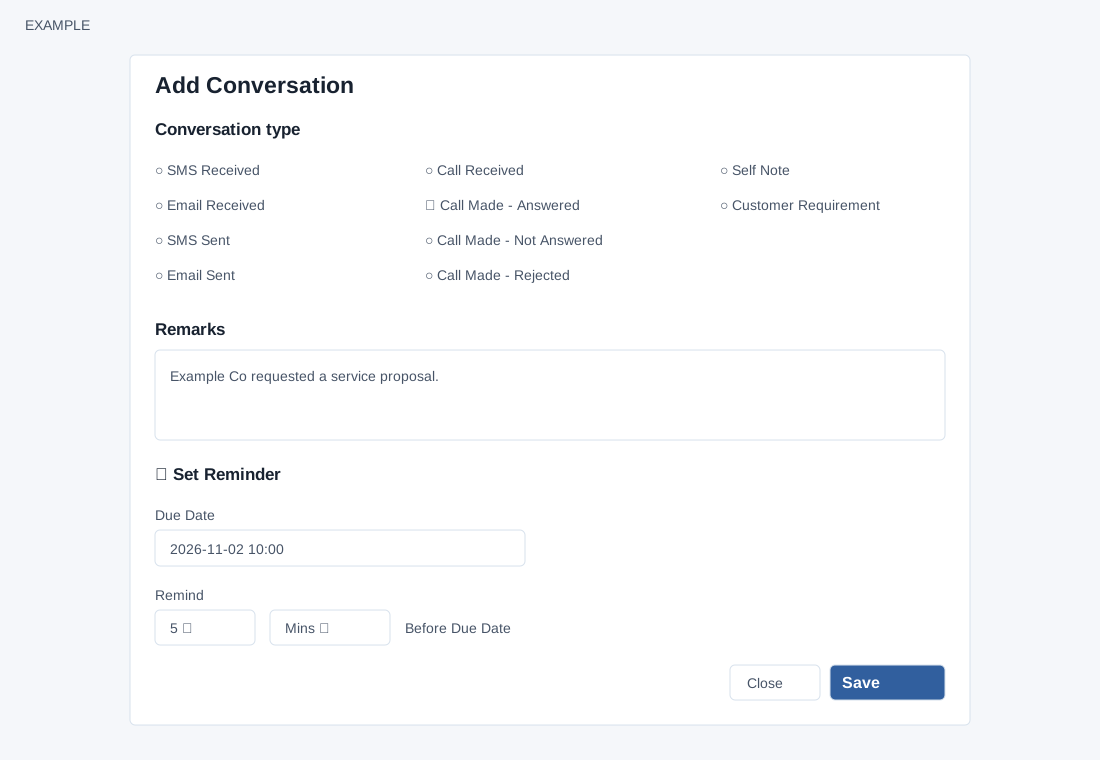
Review and add a conversation
- Customer requirements are pinned separately above the timeline. The remaining activity is newest first, up to 50 entries per page, and distinguishes incoming and outgoing activity, system events and call outcomes; entries can include a Location link. Select Load More for older entries when available; this requests another page and requires CRM and contact access. When all entries are loaded the button disappears. If loading fails, it remains available to retry. The timeline has no type filter, entry edit/delete, attachment upload or mark-read control; use the relevant contact section for files. A Location link opens its destination in a new tab when the entry includes one. If loading fails, retry; sign in again if the session has expired. Choose Add Conversation to record an interaction.
- Select a conversation type: SMS Received, Email Received, SMS Sent, Email Sent, Call Received, Call Made - Answered, Call Made - Not Answered, Call Made - Rejected, Self Note or Customer Requirement. Enter Remarks; a type and remarks are required.
- Optionally enable Set Reminder, enter Due Date and choose an interval from 1–10 (default 5) and Mins, Hrs or Days. Choose Save to store the record. The system treats Hrs and Days as minutes, and the displayed 10 option submits 9. A blank or past due date is replaced with the current time; task creation is not checked before the conversation success response. Do not rely on this dialog for an accurate advance reminder. Verify the task and reminder time separately; use the dedicated task workflow when appropriate.
- Example: record Call Made - Answered, note that the customer requested a proposal, then use the dedicated task workflow to schedule and verify its follow-up. Recording an interaction is distinct from placing a call or sending a message, but it updates the contact’s last incoming or outgoing activity timestamp. Received types update incoming; Self Note, Customer Requirement and the not-answered/rejected call types use the outgoing timestamp in this path. The newly saved row appears immediately; refresh to see its standard type and direction icons.
Discuss internally
- Open Discussion or the discussion handle. Search Notify teammates and select a suggested user; adding or removing a name updates discussion membership immediately. The contact owner cannot be removed. Saving a message notifies the other discussion members; it does not send a customer message. Enter a nonempty Message, then Save to post it; opening the drawer marks discussion notifications read. Close the drawer with its close control or Escape. On a rejected membership removal the interface restores the name; after an error on addition, reload to confirm the membership. The drawer refreshes the latest ten messages and marks notifications read when opened; a newly arriving message while closed can increase its unread badge.