Contact files
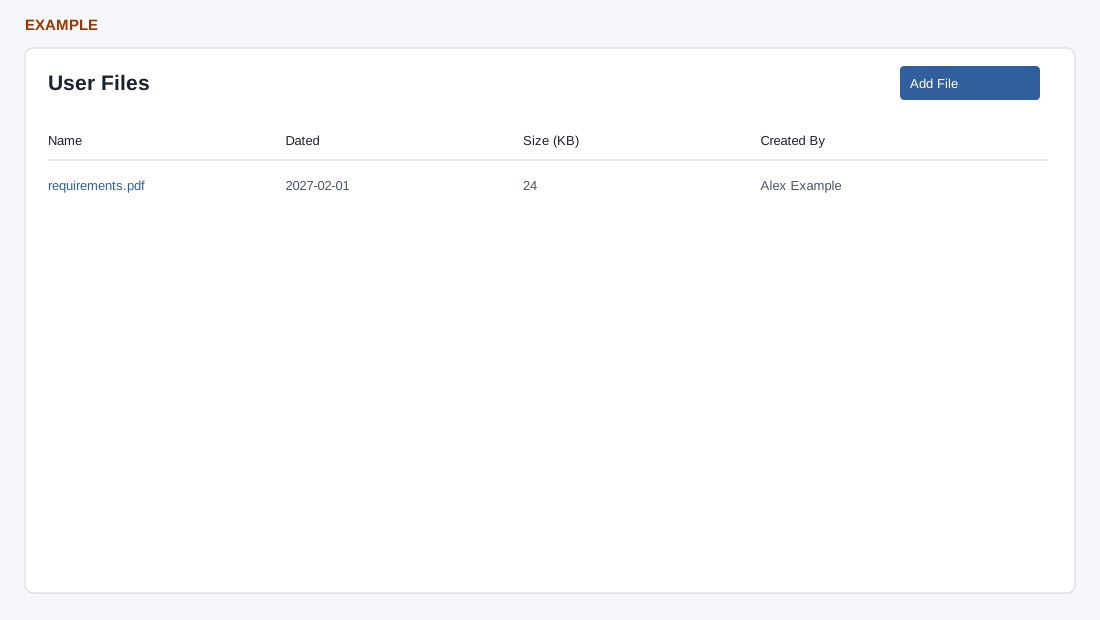
Open the page
Contact conversation → More Sections → Files
Review and add files
- The User Files panel lists Name, Dated, Size (KB) and Created By. With no files, it displays Nothing Here. Choose Add File to open Upload Files and follow the upload dialog; use available row actions to open existing files. If the embedded panel fails to load, choose Open in new tab in its recovery panel.
- Example: attach a requirements document to the intended contact. Uploading stores the file; review its contents before sharing.
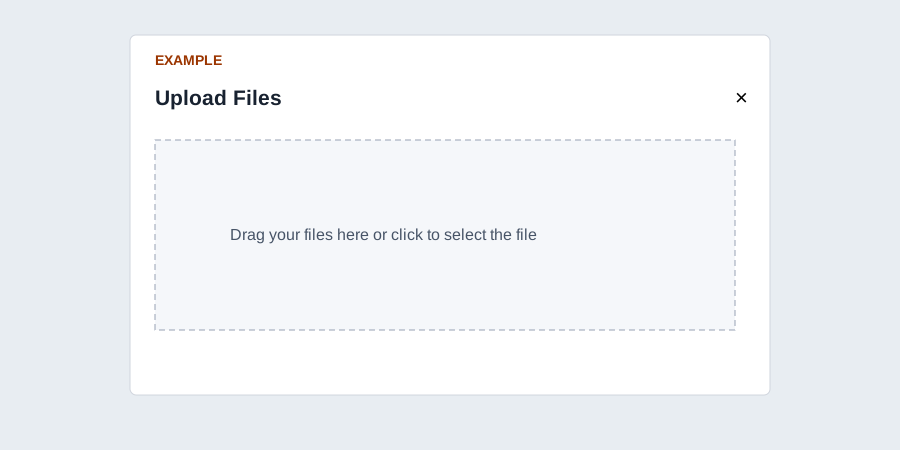
File scope and upload
CRM access and a valid contact are required. The frame derives the contact’s company/account ID and lists up to 500 files linked to that account, newest first; it is not restricted to files unique to the individual contact. Name opens the file in a new tab; Dated, Size (KB) and Created By provide context. Nothing Here means no listed files; Unable to fetch file data indicates a fetch error.
Add File opens the parent Upload Files drop area. Drag files or click to select; it accepts up to 10 CSV, images, PDF or audio files. The invalid-file message mentions CSV even though the configured accept list is broader. The file extension must also be supported, even if the browser accepts the file type. Upload begins through the drop area; closing the modal refreshes the file frame. For example, add an approved requirements PDF to Example Co’s account, then reopen Files and verify name and date. Check account context, file type and upload result if it is missing; do not assume this panel is private to one contact.