Call and message a contact
Controls and availability depend on permissions, plan and version.
Open the page
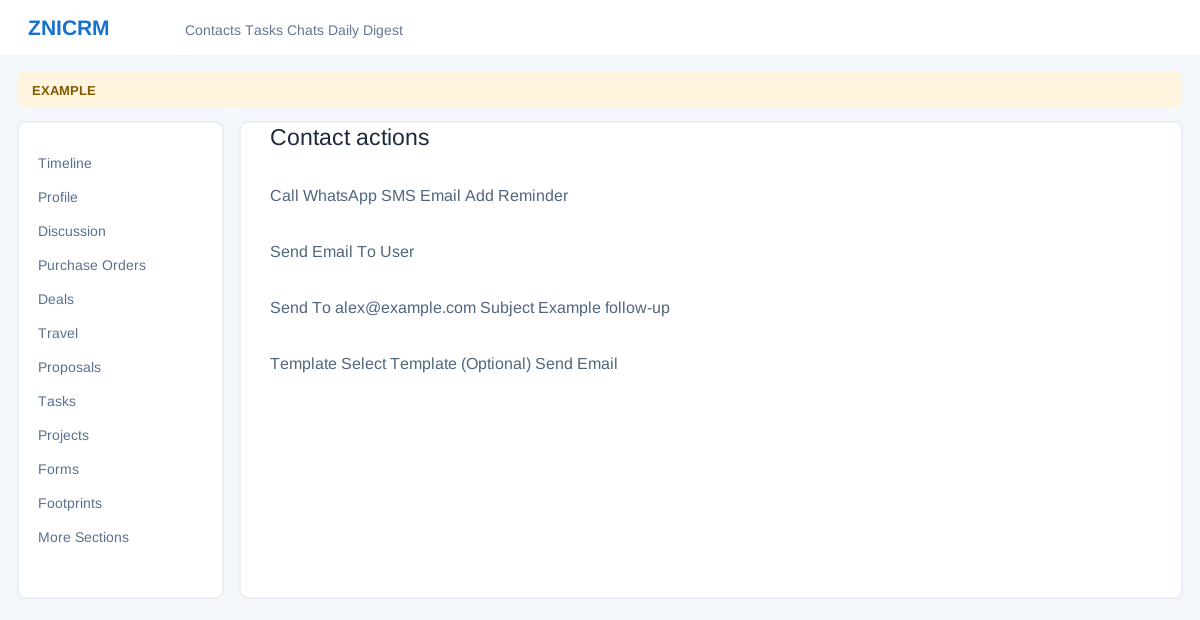
Contact conversation → Call, WhatsApp, SMS or Email
Use the contact actions
- Call opens Call User, whose message says the configured gateway will use the first available number; there is no number selector in this dialog. Call User triggers the CRM call-placed workflow. A matching workflow is needed to queue the call. A success message does not confirm that a call was queued or made. Configured workflow actions determine what happens next. Confirm telephony and workflow configuration and verify the actual call outcome; the success toast alone does not establish that a call connected. Close cancels the dialog.
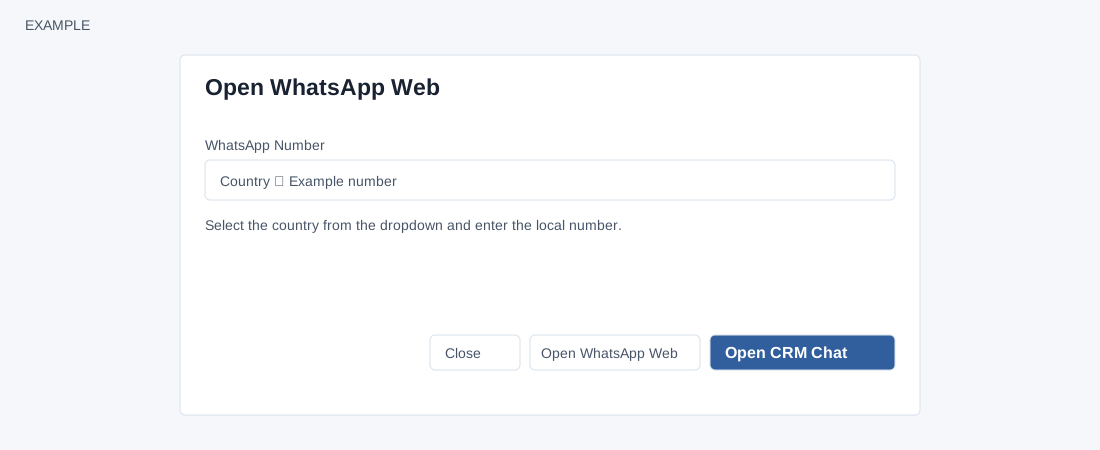
- WhatsApp opens a country selector and number field, with saved phone suggestions, plus Open WhatsApp Web and Open CRM Chat. Open WhatsApp Web uses the normalized country and number; Open CRM Chat opens the contact’s CRM chat by contact ID and does not use that entered number. Opening either view is not itself sending a message.
- SMS opens Phone Number, Sender ID, Gateway and Message. Select the intended values and choose Send SMS only after reviewing the message and recipient. The form checks a nonempty message, a phone number of 9–15 characters and a gateway. The system also checks SMS permission and records the outgoing conversation before attempting SMS delivery, so a failed send can still leave a timeline entry.
Send email or add a reminder
- Email opens Send To, optional CC, Subject, optional template and message editor. The recipient selector contains saved email addresses; one is preselected when it is the only address. CC accepts comma-separated addresses. Recipient, subject and body are required; sending requires a paid plan and profile visibility. The editor offers formatting, bold, italic, strikethrough, superscript, subscript, links, images, alignment, lists, horizontal rule, remove formatting and fullscreen. The ordinary send path renders contact variables and records a timeline entry before attempting delivery, so an error does not necessarily mean no entry was created. Selecting a template replaces the current body with its content, so preserve unsaved text first; review recipients and content before Send Email.
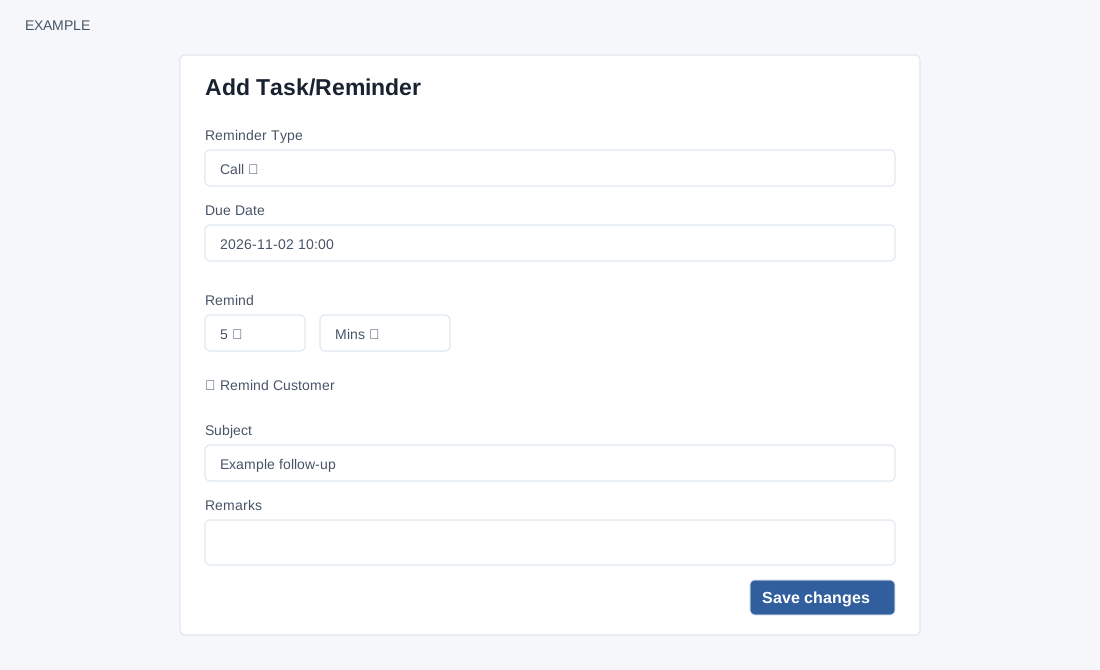
- Add Reminder opens Reminder Type (Call, Meeting or Followup), Due Date, Remind interval (1–10, default 5) and unit (Mins, Hrs or Days), Remind Customer, Subject and Remarks. Subject and Due Date are required. Choose Save changes. The dialog says Remind Customer sends an email immediately and again before the scheduled time; the immediate email is attempted when the contact has an address. Leave it unchecked for an internal-only reminder. The displayed 10 interval submits 9, and the system does not reliably calculate the selected advance interval; check the task’s saved reminder time rather than assuming the selection was applied. The dialog closes after both success and error responses, so inspect the Tasks view before retrying.
- Example: schedule an internal follow-up for the customer, leaving customer reminder off unless it is intended.