Configure assignment types
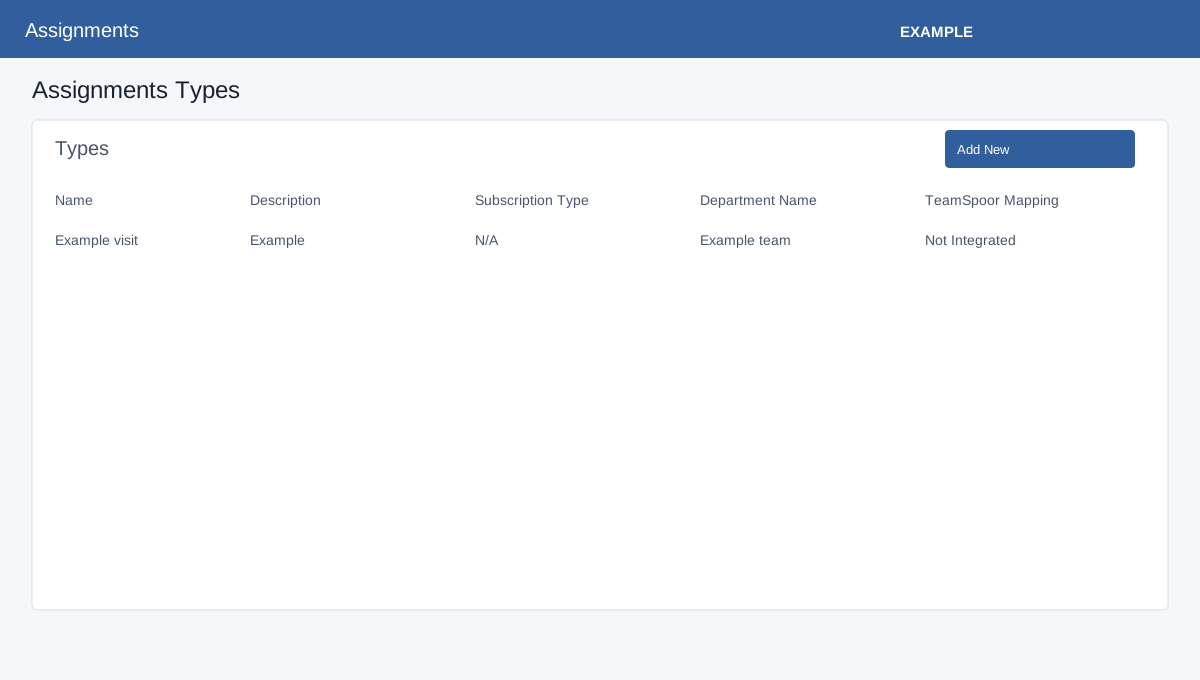
Open Account Settings → Features Settings → Assignments as an administrator. Types lists Name, Description, Subscription Type, Department Name and TeamSpoor Mapping; its table has standard search and pagination. Add New opens Add New Assignment Type.
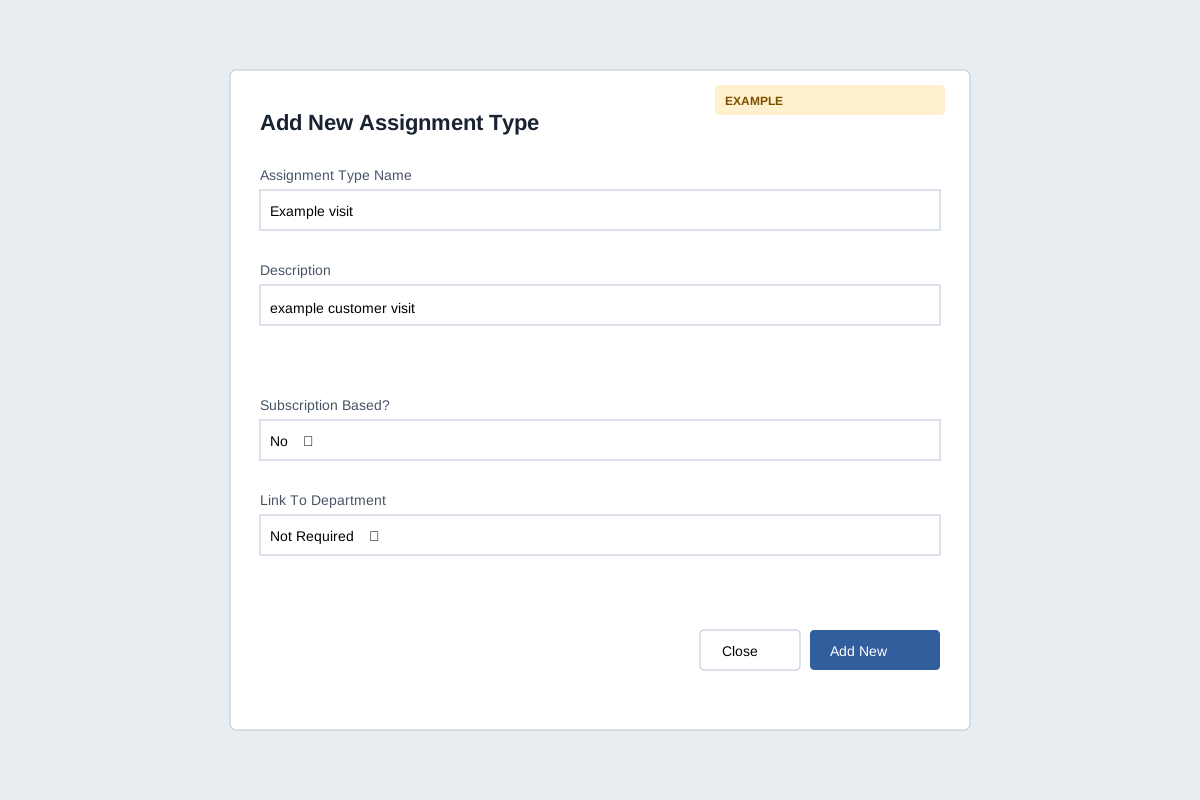
Create a type
Enter required Assignment Type Name (letters, numbers and spaces; maximum 45 characters) and Description (required, maximum 255). Subscription Based? defaults to No; choose a listed subscription type when appropriate. Only types configured as booking-based are accepted. Link To Department defaults to Not Required; a selected department controls the users offered during assignment creation. Select Add New. Success adds a row to the list; verify it and refresh before relying on the current mapping state. The controls create a type; the shown table has no edit or delete action.
For a subscription-linked type, when its booking-based period limit is positive the booking operation checks a subscription covering the requested service date and counts bookings in the applicable cycle. Missing coverage or an exhausted limit prevents creation. Confirm subscription configuration before scheduling.
Map a visit type
When TeamSpoor is integrated, a type row offers Map Visit Type or, when linked, Remap. Choose a listed TeamSpoor Visit Type and select Map Visit Type. The modal closes and the row updates on success. If the selection is empty or mapping fails, read the error and verify the integration and visit type. Without integration the row says Not Integrated. Mapping configures the integration; a later booking attempts a TeamSpoor beat plan, but the booking success response alone does not prove that external sync succeeded.