Find assignments in the report
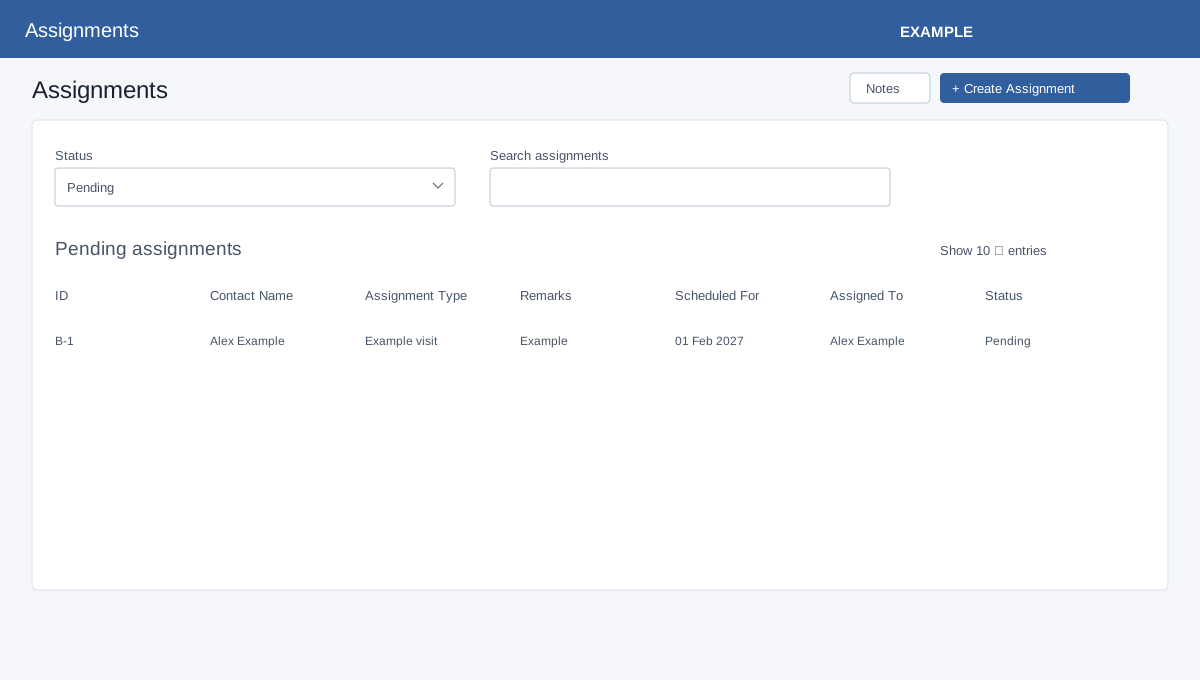
Open Assignments → Reports. CRM access is checked. Create Assignment is shown when Bookings access is available; when the report is opened for a valid contact it carries that contact into creation. Notes opens the side panel.
Filter and inspect
Status offers Pending (default), Completed and Cancelled; changing it reloads the page. Search assignments filters the loaded table. Use column sorting, rows-per-page and pagination to browse. Columns are ID, Contact Name, Assignment Type, Remarks (original instructions), Scheduled For, Assigned To and Status. The table initially sorts Scheduled For ascending. Select the B-number to open detail in a new tab.
The report loads up to 1,000 bookings, starting with the most recent booking dates. Table sorting applies to the loaded rows. Search and page controls operate on those loaded records, so absence does not prove that no older matching record exists. Check status, contact and access if the table is empty. This page uses its own table controls; the shared report chart blueprint is not included here.
In a contact conversation, the Assignments tab has All, Pending, Completed and Cancelled filters and links each B-number to detail. Administrators and users with Bookings access can see that contact’s assignments; otherwise the frame filters to assignments assigned to the current user. It loads up to 1,000 per selected status, so the contact tab and this report can differ in scope and loaded records.
For an Alex Example assignment, select Pending and open its B-number to check instructions and assignee. If absent, compare the selected contact, status and scope. For other report interfaces, see report controls and chart index.