Assignment types and TeamSpoor mapping
Availability depends on your account configuration and permissions.
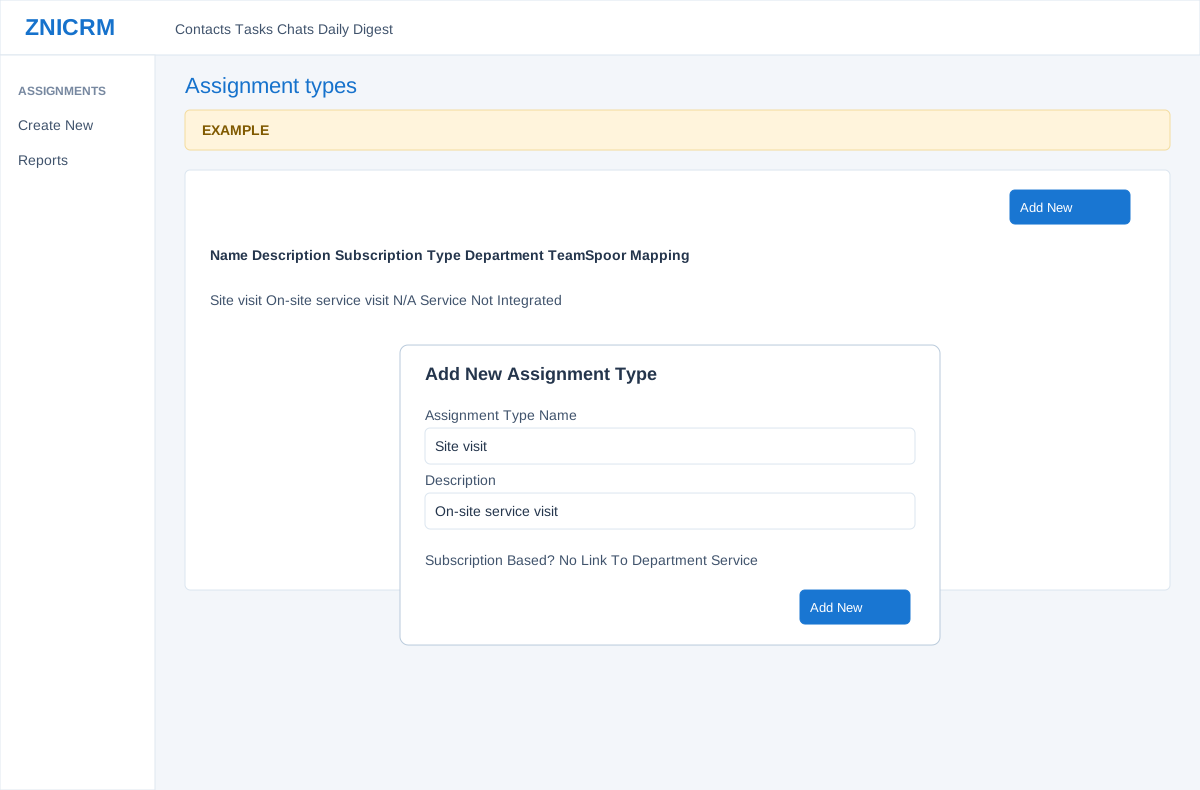
Open the page
Account Settings > Features Settings > Assignments. Administrator permissions may be required.
Add a type
- Review Types: Name, Description, Subscription Type, Department Name and TeamSpoor Mapping. Choose Add New and enter Assignment Type Name and Description. The form accepts letters, digits and spaces for the name.
- Under Subscription Based?, choose No or a subscription type; the help text says a selected type requires an active subscription before booking. Choose Link To Department or Not Required, then Add New to save.
- The linked department influences which users are offered when agents select this type. Example: create a Site visit type linked to the Service department. Check availability and subscription behavior for your account.
Map a TeamSpoor visit type
- When TeamSpoor is integrated, a row can show Map Visit Type or Remap. Open it, select TeamSpoor Visit Type, then choose Map Visit Type to save the mapping. A linked indicator identifies an existing mapping; otherwise the page may show Not Integrated.
- Mapping changes integration configuration. Verify the matching visit type and effects with your TeamSpoor administrator before saving.