Create an assignment
Availability depends on your account configuration and permissions.
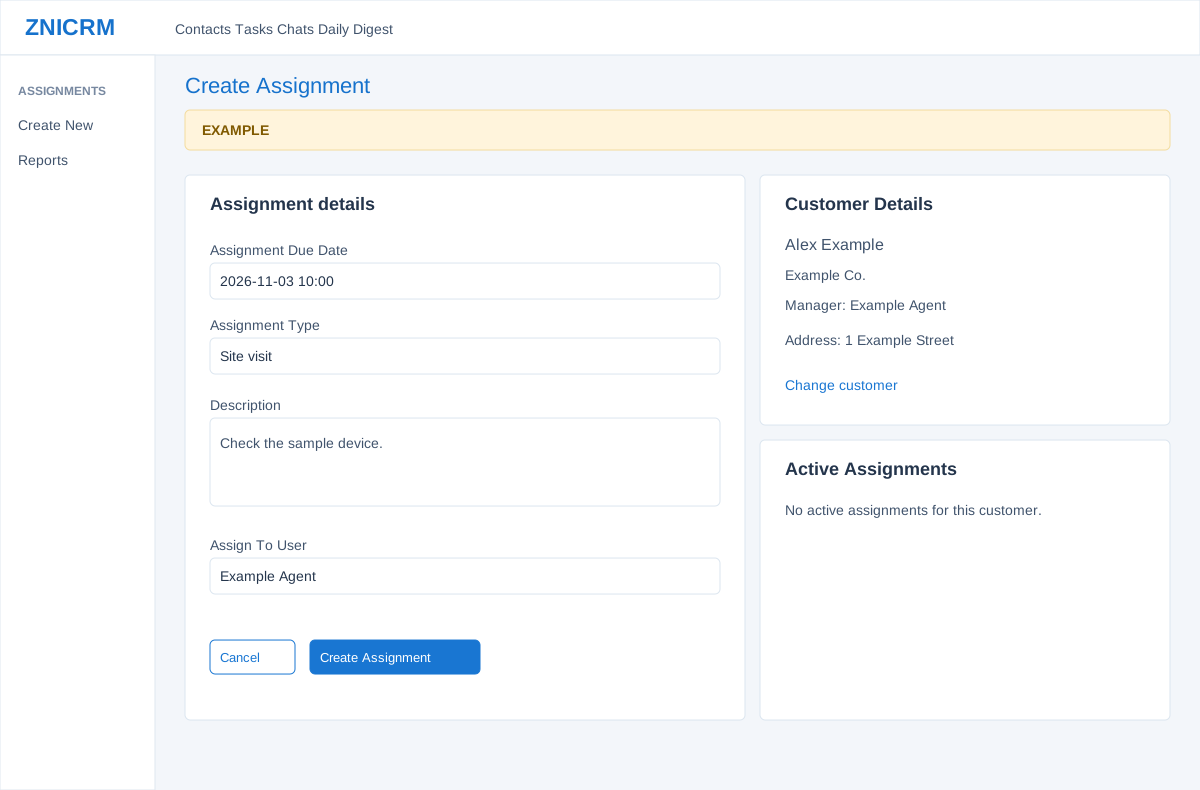
Open the page
Assignments > Create Assignment. Administrator permissions may be required.
Select the correct contact
- Enter at least three characters of the contact name and select a contact from the suggestions. Company suggestions are not accepted; select the person. When opened from a contact, that contact may already be selected.
- Check Customer Details and Active Assignments. Use Change customer if the selected person is incorrect. The active list helps identify duplicate scheduled work.
Schedule the work
- Enter Assignment Due Date in YYYY-MM-DD HH:mm format. Select Assignment Type; the page then loads eligible users linked to that type. Select Assign To User and add Description with practical instructions.
- Choose Create Assignment to save the live record; the page shows feedback and adds a successful creation to Active Assignments. Cancel returns to the report without creating.
- Example: select Alex Example, Site visit, 2026-11-03 10:00 and Example Agent, with instructions to check a sample device. If the result cannot be confirmed, check Active Assignments before retrying to avoid duplicates.