Administrative contacts list
Find contacts and queue an ownership transfer from the administrative list.
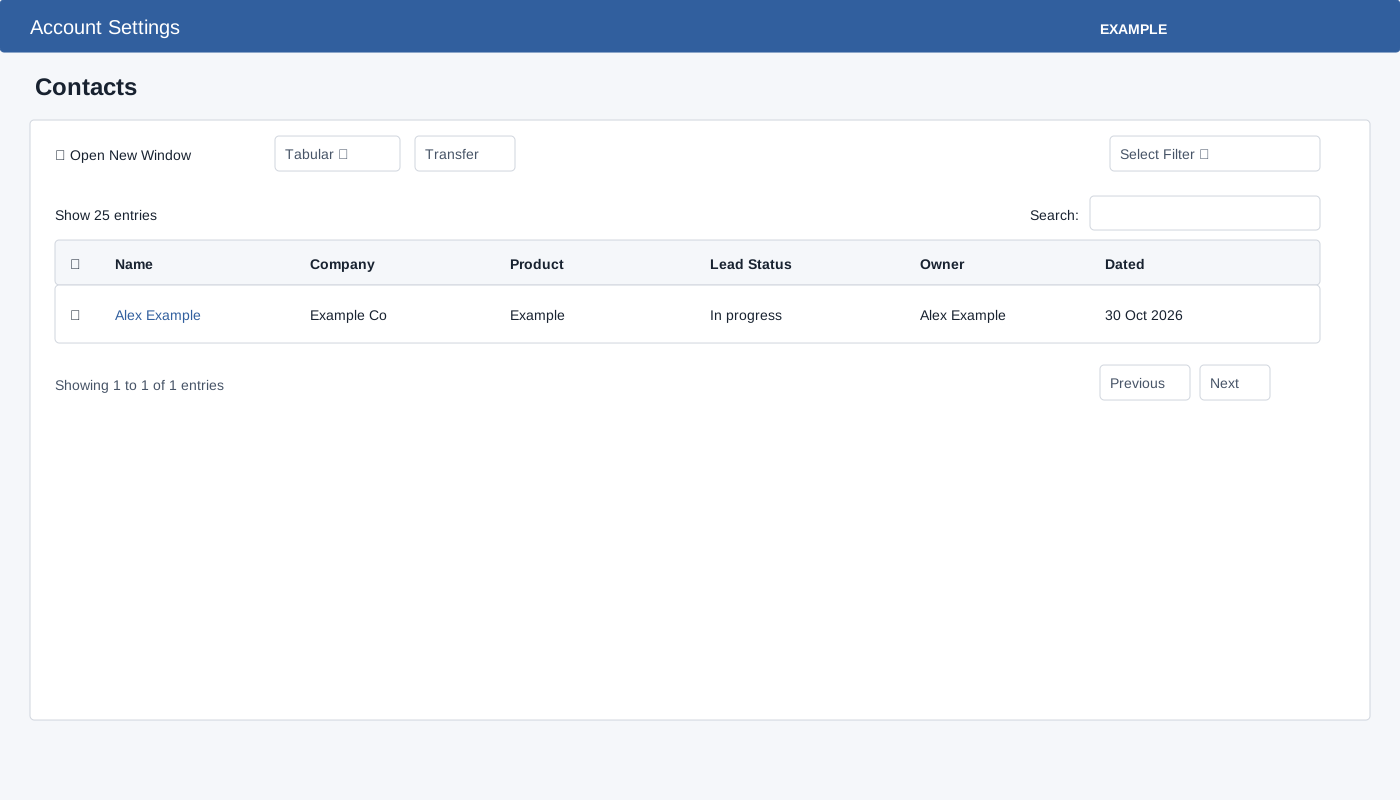
List and transfer
This separate contacts screen requires CRM access. Select a saved Filter in Tabular view, or choose Tabular or Kanban. Open New Window controls how contact links open. The table contains Name, Company, Product, Lead Status, Owner and registration details. See Contacts for the current CRM list.
Tabular view starts at 25 rows per page. The saved filter selector is shown only in Tabular; Kanban groups cards by configured visible lead statuses and opens their contacts. Selection for transfer is taken from checked tabular rows, so return to Tabular before selecting contacts.
- Select contact rows in the tabular list, choose Transfer, and select a user in Select New Owner.
- Choose Transfer Contacts and confirm. CRM bulk-transfer permission and a valid active company user are required. A success message means transfer was queued, not completed; verify ownership later in the contact record or queue.
For example, select Alex Example in the filtered table and choose the intended active owner. If no rows are selected or no user is selected, the form stops. If a queued transfer does not complete, inspect the action queue and owner before retrying; a success toast alone does not confirm completion. If transfer is denied, check the bulk-transfer permission.