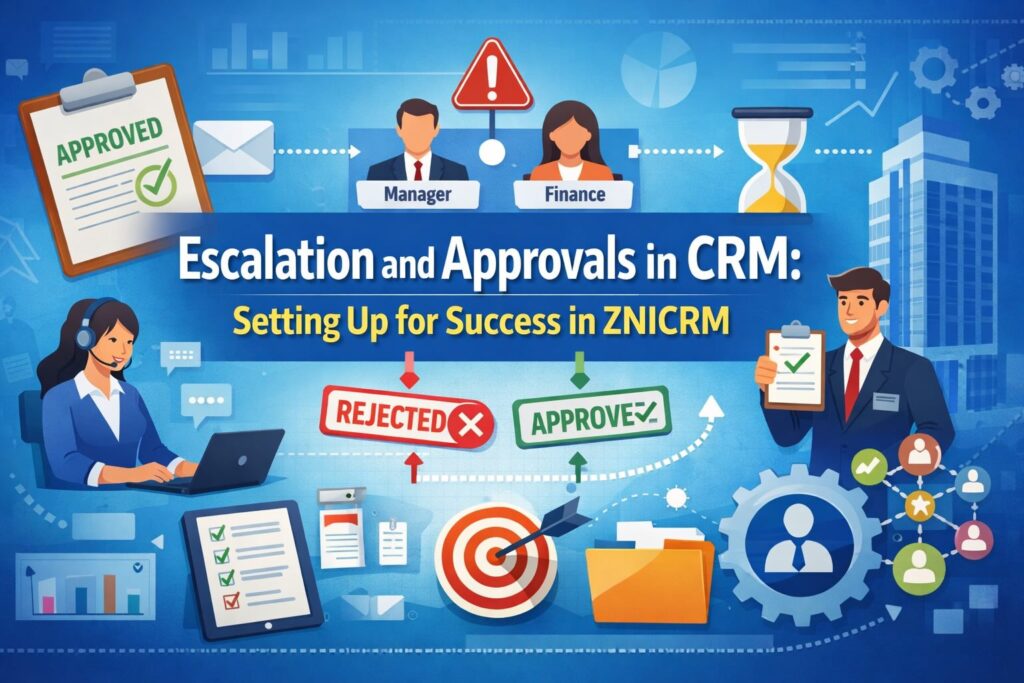
In every growing business, decisions cannot stay trapped in inboxes, spreadsheets, or informal chats. A discount request may need a sales manager’s sign-off. A support exception may need departmental review. A workflow may need to move from one approver to another when a decision is accepted, rejected, or requires further action. This is exactly where Escalation and Approvals in CRM become essential.
A modern CRM is no longer just a system for storing contacts, leads, or deals. It is the operational center of a business. It connects people, departments, processes, and accountability. When businesses begin scaling, the number of requests, exceptions, approvals, and action points also increases. Without a proper approval chain, teams start relying on manual follow-ups, delayed email threads, and inconsistent review paths. That creates confusion, slowdowns, missed service levels, and avoidable risk.
This is why businesses need structured Escalation and Approvals in CRM.
Escalation ensures that work does not stop at submission. Instead, it moves to the right person, role, or manager for review. Approvals ensure that critical actions follow defined rules before they are accepted, rejected, or passed to the next step. Together, these two capabilities help organizations build reliable internal processes without adding friction.
In practical terms, Escalation and Approvals in CRM help answer questions like these:
- Who should review this request first?
- What happens after approval?
- What happens after rejection?
- Should the process stop here, or move to another approver?
- Which department or workflow should trigger this escalation?
- Which rule should apply when multiple conditions are possible?
When these questions are answered inside the CRM itself, teams move faster and make fewer mistakes.
In ZNICRM, the Escalations feature is designed to handle exactly this kind of routing. It allows admins to create an escalation header, add one or more escalation actions, route approvals to a role, manager, or user, define approval and rejection paths, and even connect the escalation with shared module-driven triggers such as helpdesk, follow-up intelligence, and checklist workflows. The feature is admin-only and is built to support structured exception routing and approval chains inside operational flows.
This article explains what Escalation and Approvals in CRM really mean, why businesses should implement them, what benefits they bring, and how to configure them in ZNICRM in just a few clicks.
What Are Escalation and Approvals in CRM?
To understand the business value, it helps to define both terms clearly.
What is Escalation in CRM?
Escalation in CRM is a workflow mechanism that sends a record, request, issue, or exception from one responsible party to another based on a defined sequence or rule. It ensures that when a business process needs attention, it does not sit idle. Instead, it is routed to the appropriate reviewer, authority, or department.
An escalation can move work:
- to a specific role
- to a specific user
- to a department manager
- to another step after approval
- to another step after rejection
- or to an end state when no next step is defined
In simple language, escalation keeps important work moving.
What are Approvals in CRM?
Approvals in CRM are structured decision points inside a workflow. At each approval step, a designated person or group reviews the request and either approves it, rejects it, or passes it to the next stage according to business rules.
Approvals help businesses create control without losing speed. Instead of depending on informal decisions, they create a repeatable system.
Escalation and Approvals Work Best Together
Escalation and approvals are most powerful when they operate together in CRM.
For example:
- A support exception is created.
- It is escalated to a team lead.
- If approved, it goes to operations.
- If rejected, it ends or goes back for correction.
- If the condition belongs to a certain department, a shared binding decides which rule should trigger first.
This is how organizations create reliable process governance.
Why Businesses Need Escalation and Approvals in CRM
Many organizations do not feel the pain of missing workflow controls in the early stage. When the company is small, people know each other, decisions are quick, and exceptions are often handled informally. But as the business grows, the lack of a structured approval system becomes expensive.
Here is why businesses need Escalation and Approvals in CRM.
1. To Prevent Decision Bottlenecks
One of the most common issues in growing companies is decision delay. A request gets submitted, but nobody is sure who owns the next action. It waits in a queue, gets buried in email, or is discussed without resolution.
With escalation in CRM, every step has a destination. The record moves to the right role, manager, or user. That means no more guessing who should act next.
2. To Standardize Internal Processes
Without formal approvals, two similar requests can be handled in completely different ways depending on who sees them. One employee may approve immediately, while another asks for more review. That inconsistency creates confusion and weakens governance.
Approvals in CRM standardize the path. A request can be reviewed according to the same business logic every time.
3. To Improve Accountability
A major advantage of CRM-based escalation is visibility. Businesses can see where the request is, who it was sent to, what the current step is, and whether it ended on approval or rejection. ZNICRM even surfaces fields like Pending Queue, Used In, action sequences, and shared bindings to make monitoring easier.
That means businesses do not just create workflows. They create accountability.
4. To Support Cross-Department Workflows
Many approvals do not belong to one team alone. Sales may need finance approval. Support may need department manager approval. Helpdesk may need escalation based on category and department. A follow-up process may require a role-based review.
ZNICRM supports shared bindings that connect escalation rules to modules and trigger events, with department scope and priority logic for more advanced workflow control.
This allows businesses to extend escalation beyond a single use case.
5. To Reduce Risk
Whenever there are exceptions, approvals are not optional. They are part of risk management. Pricing exceptions, service exceptions, access changes, departmental overrides, workflow handoffs, or custom operational decisions all require a controlled path.
Approvals in CRM reduce the chance of unauthorized action or missed review.
6. To Scale Operations Without Chaos
Manual follow-up might work for ten requests a week. It breaks at one hundred. The more a company grows, the more it needs structured operational flow. Escalation helps a business scale without adding process confusion.
The Core Business Benefits of Escalation and Approvals in CRM
Let us look deeper at the benefits businesses can expect.
1. Faster Turnaround Time
The biggest operational gain is speed. When a process is already mapped inside the CRM, records automatically move from one stage to the next. Nobody has to search for the right approver manually.
For example:
- a request gets submitted
- it moves to the first approver
- on approval it goes to the next action
- on rejection it ends or moves to a rejection path
That structure reduces waiting time and cuts down unnecessary coordination.
2. Better Process Visibility
Visibility is one of the strongest reasons to implement approvals in CRM. Managers need to know:
- which escalations are active
- where requests are pending
- which rules are currently being used
- whether a process is configured correctly
- whether terminal states are intentional
In ZNICRM, the main escalation list includes columns such as Name, Description, Used In, Pending Queue, Created On, and Status, while the action page shows the sequence, routing target, approval path, and rejection path.
This kind of visibility helps businesses detect bottlenecks early.
3. Consistent Decision-Making
When every request follows an approval chain, decisions become more consistent. The process is not dependent on memory or personal style. It depends on configuration.
Consistency improves quality, fairness, and compliance.
4. Reduced Manual Coordination
Without escalation, users often need to manually:
- send follow-up messages
- forward approval emails
- remind managers
- explain who needs to act
- check whether the record was reviewed
With CRM-based approvals, routing becomes part of the system instead of part of the employee’s memory.
5. Stronger Governance and Control
Businesses need control over exceptions. That does not mean they need more bureaucracy. It means they need decision points where the right authority reviews the right request.
Escalation and approvals make control practical, visible, and repeatable.
6. Improved Customer Experience
Although escalation is often viewed as an internal feature, it directly affects the customer experience. Faster approvals lead to faster responses. Better routing leads to fewer service delays. Clearer accountability improves resolution quality.
If a helpdesk or workflow process uses escalation correctly, the end customer feels the difference.
7. Better Department Alignment
Shared bindings in ZNICRM allow businesses to define the module, trigger event, department scope, and priority for escalation rules. That means the same framework can support multiple teams while still respecting departmental logic.
This is especially useful for organizations with multiple departments, managers, and process variations.
8. Easier Monitoring and Optimization
When approvals are handled through the CRM, businesses can observe process patterns and improve them. They can identify:
- which step creates delay
- which approvals are unnecessary
- where terminal states need adjustment
- whether the rejection flow is too abrupt
- whether priority rules need refinement
That opens the door to continuous process improvement.
Common Business Scenarios Where Escalation and Approvals in CRM Are Essential
To understand how useful this is, consider some real business scenarios.
Sales Approval Scenarios
- discount approval requests
- special pricing exceptions
- deal structure approvals
- manager sign-off before moving a high-value opportunity forward
Support and Helpdesk Scenarios
- ticket escalation to a department manager
- exception handling for unresolved cases
- category-based routing through shared bindings
- multi-step decision flow for sensitive support issues
Operations Scenarios
- checklist-driven process approvals
- follow-up intelligence workflows
- exception approval for delayed or high-priority cases
- routing to department-based managers or users
HR or Internal Governance Scenarios
- policy exception approvals
- access-related routing
- internal review chains
- structured rejection or escalation paths
Multi-Department Approvals
- one department initiates a request
- another department reviews it
- approval moves it to a final sign-off step
- rejection returns it to correction or closes it
These scenarios show that escalation and approvals are not limited to one team. They are a process foundation.
What Makes a Good CRM Approval Workflow?
Not all workflows are useful just because they exist. The best approval workflows are designed with intention.
A good approval workflow should be:
Clear
The step names should be easy to understand. In ZNICRM, action names such as Manager Approval or Finance Approval are recommended because they make the chain easy to read and maintain.
Routed to Real Owners
If an action is configured for a role or user, the actual recipient must be selected. A common mistake is creating the action but forgetting to assign the real role or user afterward.
Designed for Both Approval and Rejection
Many businesses design only the “happy path.” But real processes also need clear rejection logic. What happens if the request is rejected? Does it stop? Does it go to another step? A good workflow answers both.
Monitored
Workflows should not just exist. They should be observable through queue counts, usage indicators, and status visibility.
Easy to Adjust
Business processes change. A good CRM approval setup allows admins to add, edit, reroute, disable, or optimize escalation flows when needed.
Why Implement Escalation and Approvals Inside CRM Instead of Outside It?
Some businesses still run approvals through email, spreadsheets, chat messages, or external trackers. That creates fragmentation.
Here is why approvals belong inside the CRM.
Centralized Context
The CRM already holds the customer, deal, ticket, process, or workflow context. When approval happens inside the CRM, decision-makers act with the right information nearby.
Fewer Missed Handoffs
External approval systems increase the chance of missed communication. CRM-based escalation makes the next action part of the record itself.
Better Auditability
Approvals inside CRM are easier to monitor, report, and review.
Better User Adoption
When users do not need to switch systems, processes are followed more consistently.
Easier Automation
Once the approval logic is inside CRM, it becomes easier to connect it with triggers, shared rules, and operational workflows.
How ZNICRM Supports Escalation and Approvals
ZNICRM provides a structured approach to escalation setup through an admin-only feature that includes three key components:
- Escalation header
- Escalation actions
- Shared bindings
Let us break that down.
1. Escalation Header
This is the top-level record for the escalation. It includes:
- Name
- Description
This becomes the parent workflow entry in the Escalations setup page.
2. Escalation Actions
Each escalation needs at least one action before it functions as an approval chain. Action rows define:
- sequence
- step name
- escalate to
- send escalation to
- on approval goto
- on rejection goto
Recipients can be routed to:
- ROLE
- MANAGER
- USER
This structure gives businesses flexibility in how they assign approval responsibility.
3. Shared Bindings
Shared bindings allow an escalation to connect to modern modules and module-driven triggers. Fields include:
- Module
- Trigger Event
- Department Scope
- Priority
These are useful for helpdesk, follow-up intelligence, and checklist-based workflows.
How to Set Up Escalation and Approvals in ZNICRM in a Few Clicks
Now let us move into the most practical section: how businesses can create an approval chain in ZNICRM.
The good news is that the setup is straightforward for admins when the related users, roles, departments, or downstream configurations already exist. Before starting, make sure you are logged in as ADMIN, the company plan has escalation capacity, and any required supporting setup such as roles, users, or workflow modules is already available. Also note that if a Mandatory upgrade alert appears for legacy escalation migration, that migration must be completed first for affected legacy flows to continue working.
Step 1: Open Escalations in Admin Setup
Go to:
Admin > Escalations
This is the main setup page for creating and managing escalation headers.
Step 2: Create a New Escalation Header
Click Add New.
In the Add New Escalation modal, enter:
- Name
- Description
Then click Save changes.
Once saved, the new escalation appears in the list, and the name becomes clickable.
This is your top-level approval workflow container.
Step 3: Open the Escalation Actions Page
From the escalation list, click the escalation name.
This opens the action setup page for that escalation. The page displays the escalation name and description and provides access to the action table and the Add Action button.
Step 4: Add the First Approval Action
Click Add Action.
In the Add Escalation Action form, enter:
- Name
- Send Escalation To
You can choose one of these options:
- ROLE
- USER
- MANAGER
Then click Save changes.
After the page reloads:
- the sequence is assigned automatically
- the row appears in the action list
- the first action may show as the Start Step
- inline routing fields become editable
Step 5: Select Who Receives the Escalation
Once the action is created, define the actual recipient in the inline Send Escalation To column.
- If the type is ROLE, select the role.
- If the type is USER, select the user.
- If the type is MANAGER, the system resolves it as Department Manager and no extra picker is required.
This is the step that turns a generic approval action into an actionable approval assignment.
Step 6: Build the Approval Path
If you need a multi-step approval chain, add the second and later actions in the same way.
Then, in the earlier action row, use On Approval Goto to select the next action from the same escalation.
This tells ZNICRM what should happen after approval. An action cannot point approval back to itself.
Example:
- Step 1: Manager Approval
- On Approval Goto → Finance Approval
This creates a sequential approval flow.
Step 7: Build the Rejection Path
Next, configure On Rejection Goto.
This defines what happens when the action is rejected. You can either:
- send rejection to another action
- or leave it as a terminal rejection step
If no next rejection step is configured, the page may display Reject Ends. Similarly, if no next approval step is configured, the page may show Approve Ends.
This is useful because businesses can create both continuation flows and end states depending on the process.
Step 8: Review Terminal and Non-Terminal Actions
Before enabling the escalation, review the chain carefully.
Make sure:
- every action has the expected sequence
- ROLE and USER rows have an actual recipient selected
- approval branches point to the intended next step
- rejection branches are intentional
- terminal actions clearly show Approve Ends and/or Reject Ends where needed
This review prevents broken chains.
Step 9: Add Shared Bindings for Module-Driven Triggers
If the escalation should run from shared modules, scroll to Shared Bindings and click Add Shared Binding.
Then define:
- Module
- Trigger Event
- Department Scope
- Priority
The module determines which module can trigger the escalation. The trigger event loads after selecting the module. Department scope can be All Departments or a specific department. Priority determines which binding matches first when more than one binding is eligible, and lower numbers are matched first.
This gives businesses finer control over how the workflow is activated.
Step 10: Enable or Disable Shared Bindings as Needed
From the Shared Bindings table, use Enable or Disable to manage binding status. The table updates to reflect the current state.
This is useful for testing, phased rollouts, or temporary process adjustments.
Step 11: Enable the Escalation Header
Return to Admin > Escalations.
In the Status column, click the icon for the escalation row to enable or disable the escalation header. The icon changes to reflect the new state.
Now the approval chain is active and ready for use.
How to Check Whether Your Escalation and Approval Setup Is Working in ZNICRM
Creating the workflow is only part of the job. Verification matters just as much.
Header-Level Checks
On the main escalation list, confirm that:
- the escalation exists
- the status is active
- the Used In column is populated if shared rule usage is attached
- the Pending Queue shows counts when the rule is in use
Action-Level Checks
On the action page, confirm that:
- sequences look correct
- recipients are selected correctly
- approval routing goes to the correct next action
- rejection routing behaves as intended
- terminal states display correctly
Shared Binding Checks
If you are using shared modules, verify that:
- the exact module and trigger are correct
- the binding is enabled
- the priority is correct compared with other eligible bindings
Process Checks
Trigger a controlled test record in the related module, such as helpdesk, follow-up intelligence, checklist workflow, or a legacy custom-form approval flow if applicable. Then confirm:
- the record becomes pending for the intended approver
- pending queue count increases where relevant
- approval moves it to the next configured step
- rejection moves it to the configured rejection step or ends the chain as expected
That closes the loop between setup and real execution.
Best Practices for Implementing Escalation and Approvals in CRM
Businesses get the best results when they treat workflow design as a business decision, not just a technical setup.
Name Steps Clearly
Use direct action names such as:
- Manager Approval
- Finance Approval
- Operations Review
- Final Approval
Clarity improves adoption and maintenance.
Assign Real Owners Immediately
Do not leave ROLE or USER actions incomplete. The action must point to a real recipient. Otherwise, the chain looks configured but does not function properly.
Design Both Happy Path and Exception Path
Always ask:
- What happens if this step is approved?
- What happens if it is rejected?
Good workflows cover both.
Use Terminal States Intentionally
If a branch should end, let it end clearly. Do not leave routing blank by accident.
Use Shared Bindings Carefully
When multiple bindings can match, priority becomes important. Lower priority numbers match first, so businesses should define precedence deliberately.
Test Before Full Rollout
Create a sample flow, trigger it, and confirm each step behaves as planned.
Keep Admin Governance Strong
Since the feature is admin-only, businesses should ensure that only trained admins configure or adjust escalations. This protects workflow consistency.
Common Mistakes Businesses Should Avoid
Even a good feature can produce bad results if implemented carelessly.
Mistake 1: Creating the Header but Not Adding Actions
An escalation without actions is not a working approval chain. At least one action is required.
Mistake 2: Forgetting to Select the Actual Role or User
Choosing ROLE or USER during action creation is not enough. The actual role or user must be assigned inline afterward.
Mistake 3: Routing Approval or Rejection to the Same Step
Self-referencing loops are not allowed and also do not make business sense.
Mistake 4: Ignoring Rejection Design
A process is incomplete if only the approval path is designed.
Mistake 5: Assuming the Rule Is Live When the Binding Is Disabled
If the shared binding is not enabled, the module-driven trigger will not behave as expected.
Mistake 6: Ignoring Migration Alerts
If there is a mandatory upgrade notice for legacy escalation migration, businesses should address it before relying on affected flows.
Why Escalation and Approvals in CRM Are a Competitive Advantage
Businesses often view approval workflows as internal process mechanics. In reality, they are part of competitive performance.
A company with strong escalation and approval processes can:
- resolve issues faster
- reduce operational confusion
- maintain stronger governance
- adapt workflows across departments
- improve service quality
- scale with more confidence
The difference is not only internal efficiency. It is business maturity.
When approvals are structured, teams stop wasting time deciding how to decide.
That is a huge advantage.
Final Thoughts
Escalation and Approvals in CRM are no longer optional for businesses that want structure, speed, and accountability. As organizations grow, manual approvals become unreliable, slow, and difficult to monitor. CRM-based escalation solves that problem by turning business decisions into defined, trackable workflow steps.
With the right setup, businesses can route work to the correct role, user, or manager, move records forward after approval, define what happens after rejection, and connect escalation logic with broader operational modules. That means fewer delays, better visibility, stronger governance, and smoother collaboration across teams.
ZNICRM makes this process practical. Admins can create an escalation header, add actions, assign recipients, define approval and rejection paths, attach shared bindings, set priorities, and activate the workflow from the admin panel. The structure is clear, the routing is flexible, and the monitoring points make it easier to verify that the process is doing exactly what the business expects.
For any company trying to improve internal control without slowing work down, implementing Escalation and Approvals in CRM is a smart move. And for teams using ZNICRM, it can be done in just a few clicks with a well-planned setup.