Skip to content

Start the day with a clearer picture of your field team.

Use TeamSpoor’s manager dashboard and reports to review assigned work, customer visits and recorded locations within the teams you manage.

  • Team-scoped visibility
  • Planned and recorded activity
  • Customer-level follow-up
Inside TeamSpoor
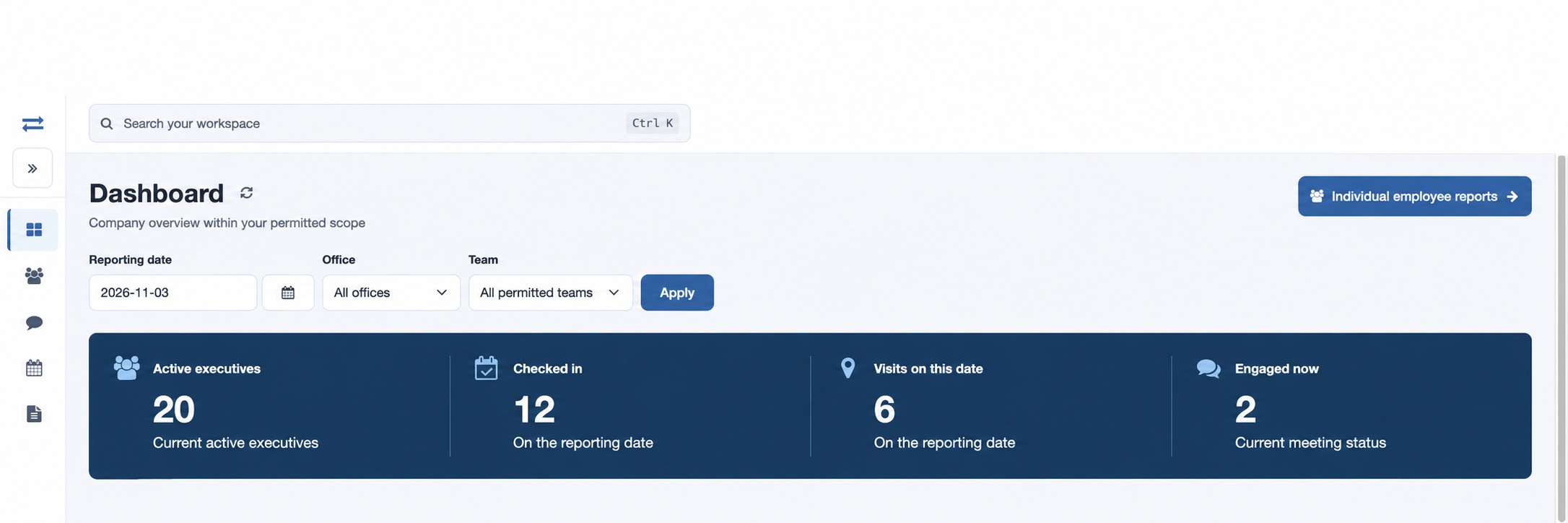
TeamSpoor dashboard with date and team filters and illustrative activity totals
TeamSpoor screen · sample dataOpen full size
  1. Team scope
  2. Daily review
  3. Next action
  1. 1Set team ownership
  2. 2Review the plan
  3. 3Inspect the visits
  4. 4Coordinate follow-up

Give managers a repeatable review routine.

A field manager moves between several questions: what is planned, what has been recorded, which customers need attention and who needs help with the next visit. A useful dashboard is the starting point for that routine.

TeamSpoor connects team ownership with scoped operational reports. Review activity totals, open the relevant stop or visit, and use location or messages when coordination is needed. Keep the review focused on the employees and customer work the manager is responsible for.

Product walkthrough

Build a daily review around the work you own.

Make the reporting scope match the team.

An administrator creates managers and assigns them to teams. This gives the rollout a clear owner for each field group and establishes the scope used in operational review.

  1. Create the manager

    Use the work email and check the saved invitation result.

  2. Assign the teams

    Review the organizational structure so the manager owns the right employee groups.

  3. Check access

    Confirm the reporting permissions required for planning, visits and location review.

Read the step-by-step guide

Organization → Managers / Teams

Inside TeamSpoor
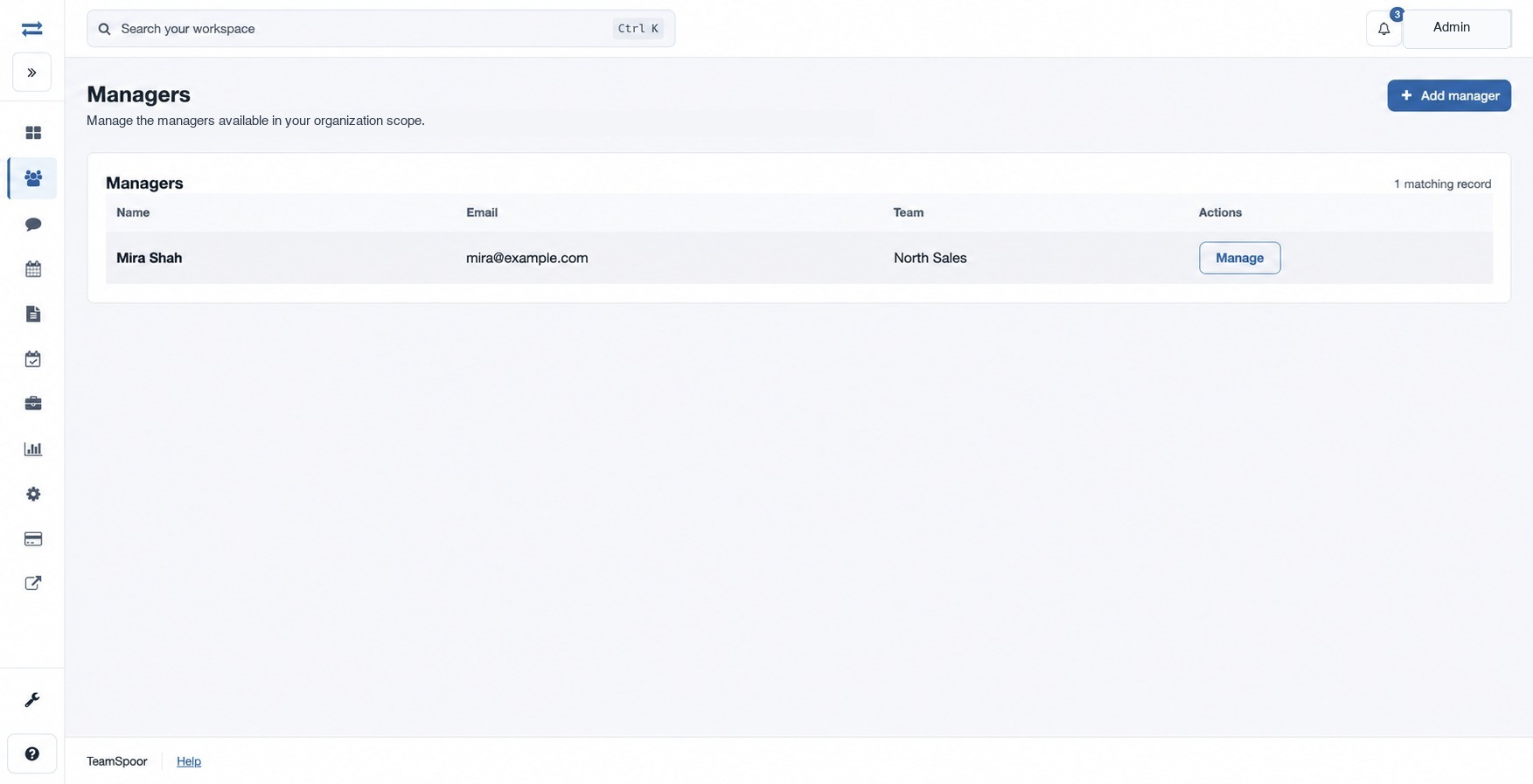
TeamSpoor managers directory and team management entry points
TeamSpoor screen · sample dataOpen full size
Why it matters

The manager starts with the team they are responsible for, rather than an unrelated company-wide list.
Turn a team summary into a customer decision.

Compare planned, completed and pending stops with recorded visit measures. Open the relevant Beat Plan or Visits report separately and inspect the customer record behind a question.

  1. Choose the period

    Use the same date range and team throughout the review.

  2. Identify the follow-up

    Find pending work or visits that still need verification.

  3. Read the visit

    Inspect remarks, follow-up and available submissions before deciding what comes next.

Read the step-by-step guide

Reports → Team field activity → Visits

Inside TeamSpoor
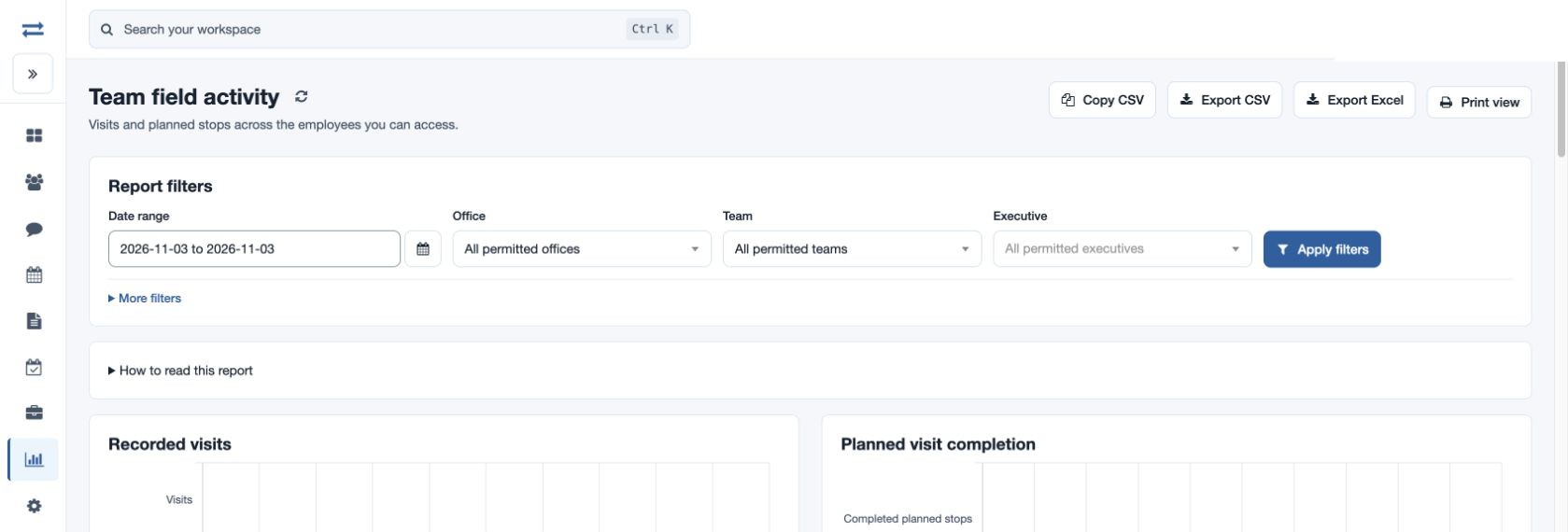
TeamSpoor team field activity report with date, office, team and executive filters
TeamSpoor screen · sample dataOpen full size
Why it matters

A morning or end-of-day review can end with specific customer actions.

Use location and messages for the next action.

Use available recorded locations to understand field context, then contact the appropriate executive. The Messages workflow supports a targeted message and recorded history for permitted active recipients with registered devices.

  1. Check the location context

    Read recorded time and available evidence before discussing the next stop.

  2. Send a clear message

    Choose the executive and state the customer action or clarification needed.

  3. Confirm when it matters

    Message history records a send attempt; confirm receipt directly for an urgent instruction.

Read the step-by-step guide

Reports → Team locations / Messages

Inside TeamSpoor
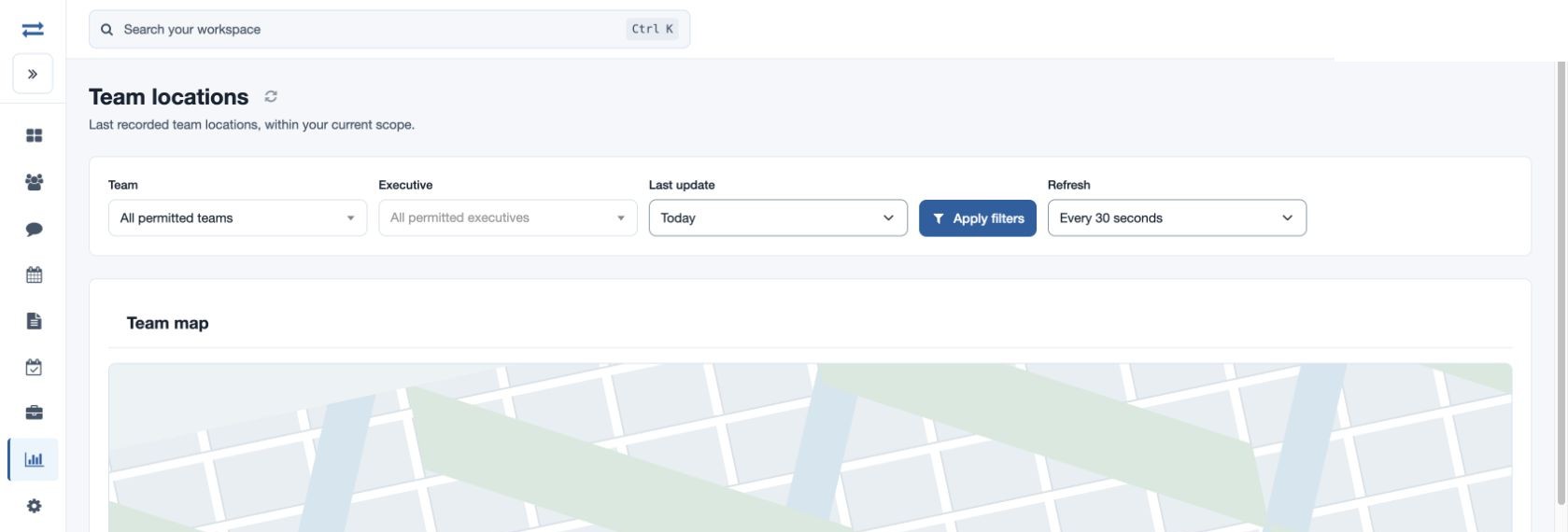
TeamSpoor team locations view with employee selection and recorded positions
TeamSpoor screen · sample dataOpen full size
Why it matters

The next instruction is tied to a real customer need and the right employee.

Example workflow

Run a focused end-of-day team review.

A regional supervisor wants tomorrow’s plan to reflect what happened with customers today.

Illustrative scenario · not a customer result
  1. Review

    Compare planned and completed stops

    Filter Team field activity to today and the assigned team. Identify pending stops and visits requiring a closer look.

  2. Understand

    Read the customer outcomes

    Open the relevant visits to review remarks, follow-ups and evidence. Discuss unresolved questions with the executive.

  3. Prepare

    Shape tomorrow’s customer round

    Use the agreed next actions to prepare follow-up stops and clarify instructions before assignment.

What changes

Tomorrow’s plan reflects customer outcomes instead of simply repeating today’s list.

A practical manager review agenda.

Match each management question to a report and a follow-up.

Swipe across the table to compare all columns.

QuestionStarting screenUseful next action
What remains in the plan?Team field activity / Beat PlanInspect pending stops and assignment state.
What happened with the customer?Visits / Visit detailRead remarks, submissions and follow-up.
Which records need review?Visits with Unverified filterReview evidence and verify eligible records.
Where is the latest recorded field context?Team locations / InstaTrackCheck time and freshness before coordinating.
Is the employee ready to report?App readinessReview assignment and recorded device evidence.

Put it to work in your team.

Use the same connected process in the customer interactions your team handles every day.

01

Regional sales supervision

Review customer coverage across assigned teams and inspect important visit outcomes. Compare planned and recorded activity in the same period, then discuss account follow-up with the representative.

02

Service operations management

Check planned customer visits, open the reported service interaction and review available evidence. Use location context for coordination while keeping service completion decisions tied to the actual visit record.

03

Distributed office teams

Organize management around teams and permitted office scope. Teach supervisors the same definitions for completed stops, verified visits and recorded distance so cross-team discussions remain comparable.

Make it practical

Try it with one real field workflow.

Run a normal team review during the pilot. Use the manager’s actual account scope and include a pending stop, a recorded visit and a follow-up question.

Agree which reports the manager uses each day and which issues go to an administrator. This makes the rollout easier to teach and gives the team a consistent review routine.

Your evaluation checklist

Questions, answered

The details that help you decide.

Need to walk through your own process?

Talk to the TeamSpoor team
Can managers see only their assigned teams?

Managers are assigned to teams, and reports operate within the account’s permitted employee scope. Available controls depend on role, permission and feature. Test the intended manager account during setup to confirm its exact visibility.

Can managers verify field visits?

An authorized non-executive reviewing an unverified visit may see Verify visit. They should inspect the record and available evidence first. Executives cannot verify visits, and an already verified visit does not offer the same action again.

Is every location shown live?

Location views show recorded device data. Inspect the update time, age and available accuracy details before using a position. An old marker alone does not establish that a device is offline or that tracking is currently active.

Does this require a separate manager app?

The documented workflows cover manager accounts, team scope and reporting. Confirm the supported device experience in your demo; this page does not claim a separate manager app beyond the available product workflows.

See how it fits your field team.

Bring one real workflow to a TeamSpoor trial or demo.