Skip to content

Give every field visit a clear next step.

TeamSpoor field task management connects customer visit assignments, app receipt and recorded outcomes, so managers can follow the work from start to finish.

  • Customer and visit details
  • Assignment and app receipt
  • Linked visit evidence
Inside TeamSpoor
TeamSpoor beat-plan builder showing the executive selection and visit planning stages
TeamSpoor screen · sample dataOpen full size
  1. Planned
  2. Assigned
  3. Visited
  1. 1Plan the stop
  2. 2Send the work
  3. 3Check receipt
  4. 4Review the visit

Clear instructions in the field. Clear answers in the office.

A customer name in a chat message is rarely enough to run a field visit. The executive needs a purpose, contact, time and location. The manager needs to know whether the assignment reached the app and what happened at the customer.

TeamSpoor uses beat-plan stops to connect these parts of the job. Save work while preparing the schedule, send the reviewed selection, then open the visit linked to a completed stop. Sales follow-ups, service appointments and inspection rounds can use the same assignment-to-review process.

Product walkthrough

From a planned stop to a recorded visit.

Give the executive the full picture.

Choose the customer, visit type and time. Add contact details, an address and instructions so the work is clear before anyone travels. Saved accounts can be searched, or a stop can be entered manually.

  1. Choose an owner

    Select the executive and first visit date. Visit times use Asia/Kolkata.

  2. Describe the visit

    Add the company, contact and visit type; use remarks to explain the expected outcome.

  3. Review the selection

    Check dates and duplicate warnings before saving. You can keep the selected stops unsent.

Read the step-by-step guide

Beat Plan → Build beat plan

Inside TeamSpoor
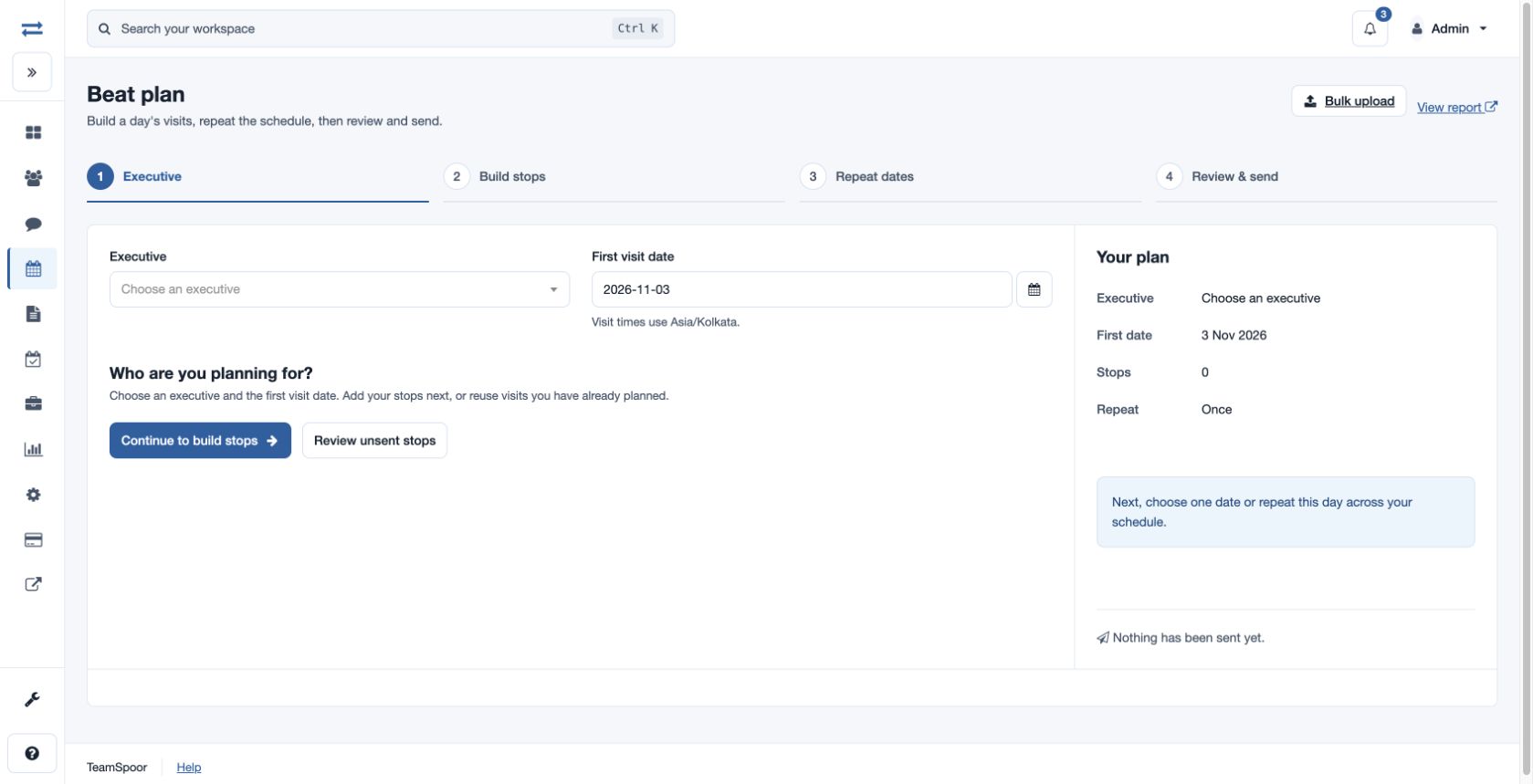
TeamSpoor stop builder with executive, customer and visit type details
TeamSpoor screen · sample dataOpen full size
Why it matters

A named customer, an owner and an expected outcome make the visit actionable.
Know whether the work reached the app.

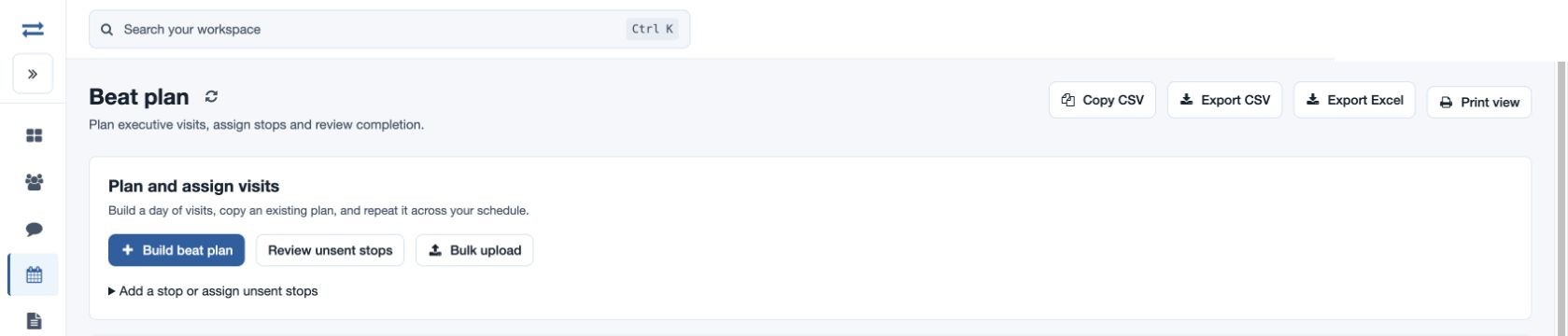
Save & send assigns the reviewed selection. The report separates assignment from Received by app, helping a supervisor see where the handoff stands before following up.

  1. Find the right stop

    Filter by date and executive; use company search to narrow the list.

  2. Check both states

    Read assignment time and app receipt separately. A notification request alone does not confirm receipt.

  3. Handle a change

    Review saved stops before retrying an uncertain send. Past stops need rescheduling before assignment.

Read the step-by-step guide

Beat Plan → Report

Inside TeamSpoor
TeamSpoor assigned and pending beat plan stops
TeamSpoor screen · sample dataOpen full size
Why it matters

Follow up on the specific handoff instead of sending the same task again.

Turn completion into a useful customer update.

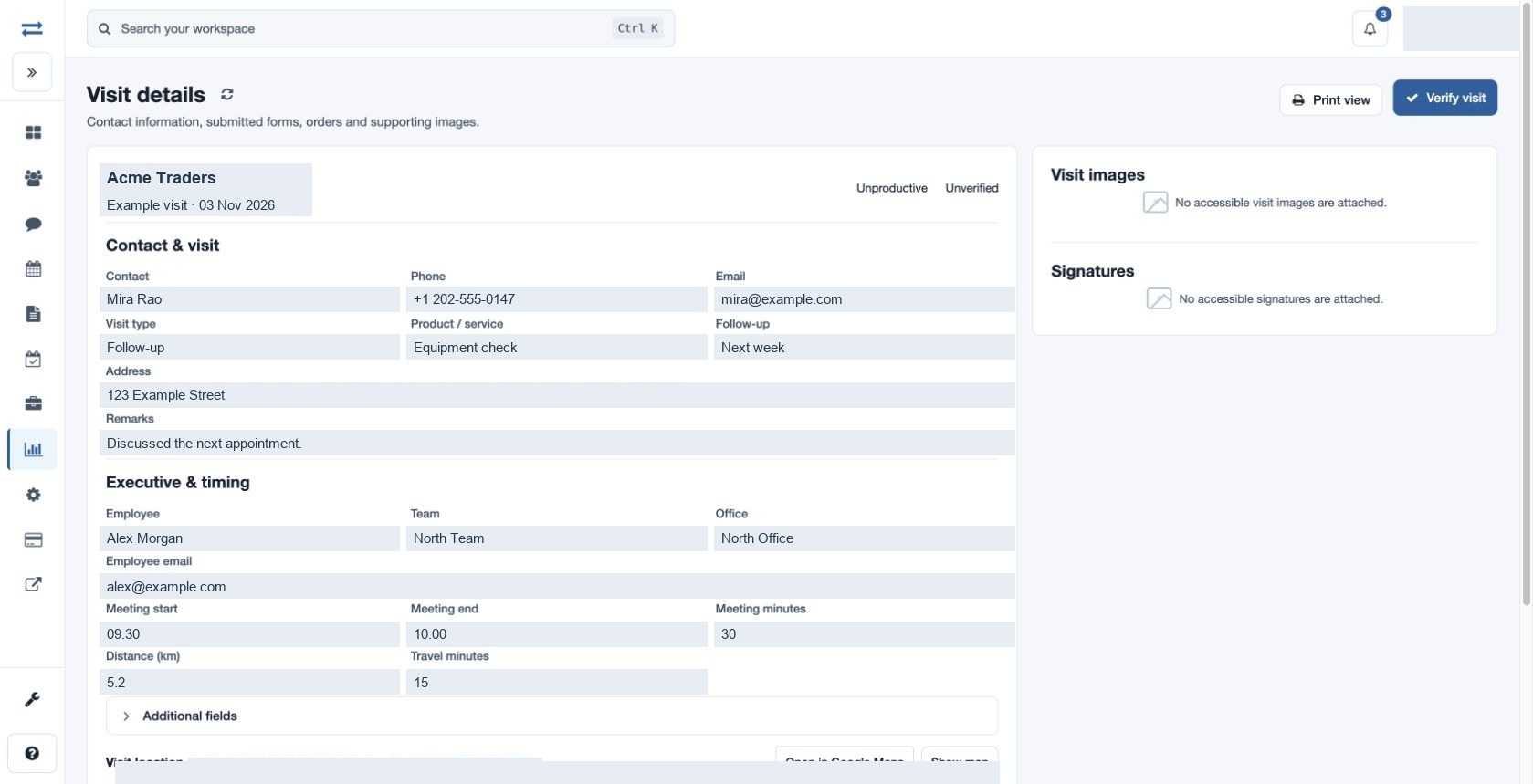
Open the recorded visit behind a completed stop. Read meeting status, remarks and follow-up, then inspect submitted forms, orders, images or signatures when available.

  1. Read the outcome

    Check the contact, visit type, meeting times and remarks.

  2. Review the evidence

    Open accessible submissions and attachments in the visit detail.

  3. Decide the next action

    Use the recorded follow-up to plan another visit or pass the customer context to the office.

Read the step-by-step guide

Beat Plan → Completed stop → Visit ID

Inside TeamSpoor
TeamSpoor visit detail showing customer information, timing and evidence sections
TeamSpoor screen · sample dataOpen full size
Why it matters

A completed stop becomes an explainable customer interaction.

Example workflow

A customer follow-up, from start to finish.

A distributor wants to revisit Acme Traders after a stock enquiry. Here is how the manager can follow the work.

Illustrative scenario · not a customer result
  1. 09:00

    Plan the visit

    Assign Acme Traders to Maya for 10:00. Add the buyer’s contact and a remark to check stock availability and the next order requirement.

  2. Before travel

    Check the handoff

    Confirm the stop was assigned and review Received by app. If receipt is unclear, contact Maya before changing the plan.

  3. After the visit

    Read the outcome

    Open the linked visit. Review the remarks and any submitted order or form, then use the follow-up field to prepare the next customer conversation.

What changes

The office can distinguish a visit that is still pending from one that happened and needs a follow-up.

Know what each task status tells you.

Use the report state to choose the next action. Assignment, receipt and completion answer different questions.

Swipe across the table to compare all columns.

What you seeWhat it meansWhat to do next
Saved, unsentThe stop has been prepared without assignment.Review the recipient and dates, then send the selected work.
AssignedThe stop has been sent through the planning workflow.Check app receipt before assuming the executive has it.
Received by appThe plan reached the employee’s app.After the appointment, check whether a recorded visit is linked.
CompletedA recorded visit is linked to the planned stop.Open the visit and review the customer outcome and evidence.

Put it to work in your team.

Use the same connected process in the customer interactions your team handles every day.

01

Customer follow-up visits

Assign a specific customer interaction with a visit type and remarks. Inspect the recorded follow-up context afterward so the office understands whether another visit or a connected customer workflow is needed.

02

Service appointments

Give an executive the intended customer and timing, then review the reported visit and available supporting submissions. Confirm any separate ticketing or work-order requirement during evaluation.

03

Inspection rounds

Prepare a sequence of site visits with clear reporting expectations. Use linked form answers and evidence to review the interaction, while keeping a completed stop distinct from a fully approved inspection.

Make it practical

Try it with one real field workflow.

Use a real customer follow-up in your trial. Ask the executive to explain the assignment from the app, then ask the manager to find the outcome without checking a separate message thread. This tests both sides of the handoff.

TeamSpoor’s field-task workflow is based on planned customer stops. Bring any additional project-board, dependency or service-ticket requirements to the demo so the team can confirm the appropriate scope.

Your evaluation checklist

Questions, answered

The details that help you decide.

Need to walk through your own process?

Talk to the TeamSpoor team
How are field tasks assigned in TeamSpoor?

The documented workflow assigns beat-plan stops to an executive with customer details, visit type and scheduled time. Review the selected work, then save it unsent or save and send it according to the available permissions.

What is the difference between assigned and completed?

Assignment indicates that the stop was sent through the planning workflow. App receipt is a separate status. A completed planned stop has a linked recorded visit, which should be opened to review the customer outcome.

Can I prepare tasks without sending them?

Yes. The builder can save selected stops unsent, and Review unsent stops can find prepared work for a date range. Inspect the scope and current saved state before assigning or retrying an uncertain result.

Is this the same as CRM workflow automation?

This page covers TeamSpoor’s field visit assignment and review process. Connected CRM automation is a separate requirement. Review the integration options and confirm the required customer workflow during your demo.

See how it fits your field team.

Bring one real workflow to a TeamSpoor trial or demo.