Skip to content

See the latest recorded position behind the field journey.

TeamSpoor InstaTrack helps you review a licensed executive’s recorded device location, then use route and distance reports to understand the journey around customer work.

  • Latest recorded device position
  • Location age and accuracy
  • Connected route and distance review
Inside TeamSpoor
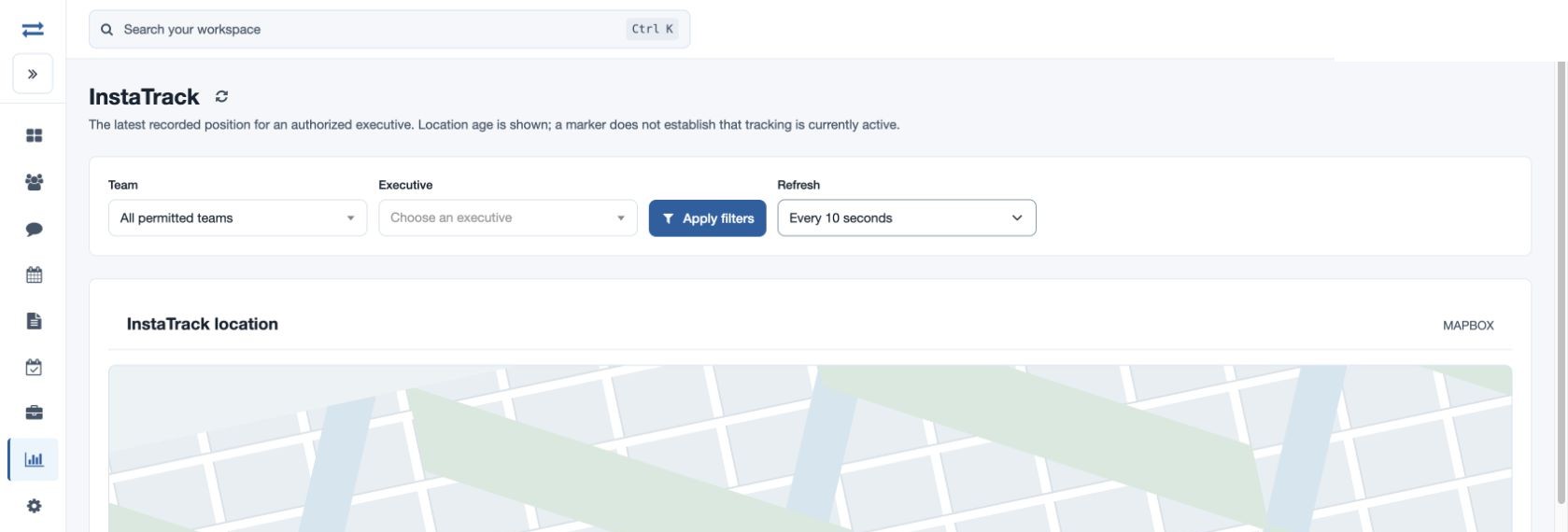
TeamSpoor InstaTrack showing executive selection and latest recorded position
TeamSpoor screen · sample dataOpen full size
  1. Latest position
  2. Route history
  3. Visit context
  1. 1Choose the executive
  2. 2Check the update age
  3. 3Review the journey
  4. 4Coordinate the visit

Coordinate mobile teams with location context.

When field employees travel between customers, the office may need to know the latest recorded position before discussing the next appointment. InstaTrack provides that starting point, with the age of the update and available location details.

TeamSpoor’s approach follows the executive’s licensed device. For vehicle-based work, use it to review the employee’s recorded journey and relate it to visits. If you require installed vehicle hardware, ignition sensors or fuel telematics, confirm those requirements separately from this device-location workflow.

Product walkthrough

Use the latest location with the right context.

See the latest available device update.

Choose the team and executive, then apply filters. Review the latest recorded marker and its age. Available details can include team, battery, accuracy and speed.

  1. Select the licensed executive

    The feature and the employee’s license must be available within your scope.

  2. Read the age

    A recorded marker is useful only with its timestamp and freshness.

  3. Choose refresh behavior

    Use Paused, Every 10 seconds, Every 30 seconds or Every minute as needed.

Read the step-by-step guide

Reports → InstaTrack

Inside TeamSpoor
TeamSpoor InstaTrack map controls and latest recorded employee location
TeamSpoor screen · sample dataOpen full size
Why it matters

The office can ask a more informed question about the employee’s next customer visit.
Move from the latest point to the day’s history.

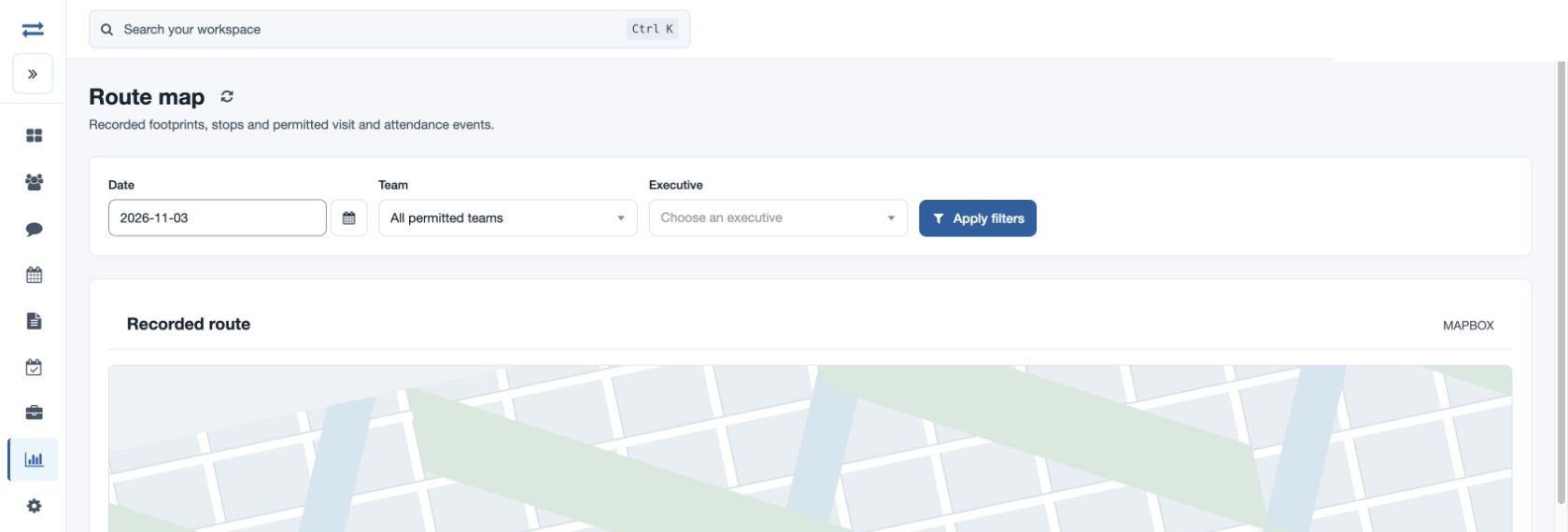
Use Route map when the question concerns earlier travel. Select the date and executive, inspect recorded footprints and stops, and include permitted visit or attendance layers.

  1. Match the executive and day

    Keep the selection consistent with the location question.

  2. Read event times

    Use the location table and marker details to understand the order.

  3. Check the customer record

    Open the relevant visit separately for the outcome and available evidence.

Read the step-by-step guide

Reports → Route map

Inside TeamSpoor
TeamSpoor route map for a field executive’s recorded daily journey
TeamSpoor screen · sample dataOpen full size
Why it matters

The latest update and the recorded journey serve different coordination needs.

Check the recorded travel basis.

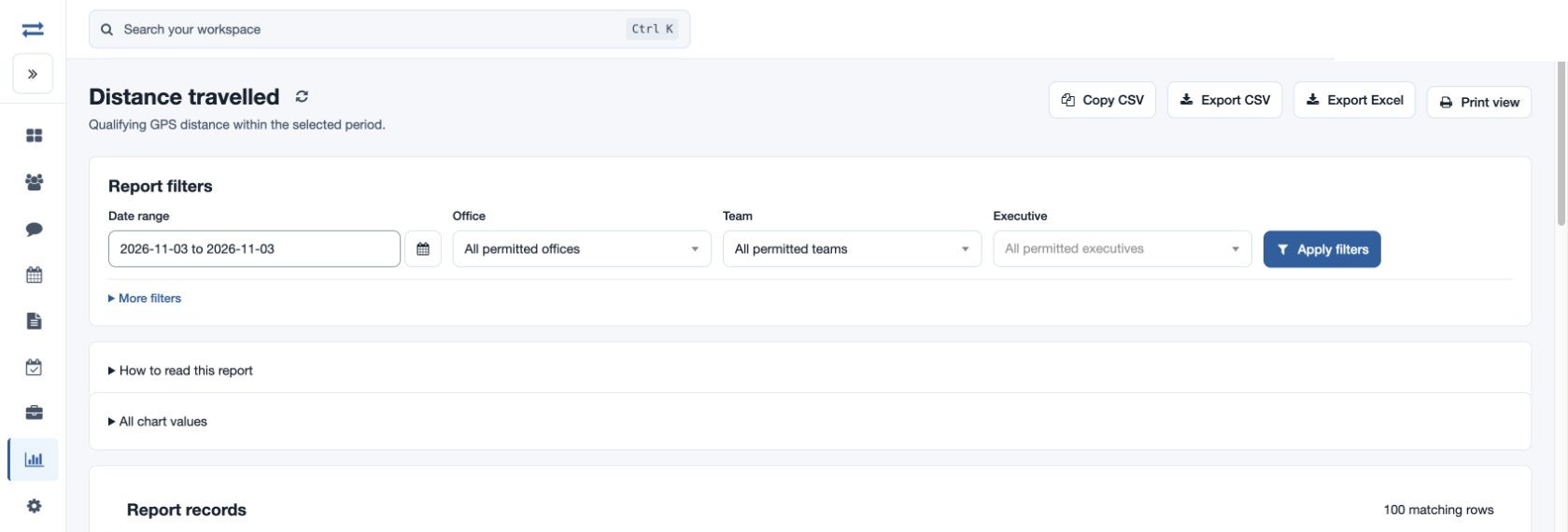
Use the employee’s recorded distance and the kilometre comparison column, together with qualifying GPS readings. Apply the same period when reviewing visits or a reimbursement question.

  1. Check the unit

    Distance and Distance (km) may be presented differently for the employee.

  2. Inspect the readings

    Missing qualifying data needs investigation before comparing totals.

  3. Apply your business process

    Use the recorded evidence with your approved travel-review rules.

Read the step-by-step guide

Reports → Distance travelled

Inside TeamSpoor
TeamSpoor recorded distance report and qualifying GPS reading totals
TeamSpoor screen · sample dataOpen full size
Why it matters

A travel review can refer to its recorded basis instead of relying on a map impression.

Example workflow

Check location context before changing an appointment.

A coordinator needs to discuss an additional customer stop with a travelling field executive.

Illustrative scenario · not a customer result
  1. Locate

    Select the executive in InstaTrack

    Read the latest recorded marker, its age and available accuracy details.

  2. Confirm

    Contact the executive with context

    Confirm current availability and the customer timing. A stale location update is a reason to check, not proof that the device is offline.

  3. Plan

    Prepare the agreed next visit

    Once the employee confirms the plan, create the customer stop with its time and instructions through the visit-planning workflow.

What changes

Location information supports the coordination conversation while the agreed customer task remains explicit.

What the location screen can tell you.

Read freshness and evidence before making an operational decision.

Swipe across the table to compare all columns.

Visible detailUseful meaningNext check
Latest markerMost recent available recorded device location.Read its time and age.
Accuracy and batteryContext attached to an available location update.Consider recording quality when interpreting the point.
Refresh intervalHow often the view requests updated data.Refreshing cannot create a missing device record.
Old or missing updateThe view lacks a newer usable point.Check with the employee and inspect app reporting.

Put it to work in your team.

Use the same connected process in the customer interactions your team handles every day.

01

Mobile service employees

Inspect the recorded position of an executive travelling between service visits. Combine it with the intended appointment and visit record when coordinating the next customer interaction.

02

Travelling sales representatives

Review an employee’s latest recorded location and daily route during a customer coverage round. Keep sales outcomes tied to reported visits rather than treating distance travelled as a sales performance measure.

03

Delivery-related field visits

Use the employee visit workflow to inspect available customer interaction and acknowledgement evidence. Confirm any separate dispatch, shipment or independent vehicle-tracking requirement before treating the workflow as a logistics system.

Make it practical

Try it with one real field workflow.

Test the device-based workflow on a typical customer round. Confirm location reporting, reviewer permissions and the information needed for your coordination process.

Describe any vehicle-specific hardware or telematics requirement in the demo. The documented InstaTrack workflow is based on employee-device locations.

Your evaluation checklist

Questions, answered

The details that help you decide.

Need to walk through your own process?

Talk to the TeamSpoor team
Does TeamSpoor require a vehicle GPS device?

The documented InstaTrack workflow reviews a licensed executive’s recorded mobile-device position. This page does not claim hardware installation or a separate vehicle GPS device. Confirm independent vehicle-tracking requirements separately.

Does a ten-second refresh guarantee a new GPS point?

No. The refresh setting reloads the available record. A new device location may not have been received. Inspect the recorded time and marker age before using the position for an operational decision.

Can I inspect the full recorded journey?

The Route map report shows qualifying recorded footprints and available related events for an executive and date. Missing points or poor accuracy can leave the path incomplete, and connected lines are not road directions.

Is distance travelled the same as road distance?

No. The report totals qualifying recorded GPS segments. Check the displayed unit and reading count, and confirm which measurement your organization uses for travel or reimbursement decisions.

See how it fits your field team.

Bring one real workflow to a TeamSpoor trial or demo.