Skip to content

Turn field visits into answers your office can use.

TeamSpoor field reporting software brings customer details, visit outcomes, forms and supporting evidence into one reviewable record.

  • Customer visit history
  • Forms, orders and evidence
  • Filtered CSV and Excel reports
Inside TeamSpoor
TeamSpoor customer visit detail with contact information, remarks, timing and evidence sections
TeamSpoor screen · sample dataOpen full size
  1. Visit
  2. Evidence
  3. Follow-up
  1. 1Find the customer
  2. 2Open the visit
  3. 3Review the evidence
  4. 4Share the outcome

Make the customer conversation easy to pick up.

After an executive leaves a customer, the office needs more than a visit count. Who did they meet? What was discussed? Was an order or form submitted? What needs to happen next?

TeamSpoor brings those questions into the Visits workspace. Start with the team, period or customer, choose the view that fits your question and open the visit record. Managers can review the available evidence, verify an eligible visit and share a filtered report with the people responsible for follow-up.

Product walkthrough

Find the visit. Understand what happened.

Start with the question you need to answer.

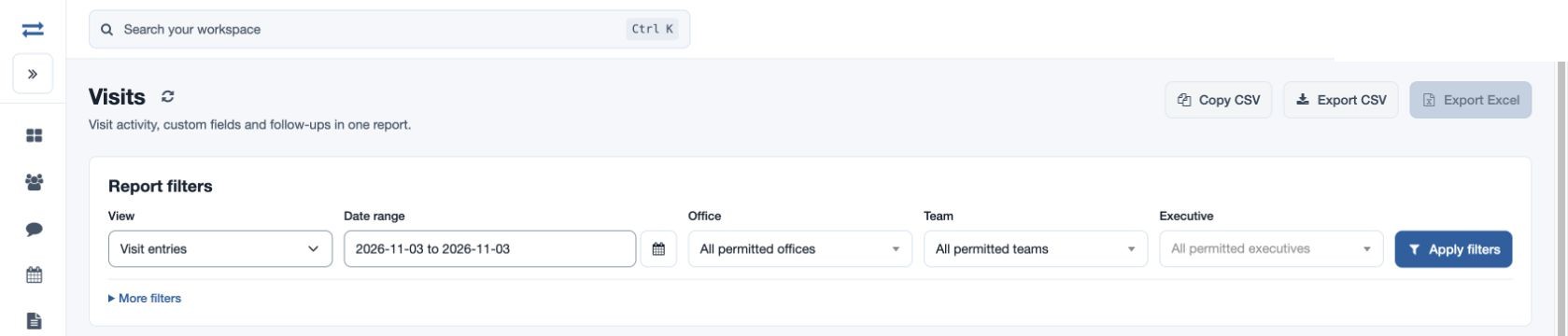
Use Visit entries for the general list, Company history for a named customer, or a form/order view for a specific submission. Date, office, team and executive filters keep the review focused.

  1. Choose a view

    Pick the view that matches the report you need.

  2. Narrow the selection

    Use the exact company name for Company history, or search contacts, remarks and references.

  3. Open the source

    Select the Visit ID to inspect the full recorded interaction.

Read the step-by-step guide

Reports → Visits

Inside TeamSpoor
TeamSpoor Visits report view picker and filter controls
TeamSpoor screen · sample dataOpen full size
Why it matters

You can locate a customer interaction without reconstructing it from separate messages.
Bring the customer and field context together.

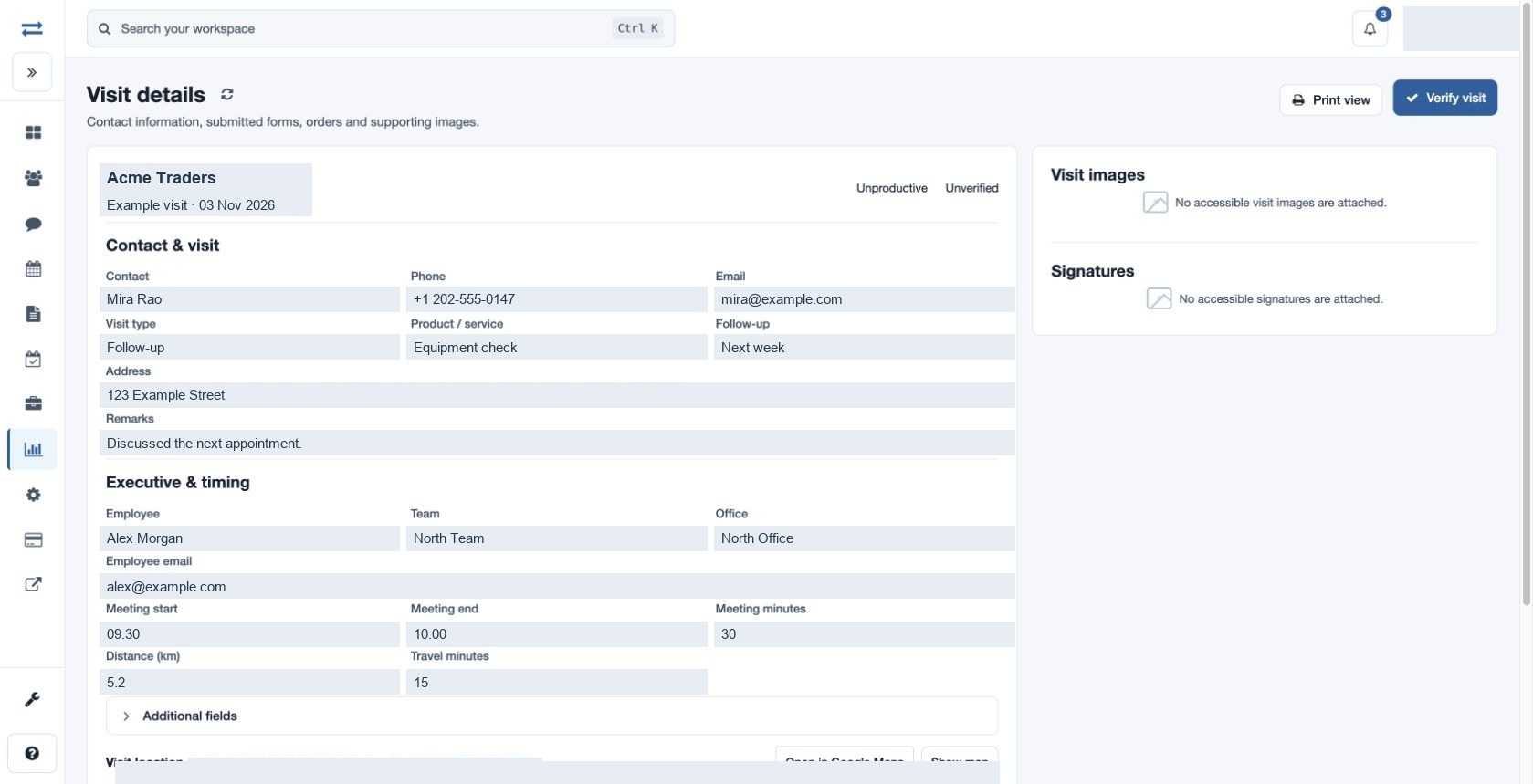
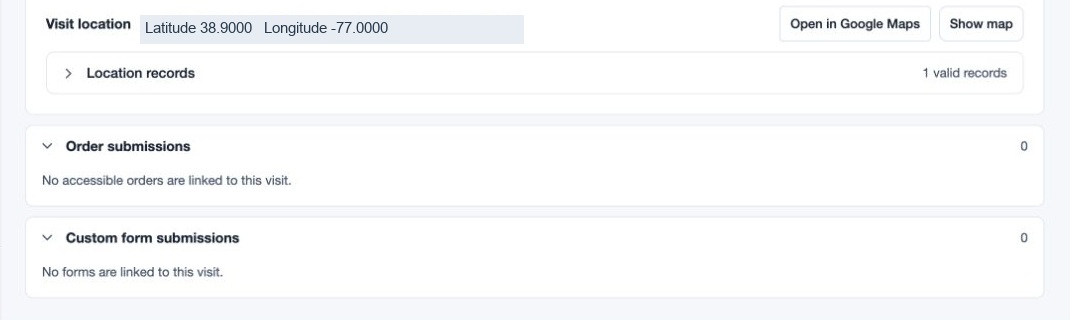
The detail view connects company, contact, visit type, remarks and follow-up with the executive, team, office and meeting times. Available orders, forms, images and signatures stay with the visit.

  1. Understand the conversation

    Read meeting status, remarks, product or service and follow-up.

  2. Check the field context

    Review the employee, times and available recorded location.

  3. Open the submissions

    Inspect form answers or order items and available attachments.

Read the step-by-step guide

Reports → Visits → Visit ID

Inside TeamSpoor
TeamSpoor detailed visit record with customer and employee information
TeamSpoor screen · sample dataOpen full size
Why it matters

The next person handling the customer can see both the outcome and its supporting detail.

Give the review a clear finish.

An authorized non-executive can verify an unverified visit after reviewing it. Use the report’s verification filter to find records still awaiting review. Print view and report downloads serve different sharing needs.

  1. Review before verifying

    Check the record and accessible evidence before confirming verification.

  2. Share the selection

    CSV and Excel exports follow report filters and require download permission.

  3. Keep attachments in context

    Direct report exports contain data; open the visit to review available images and signatures.

Read the step-by-step guide

Visit detail → Verify visit / Print view

Inside TeamSpoor
TeamSpoor available visit submissions and supporting evidence
TeamSpoor screen · sample dataOpen full size
Why it matters

The team can distinguish a recorded interaction from one a manager has reviewed.

Example workflow

Pick up a customer conversation without a second briefing.

A customer calls the office after a field visit and asks what was agreed. The account handler needs the recorded context.

Illustrative scenario · not a customer result
  1. Find

    Open the customer history

    Choose Company history and enter the exact company name. Set the period, then identify the relevant visit.

  2. Understand

    Read the remarks and submissions

    Open the Visit ID, confirm the contact and read the follow-up. Inspect any linked order or form needed to answer the question.

  3. Respond

    Use the recorded next step

    Give the customer a response based on the visit record, or ask the executive a specific question if a detail is missing.

What changes

The office starts from the recorded customer interaction and only follows up on the information that is still needed.

Choose the visit report that answers your question.

All views use the same workspace, with a different focus for the selection.

Swipe across the table to compare all columns.

Your questionUse this viewWhat to inspect
What happened during this period?Visit entriesCustomer, employee, meeting outcome and follow-up.
What has happened with this customer?Company historyExact company name and the sequence of visits.
Which visits included this checklist?Visits with a formSelect the form, then open the submitted answers.
Which visits included an order?Visits with ordersOpen the visit and inspect recorded order items.
Which records still need review?Verification filter: UnverifiedVisit detail and evidence before verification.

Put it to work in your team.

Use the same connected process in the customer interactions your team handles every day.

01

Daily sales reporting

Review customer conversations and available follow-up details without rebuilding the day from separate messages. Use company history to understand how a new visit relates to earlier interactions with the same account.

02

Service office handoffs

Inspect what the employee reported at the customer and which supporting submissions are available. Give the next office colleague enough context to follow up on missing details or the next customer action.

03

Supervisor evidence review

Filter unverified visits, open the supporting record and apply the agreed review standard. Distinguish record verification from the employee’s meeting status and from any downstream customer approval.

Make it practical

Try it with one real field workflow.

Use an actual reporting question for the pilot, such as a customer follow-up or weekly visit review. Ask a manager to find the relevant record, explain the outcome and share the selected report.

If your process needs a particular form, order detail or attachment, include it in the sample visit so the evaluation covers the evidence your team uses.

Your evaluation checklist

Questions, answered

The details that help you decide.

Need to walk through your own process?

Talk to the TeamSpoor team
Which visit reports are available?

The Visits workspace offers Visit entries, Extended fields, Company history, Visits with a form and Visits with orders. Available data follows visit-report permission and the employees within your scope.

Can I see customer visit history?

Use Company history with the exact customer company name and relevant date or employee filters. Open individual visit IDs for timing, remarks, forms, orders and available supporting evidence.

Are productive and verified visits the same?

No. Productive visits reflect the recorded visit measure, while verified visits reflect the review state. Authorized non-executives can verify an unverified visit after inspecting the evidence. Use the definitions consistently during team review.

Can we download field reports?

Permission-controlled CSV and Excel actions are available on the relevant reports. Direct visit downloads contain structured data rather than image or signature files. Narrow selections exceeding 2,000 visits or assess the separate archive-export workflow.

See how it fits your field team.

Bring one real workflow to a TeamSpoor trial or demo.