Skip to content

Plan the customer round. Reuse the work.

TeamSpoor beat planning software helps you build visit schedules, repeat customer rounds and send reviewed stops to the right field executive.

  • Repeat daily, weekly or monthly
  • Copy an existing round
  • Import and review schedules
Inside TeamSpoor
TeamSpoor beat plan builder for creating and reviewing customer stops
TeamSpoor screen · sample dataOpen full size
  1. Build
  2. Repeat
  3. Review & send
  1. 1Choose the executive
  2. 2Build the round
  3. 3Repeat the dates
  4. 4Review and send

Make recurring coverage easier to organize.

When the same customers need regular attention, rebuilding the schedule every week creates unnecessary work. Beat planning gives each round an owner, a time and a purpose while preserving the customer details the executive needs.

In TeamSpoor you can build stops manually or from saved accounts, reuse a previous day, generate repeat dates or import an existing schedule. Review the resulting selection before sending it, then use the report to follow assignment and completed visits.

Product walkthrough

Build once. Review every visit you send.

Put customer details into the plan.

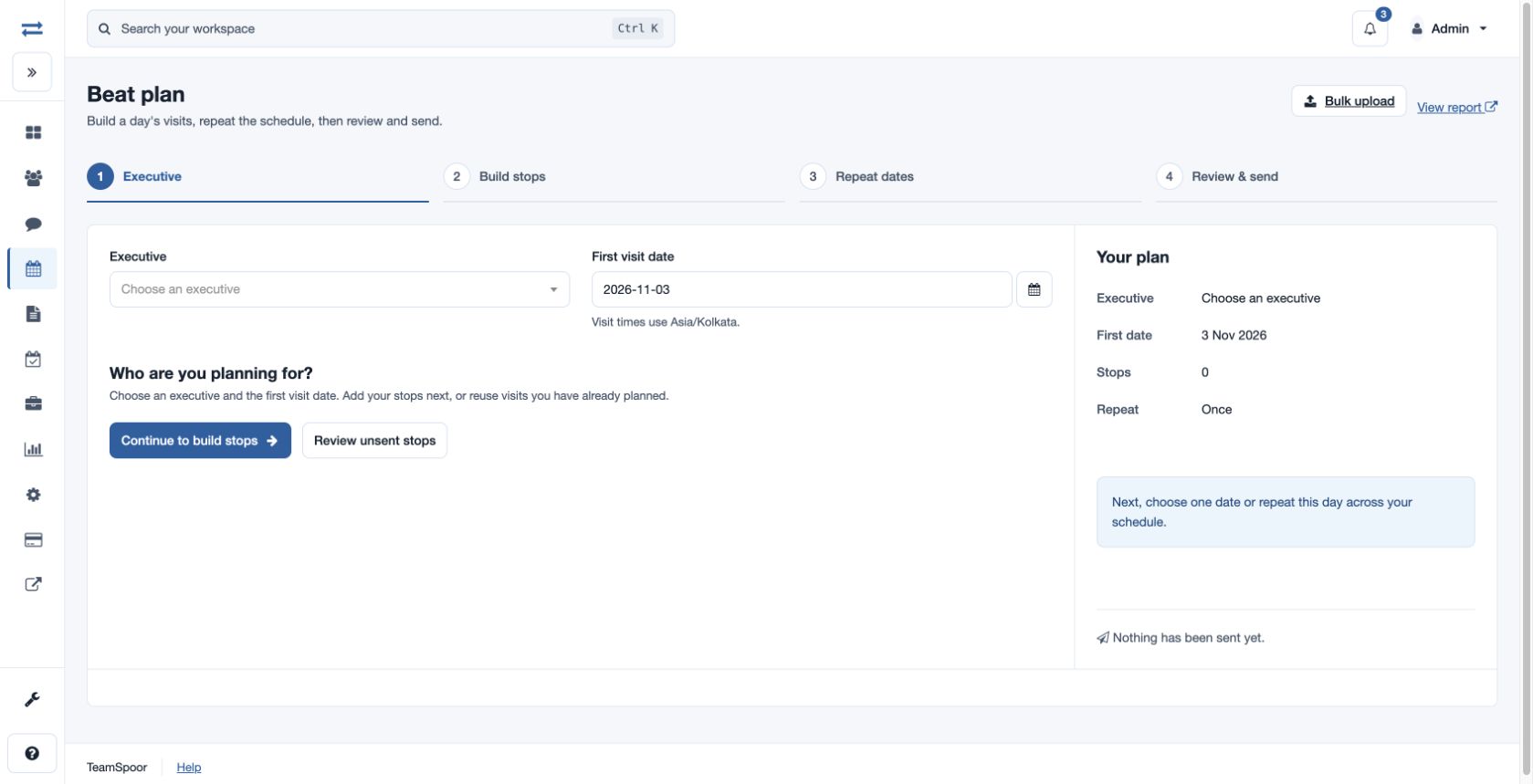
Start with the executive and first visit date, then build the stops. Each stop includes company, contact, visit type, date and time. Add an address and remarks to explain the customer interaction.

  1. Set the owner and date

    The plan begins with a named executive; visit times use Asia/Kolkata.

  2. Add the customer stops

    Search saved accounts or enter details manually. Enter both coordinates together if you use them.

  3. Check the order

    Times determine the visit order. Review any time adjustment when moving stops.

Read the step-by-step guide

Beat Plan → Build beat plan

Inside TeamSpoor
TeamSpoor customer stop builder with schedule and account details
TeamSpoor screen · sample dataOpen full size
Why it matters

The employee receives a usable customer round instead of a bare list of names.
Keep the useful parts of last week’s plan.

Choose selected dates or a daily, weekly or monthly pattern. Copy from an executive and date range when you want to reuse existing stops; relative times and gaps are retained.

  1. Choose a pattern

    Weekly schedules select weekdays. Monthly schedules can use a date, weekday pattern or last day.

  2. Handle exceptions

    Include or skip individual dates and review how missing monthly dates should be handled.

  3. Review the generated stops

    Check dates, duplicates and the selected stops before saving or assigning.

Read the step-by-step guide

Beat Plan → Build beat plan → Repeat dates

Inside TeamSpoor
TeamSpoor beat-plan builder with the repeat-dates stage in the workflow
TeamSpoor screen · sample dataOpen full size
Why it matters

A recurring schedule stays reviewable, including its holidays and exceptions.

Bring an existing schedule into the same review process.

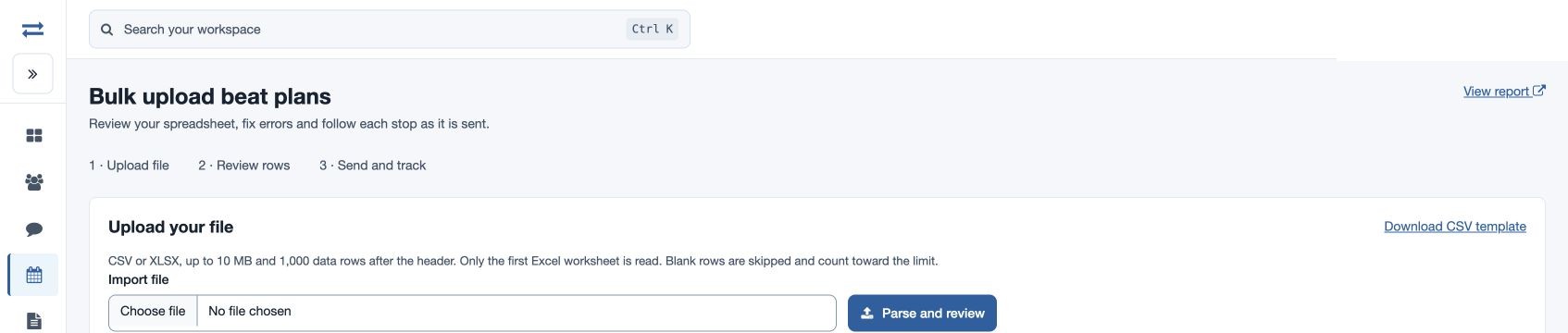
Bring an existing schedule into Beat Plan using a CSV or XLSX file. Parse and review shows row feedback before assignment; inspect errors and duplicates, then send the reviewed selection.

  1. Prepare the import

    Download the template; keep its ten columns in order, including executive email, company, contact, scheduled time and visit type ID.

  2. Parse and review the file

    Upload CSV or XLSX, inspect row feedback and select valid rows. Review duplicate warnings before sending reviewed rows.

  3. Confirm the handoff

    Check assignment and Received by app separately; open the linked visit after completion.

Read the step-by-step guide

Beat Plan → Bulk upload

Inside TeamSpoor
TeamSpoor beat plan spreadsheet upload and review workflow
TeamSpoor screen · sample dataOpen full size
Why it matters

Imported and manually prepared rounds can be followed through the same reporting workflow.

Example workflow

A weekly retailer round with one exception.

A distributor visits the same group of retailers every Tuesday. One customer is closed on the next scheduled date.

Illustrative scenario · not a customer result
  1. Build

    Prepare Tuesday’s customer round

    Select the executive and first date, then add the retailers with visit times, contacts and remarks about the purpose of each visit.

  2. Repeat

    Generate the weekly dates

    Select the weekly pattern. Use skipped and included dates to handle the closure, and inspect the generated selection before saving.

  3. Review

    Send the agreed schedule

    Check duplicates and customer details, send the reviewed stops and use the Beat Plan report to follow receipt and linked visits.

What changes

The recurring round is reusable, while the exceptional date receives an explicit review.

Choose the quickest way to prepare the round.

Start from the schedule you already have, then review the customer stops before assignment.

Swipe across the table to compare all columns.

Starting pointUse this optionReview before sending
A new customer roundBuild stops from saved accounts or manual entry.Customer, contact, visit type and future time.
The same customers on a patternDaily, weekly, monthly or selected-date repetition.Generated dates, skipped dates and duplicate warnings.
A useful previous scheduleCopy from an executive and date range.New first date, selected stops and retained time gaps.
A schedule prepared in a fileBeat Plan bulk import.Template validation, saved records and assignment status.

Put it to work in your team.

Use the same connected process in the customer interactions your team handles every day.

01

Repeat retail coverage

Build a weekly store round, copy familiar stops and adjust the dates for customer availability. Review which planned stops gained visits before preparing the next coverage cycle.

02

Service visit coordination

Plan customer appointments with a visit type and clear remarks. Confirm receipt by the executive and inspect the linked visit afterward for timing, notes and any available supporting submissions.

03

Regional schedule imports

Bring an existing planning spreadsheet into the review workflow. Resolve invalid employees, past dates and duplicate rows before assignment, giving operations staff a controlled handoff from spreadsheet to mobile work.

Make it practical

Try it with one real field workflow.

Test the schedule pattern your team actually uses, including one exception. Have the planner review the generated stops and the executive check the assigned work in the app.

Beat planning organizes scheduled customer coverage. If your process also needs route optimization or a separate dispatch system, describe that requirement during the demo.

Your evaluation checklist

Questions, answered

The details that help you decide.

Need to walk through your own process?

Talk to the TeamSpoor team
Does TeamSpoor support recurring beat plans?

Yes. Supported patterns include once, selected dates, daily, weekly and monthly. Review the generated dates, intervals and exceptions before saving or sending so the resulting customer schedule matches the intended coverage.

Can we upload a schedule from Excel?

Authorized administrators can review CSV or XLSX imports using the provided template. The upload supports up to 10 MB and 1,000 data rows, and reads the first Excel worksheet. Inspect feedback and duplicates before sending reviewed rows.

Does sending a plan prove the employee received it?

No. Assignment, notification and app receipt are separate. Use the report and download-status controls to inspect the result. When an outcome is uncertain, review saved stops before retrying to avoid duplicate work.

How is a planned stop marked completed?

A completed planned stop has a linked recorded visit. Open that visit to inspect the customer interaction, timing and available evidence. App receipt alone does not establish that the visit took place.

See how it fits your field team.

Bring one real workflow to a TeamSpoor trial or demo.