Skip to content

Give every field report the details that matter.

Use TeamSpoor custom field forms to review structured answers from store audits, inspections and customer visits, with the employee and visit context attached.

  • Field-by-field submissions
  • Repeated and historical answers
  • Visit-linked form evidence
Inside TeamSpoor
TeamSpoor custom form submissions report with form and scope filters
TeamSpoor screen · sample dataOpen full size
  1. Ask
  2. Capture
  3. Compare
  1. 1Choose the form
  2. 2Set the scope
  3. 3Review the answers
  4. 4Open the visit

Make field answers easier to compare.

Free-text remarks are useful for a conversation, but a recurring audit needs consistent questions. A store review might need stock availability, display condition and the next action. A service visit may need a different checklist.

TeamSpoor’s custom form reporting lets you choose a form and compare its submissions across permitted employees. Use the field-by-field report for patterns and the visit detail for the customer context. Repeated submissions and retained historical answer names help you understand how the recorded answers changed over time.

Product walkthrough

From a submitted checklist to a useful review.

Review the same questions across your team.

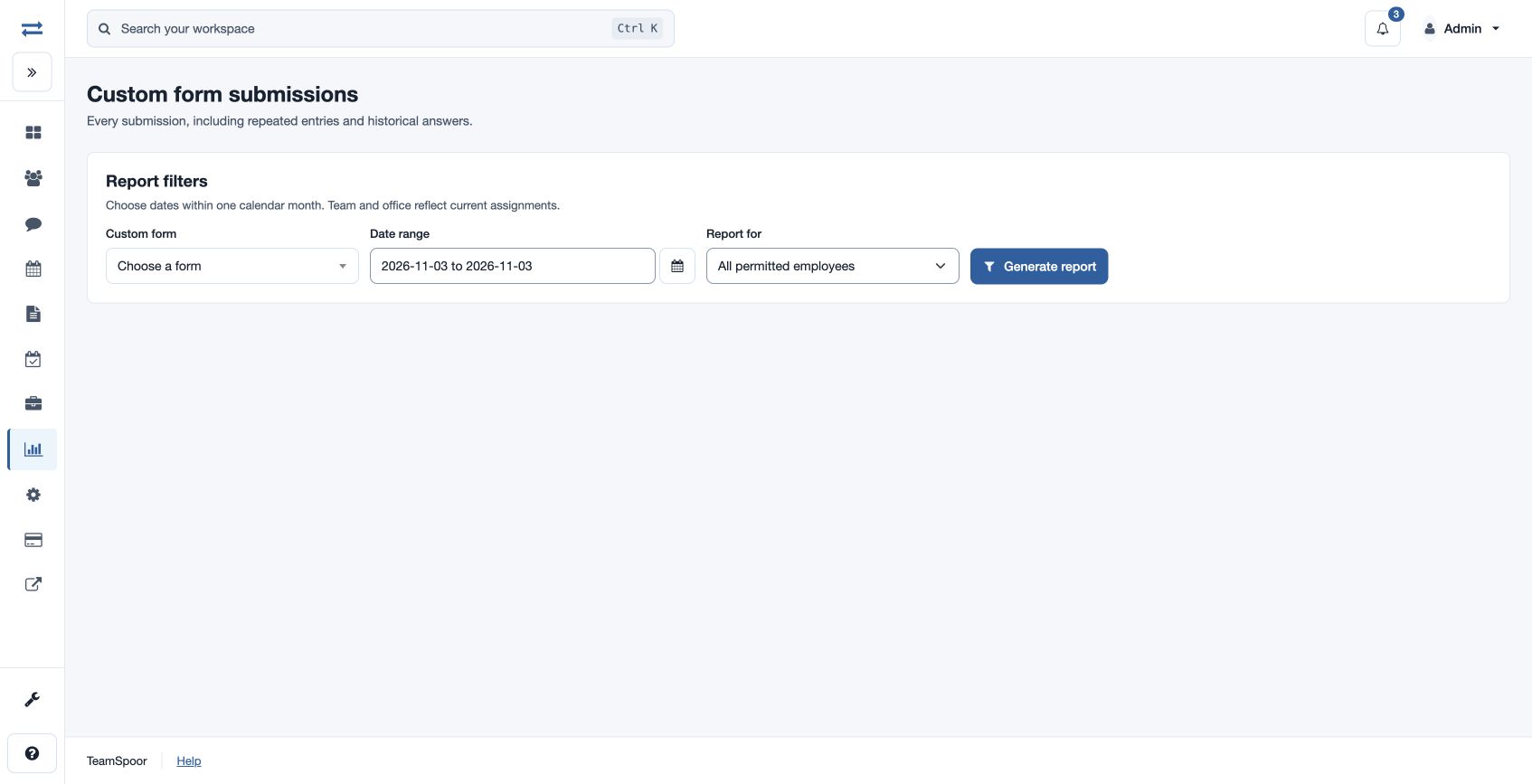
Choose the form, a date range within one calendar month and the reporting scope. Generate the report to inspect charts and answer columns alongside submission time, employee and visit reference.

  1. Select the form

    Start with the checklist your team uses for this field process.

  2. Set one month and scope

    Choose the permitted team, office or employee. Split cross-month reviews into separate reports.

  3. Compare the responses

    Read answer columns alongside submission time and employee, including repeated entries.

Read the step-by-step guide

Reports → Custom form submissions

Inside TeamSpoor
TeamSpoor form report selection and submission table
TeamSpoor screen · sample dataOpen full size
Why it matters

A recurring field question becomes a comparable set of responses.
See what the answers mean for the customer.

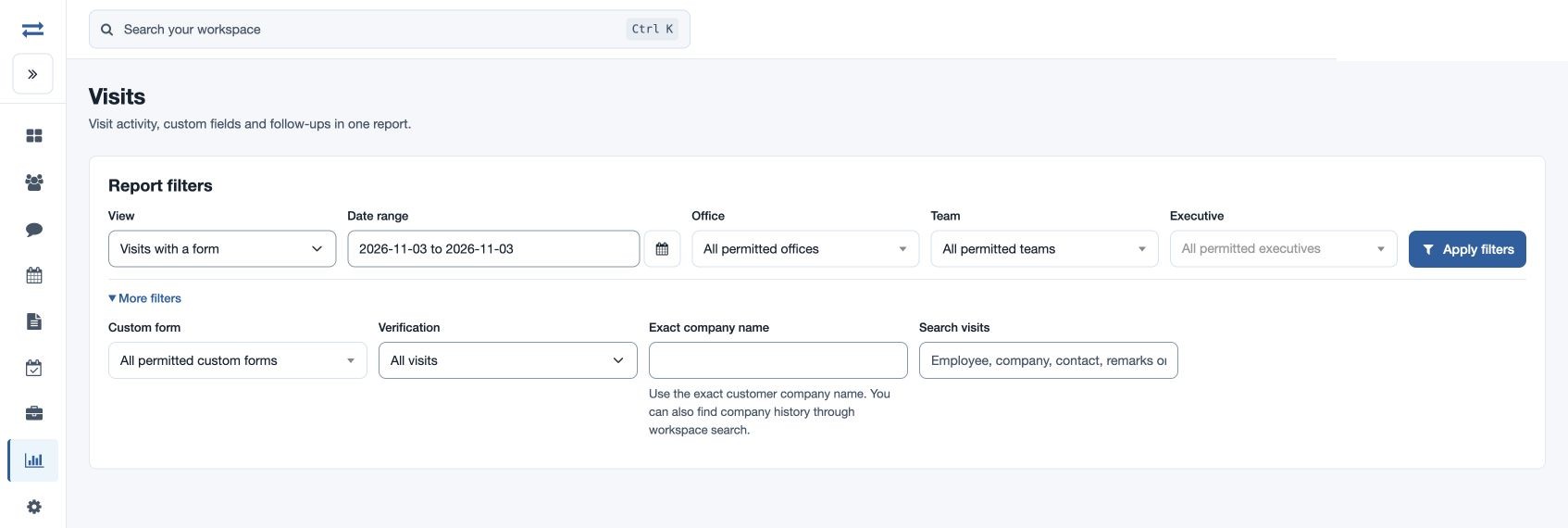
Choose the named form in More filters, then apply the employee and date selection. Open a matching Visit ID to read the form with customer details, remarks, timing and other available evidence.

  1. Choose the required form

    The form view returns visits with a submission of the selected form.

  2. Open the visit

    Use the Visit ID to inspect the customer and recorded interaction.

  3. Read the submission

    Expand Custom form submissions for the form name, submission time and question-and-answer fields.

Read the step-by-step guide

Reports → Visits → Visits with a form

Inside TeamSpoor
TeamSpoor visits with a form report and customer visit filters
TeamSpoor screen · sample dataOpen full size
Why it matters

An unusual answer can be investigated in the visit where it was submitted.

Understand changes without losing the old answers.

The report retains historical answer names alongside current fields and provides the original submitted data. Use these together when the form has changed or an answer needs closer investigation.

  1. Check the date

    An older submission may predate a newer question.

  2. Read data status

    Invalid JSON flags saved data that cannot be decoded into normal answer columns.

  3. Export the selection

    Use permitted CSV or Excel controls for the selected report.

Read the step-by-step guide

Reports → Custom form submissions → Answer columns

Inside TeamSpoor
TeamSpoor custom form report with form, date range and reporting scope filters
TeamSpoor screen · sample dataOpen full size
Why it matters

Historical responses remain interpretable when the checklist evolves.

Example workflow

Find the store audits that need a return visit.

A retail supervisor wants to review a Store Audit form with questions about stock, display condition and the next action. These are example checklist requirements to use in a demo.

Illustrative scenario · not a customer result
  1. Collect

    Use one agreed audit form

    Have the pilot team record the same checklist during customer visits, with the answers relevant to each store.

  2. Compare

    Review the month’s submissions

    Select Store Audit and the team in Custom form submissions. Inspect the answer columns and submission times to find stores needing attention.

  3. Follow up

    Read the visit behind an answer

    Open the associated visit to understand the remarks and available evidence. Use the result to prepare a targeted return visit.

What changes

The supervisor can move from a checklist answer to a customer-specific follow-up.

Which form view should you use?

Choose between comparing submissions and understanding an individual visit.

Swipe across the table to compare all columns.

NeedBest starting pointWhy it helps
Compare the same answer across employeesCustom form submissionsAnswer columns include submission time and employee context.
Find customer visits carrying a particular formVisits with a formThe named form narrows the visit selection.
Understand one response in detailVisit detail → Custom form submissionsQuestions and answers appear with the customer interaction.
Interpret an older or unexpected answerHistorical columns and original submitted dataSubmission dates and saved answers help explain form changes.

Put it to work in your team.

Use the same connected process in the customer interactions your team handles every day.

01

Retail and outlet reviews

Collect comparable observations across customer locations. Review answers by team and period, then open the visit for the customer details and supporting evidence needed to investigate an unusual response.

02

Service checklists

Organize the information technicians report after a customer visit. Confirm the checklist configuration and inspect real submissions before treating completion as evidence that every service requirement was satisfied.

03

Field surveys and inspections

Use a consistent question set across a defined employee scope. Compare repeated submissions and historical fields carefully, especially when a survey changes while field work is already underway.

Make it practical

Try it with one real field workflow.

Bring the actual questions your team asks in the field. Confirm the form configuration and field requirements in the demo, then test the reporting flow with representative submissions.

A useful pilot proves both that employees can capture the required information and that managers can compare it without rebuilding a spreadsheet from free-text notes.

Your evaluation checklist

Questions, answered

The details that help you decide.

Need to walk through your own process?

Talk to the TeamSpoor team
Can I see custom form answers with a visit?

Yes, available visit details include linked custom form submissions, their names, submission times and question-and-answer fields. The Visits workspace also has a form-specific view. Access depends on permissions and the available recorded submission.

Can managers report on their own teams?

The custom form report supports manager scopes such as My teams, Team or Employee. Administrators have broader permitted scope, while executives see their own submissions. Available results follow the account’s permissions.

What happens when form questions change?

Historical answer names are retained alongside current fields, and the original submitted JSON is available for inspection. A blank historical answer may mean that the question did not exist when that submission was recorded.

Can we export form submissions?

Copy CSV, Export CSV and Export Excel are available with download permission. The form report uses dates within one calendar month and requires a narrower selection if more than 2,000 submissions match.

See how it fits your field team.

Bring one real workflow to a TeamSpoor trial or demo.