Skip to content

Connect field activity to the next business action.

Use TeamSpoor’s ZNICRM connection, event webhooks and reporting exports to bring field information into your office workflow.

  • ZNICRM connection
  • Visit, attendance and geofence events
  • API and export options
Inside TeamSpoor
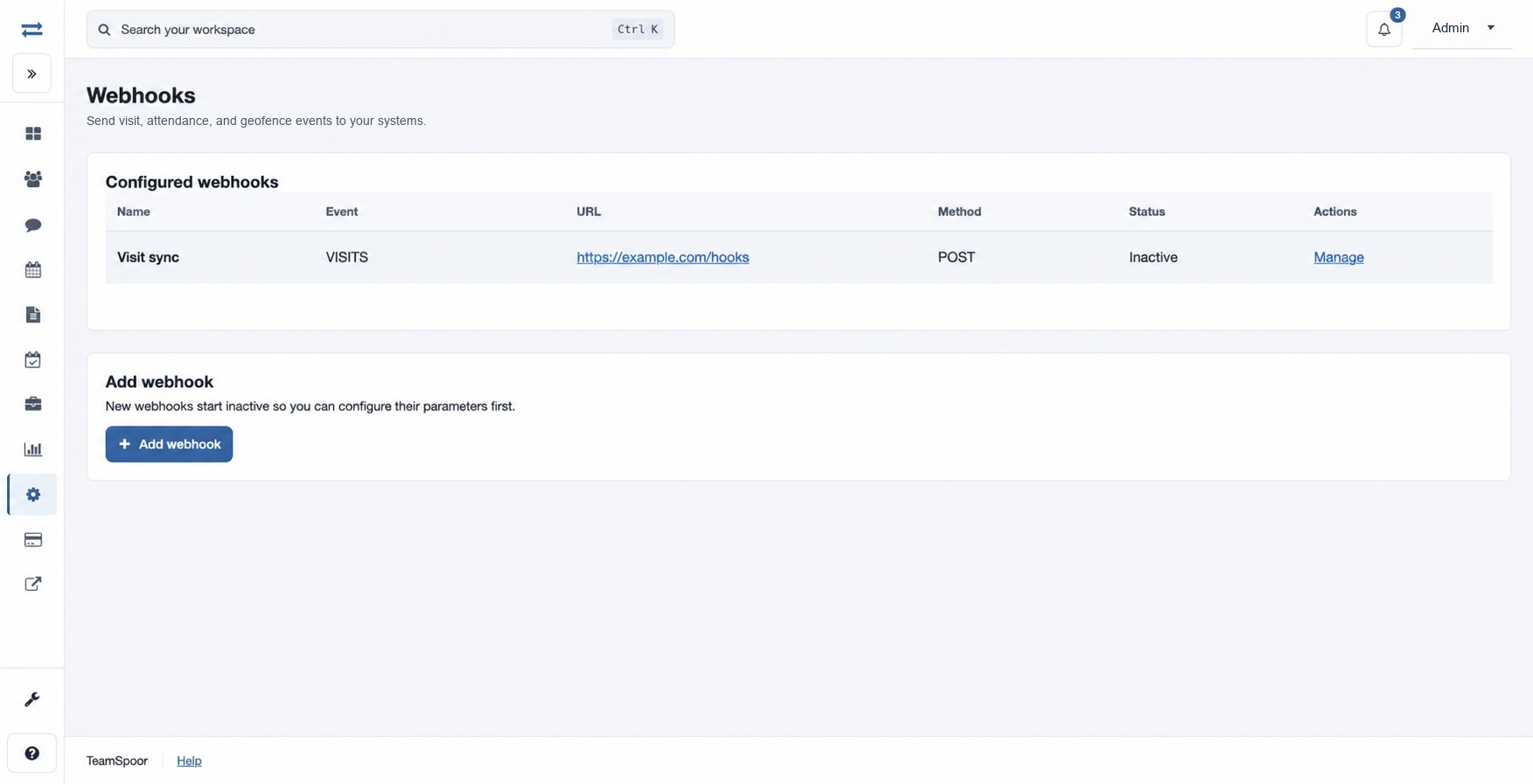
TeamSpoor webhook settings with event and endpoint configuration
TeamSpoor screen · sample dataOpen full size
  1. Field event
  2. Data handoff
  3. Your workflow
  1. 1Choose the event
  2. 2Map the fields
  3. 3Check the receiver
  4. 4Enable the workflow

Choose the connection around the job it needs to do.

A customer visit may need a CRM follow-up. An attendance event may need to reach an internal process. A monthly review may simply need a spreadsheet. These are different jobs, and they need different integration choices.

TeamSpoor provides a ZNICRM connection, configurable webhooks for supported field events, report downloads and an API documentation path with access requested through support. Start with the receiving action and the fields it needs, then test one event end to end.

Product walkthrough

Three practical ways to connect your field data.

Bring field visits into the customer workflow.

A full administrator can enter the 32-character key from ZNICRM and use Save and connect. The saved key is hidden; the action saves the connection and requests synchronization.

  1. Prepare the connection

    Obtain the integration key from the intended ZNICRM account.

  2. Save and connect

    Use the Global settings connection control with the correct administrator access.

  3. Check the receiving record

    Verify the connection in ZNICRM and follow a sample visit through the intended customer process.

Read the step-by-step guide

Settings → Global settings → ZNICRM integration

Inside TeamSpoor
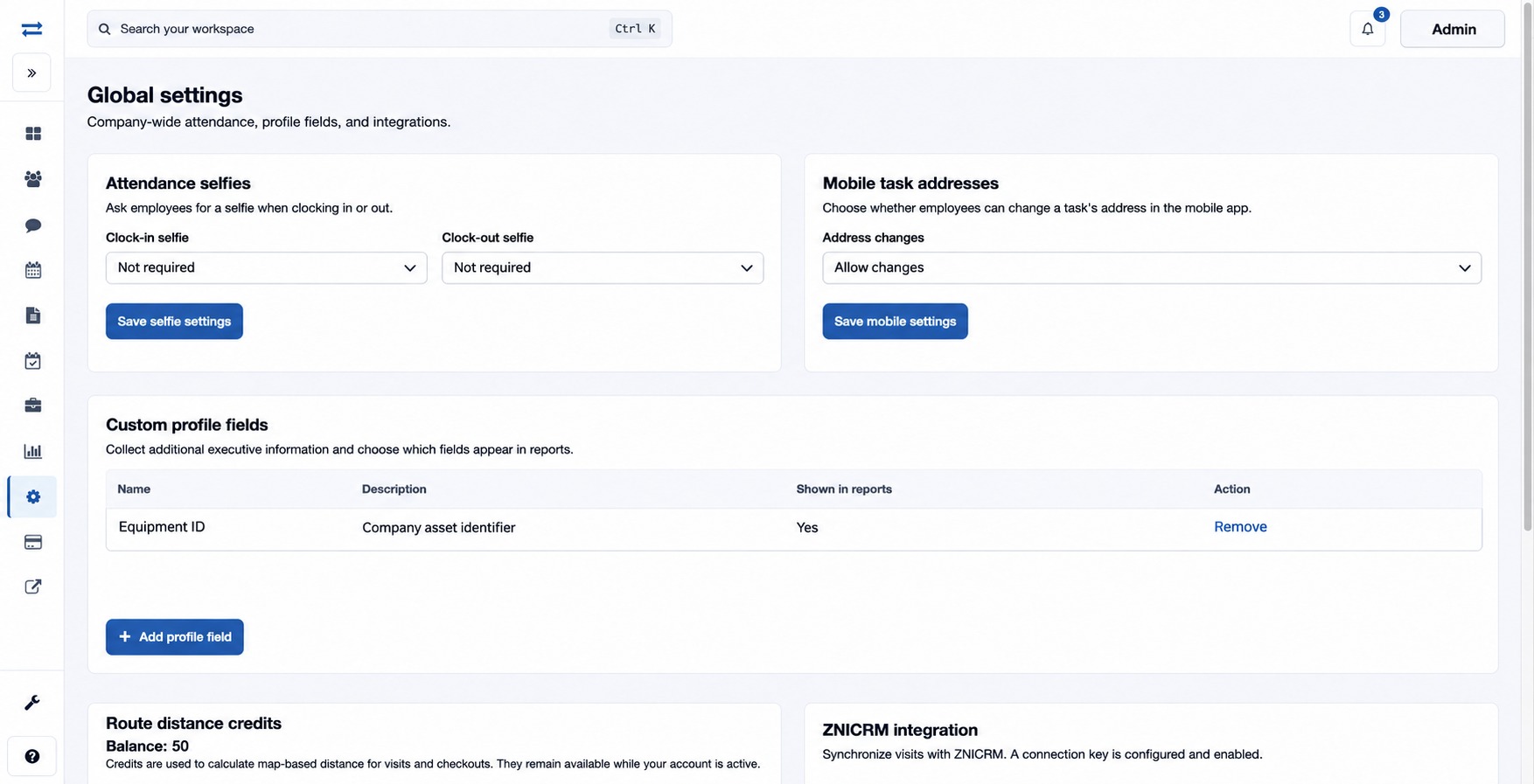
TeamSpoor Global settings with ZNICRM connection controls
TeamSpoor screen · sample dataOpen full size
Why it matters

The field-to-CRM handoff is checked at both ends.
Send the event fields your system needs.

Create a webhook for Visits, Attendance or Geofence. Choose GET or POST and your organization’s public endpoint. New webhooks start inactive so parameters can be configured before future delivery begins.

  1. Select the trigger

    Choose the event that starts the receiving workflow.

  2. Map the parameters

    Add names and event tags, such as staff = {{staffname}} or visit_id = {{logid}} for a visit event.

  3. Enable after review

    Check the endpoint and parameters, enable the webhook and inspect a matching event in the receiver.

Read the step-by-step guide

Settings → Webhooks

Inside TeamSpoor
TeamSpoor configured webhooks and supported event controls
TeamSpoor screen · sample dataOpen full size
Why it matters

A clear event-to-field mapping makes the receiving workflow easier to build and troubleshoot.

Match the method to the frequency of the job.

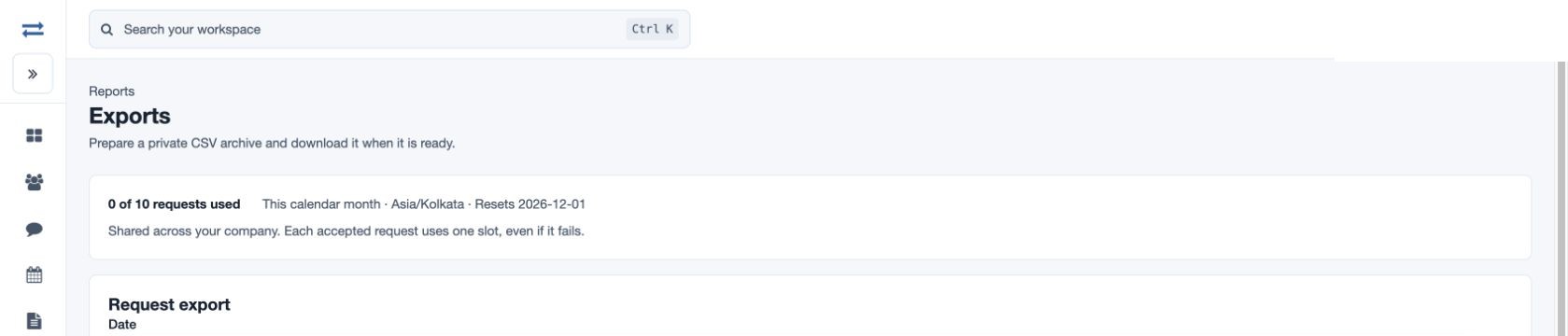
For a periodic review, a permitted report download may be sufficient. Archive exports provide selected datasets for a date range. For a custom application, review the API documentation and request access through support.

  1. Use the filtered report

    Copy or export the visible report selection when its fields meet the need.

  2. Plan archive requirements

    Check the dataset, allowance, date range and file expiry before requesting an archive.

  3. Scope the API work

    Confirm the operations and access needed for your particular receiving system.

Read the step-by-step guide

Reports → Export data / Settings → Global settings

Inside TeamSpoor
TeamSpoor export request workspace for available structured datasets
TeamSpoor screen · sample dataOpen full size
Why it matters

You can choose a practical data handoff without assuming every requirement needs a live integration.

Example workflow

Send a visit event to an internal follow-up queue.

Your operations team wants a recorded customer visit to create a review item in a system it owns. The receiving queue and its behavior are implemented by your team.

Illustrative scenario · not a customer result
  1. Define

    Agree the receiving record

    Choose a Visits event. Identify the visit ID, employee and customer fields the review item needs, using the event tags available in TeamSpoor.

  2. Configure

    Map the event parameters

    Create an inactive webhook for the organization-controlled endpoint. Add the parameter names expected by the receiver and their corresponding tags.

  3. Test

    Follow a sample event through

    Enable after review, record a controlled sample visit and inspect the received fields. Confirm that your receiver creates the intended review item and handles repeated input appropriately.

What changes

The integration has an observable business result and a named owner for troubleshooting.

Which integration path fits your requirement?

Pick the smallest supported handoff that delivers the information your process needs.

Swipe across the table to compare all columns.

RequirementStarting optionConfirm in your evaluation
Connect with ZNICRMGlobal settings → ZNICRM integration.Correct account key, synchronization and receiving customer workflow.
React to a field eventVisits, Attendance or Geofence webhook.Public endpoint, method, supported event tags and receiver behavior.
Review a filtered datasetReport CSV / Excel download.Download permission, selected columns and filters.
Collect a larger period of dataArchive export request.Dataset contents, account allowance and seven-day file availability.
Build a custom applicationAPI documentation and support-assisted access.Required operations, authentication and your implementation scope.

Put it to work in your team.

Use the same connected process in the customer interactions your team handles every day.

01

Field-to-CRM handoff

Connect recorded field activity with the office’s customer process using the documented ZNICRM option. Confirm the key, synchronization state and receiving customer workflow with a real sample record.

02

Internal event processing

Send selected visit, attendance or geofence values to an organization-controlled endpoint. Your implementation can use the received event within its own tested workflow after fields and results have been verified.

03

Scheduled operational analysis

Use permitted reports or archive datasets when a structured download is sufficient. Confirm the date range, dataset contents, request allowance and file expiry before designing a recurring analysis process around exports.

Make it practical

Try it with one real field workflow.

Bring one representative event and the desired receiving record to the demo. TeamSpoor’s supported connection paths are specific; confirm any requirement involving another CRM, accounting platform or messaging service before planning the implementation.

For webhooks, agree how your receiving system validates input, identifies the right record and handles repeated events. A connection is useful when the destination performs the intended action reliably.

Your evaluation checklist

Questions, answered

The details that help you decide.

Need to walk through your own process?

Talk to the TeamSpoor team
Which integration paths are documented?

TeamSpoor documents a ZNICRM connection under Global settings, webhooks for Visits, Attendance and Geofence, and API documentation with key requests through support. Report downloads and archive exports provide additional structured-data options under their own permissions.

Which webhook methods and events are supported?

Webhooks can use GET or POST and select Visits, Attendance or Geofence events. Parameters may use the supported tags for that event. New webhooks start inactive and must be reviewed and enabled for future matching events.

Does Save and connect guarantee visit delivery to ZNICRM?

No. It saves the key and requests synchronization. Verify the connection and received result in ZNICRM before relying on the handoff. Keep the saved key secret and follow the documented troubleshooting process if confirmation is unavailable.

Can we connect another CRM or ERP?

Assess the required workflow against TeamSpoor’s documented API and webhook options with the team. This page does not promise prebuilt connectors for every third-party platform. Confirm fields, access, custom implementation and receiving-system ownership first.

See how it fits your field team.

Bring one real workflow to a TeamSpoor trial or demo.