See TeamSpoor in action
Bring one customer round, reporting task or attendance process.
Request a demoExplore TeamSpoor with a demo built around your customer visits, team reporting or attendance workflow. Already using it? Go directly to account support.
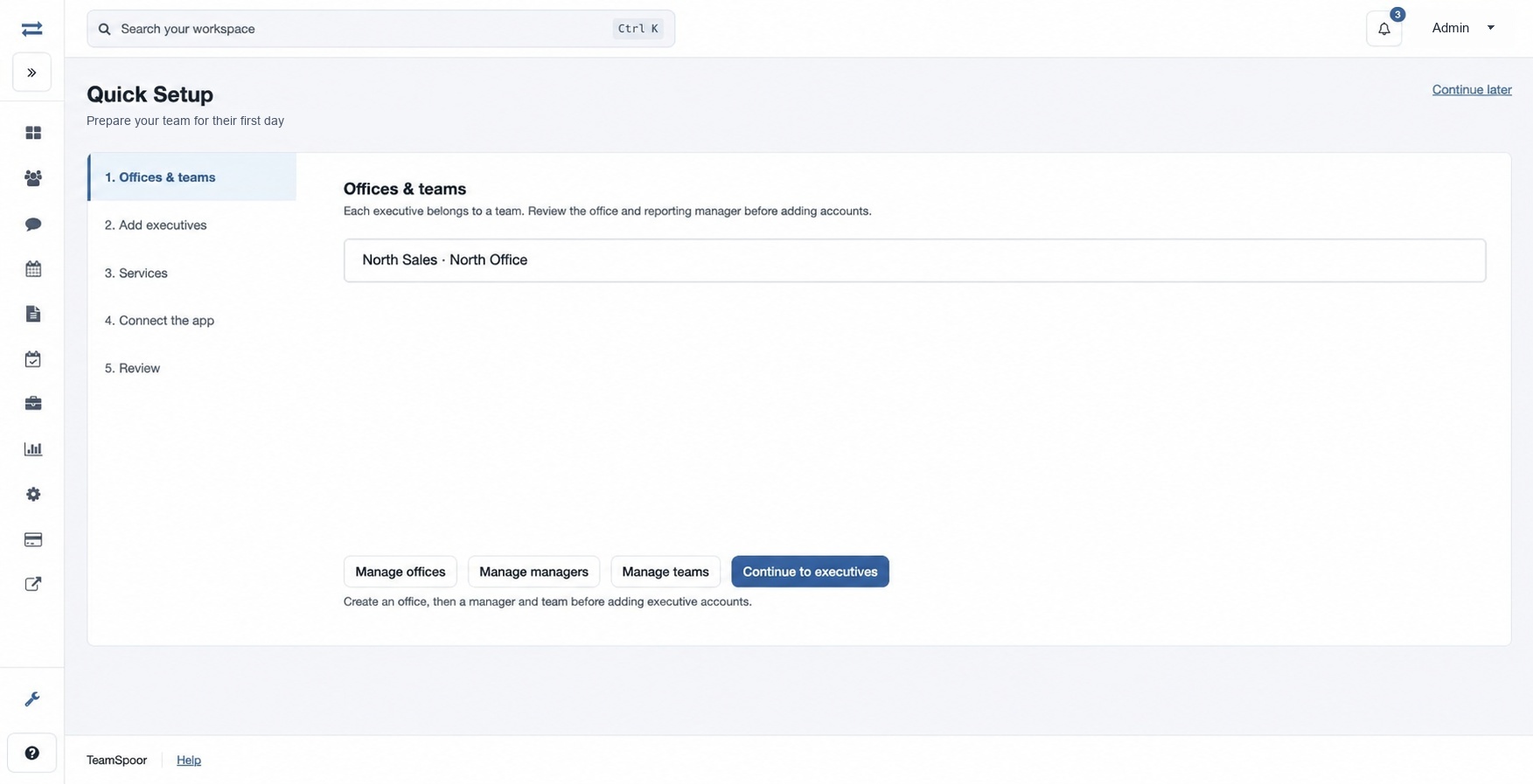
Bring one customer round, reporting task or attendance process.
Request a demoShare the affected screen, expected result and steps to reproduce.
Open a support requestStart a trial and follow the setup guide with a small pilot team.
Start a free trialA useful product conversation starts with a real field day: who receives the work, what they record and what the office needs to see afterward. Bring the customer workflow that creates the most follow-up today, and use the demo to see how the steps connect.
For an existing account issue, the support desk is the direct route. Include the affected feature, role and steps so the team can investigate the right screen. The usage guides below also help you identify the report and check the current scope.
Product walkthrough
Choose a customer interaction your team repeats. Show what the executive needs before travel, which information should be captured and how the manager decides the next action.
Include the roles, approximate users, offices and the person reviewing field work.
Bring the fields, checklist or report the office expects after a visit.
Choose the record or follow-up you want to be able to find by the end of the walkthrough.
A customer round → Assignment → Visit → Review
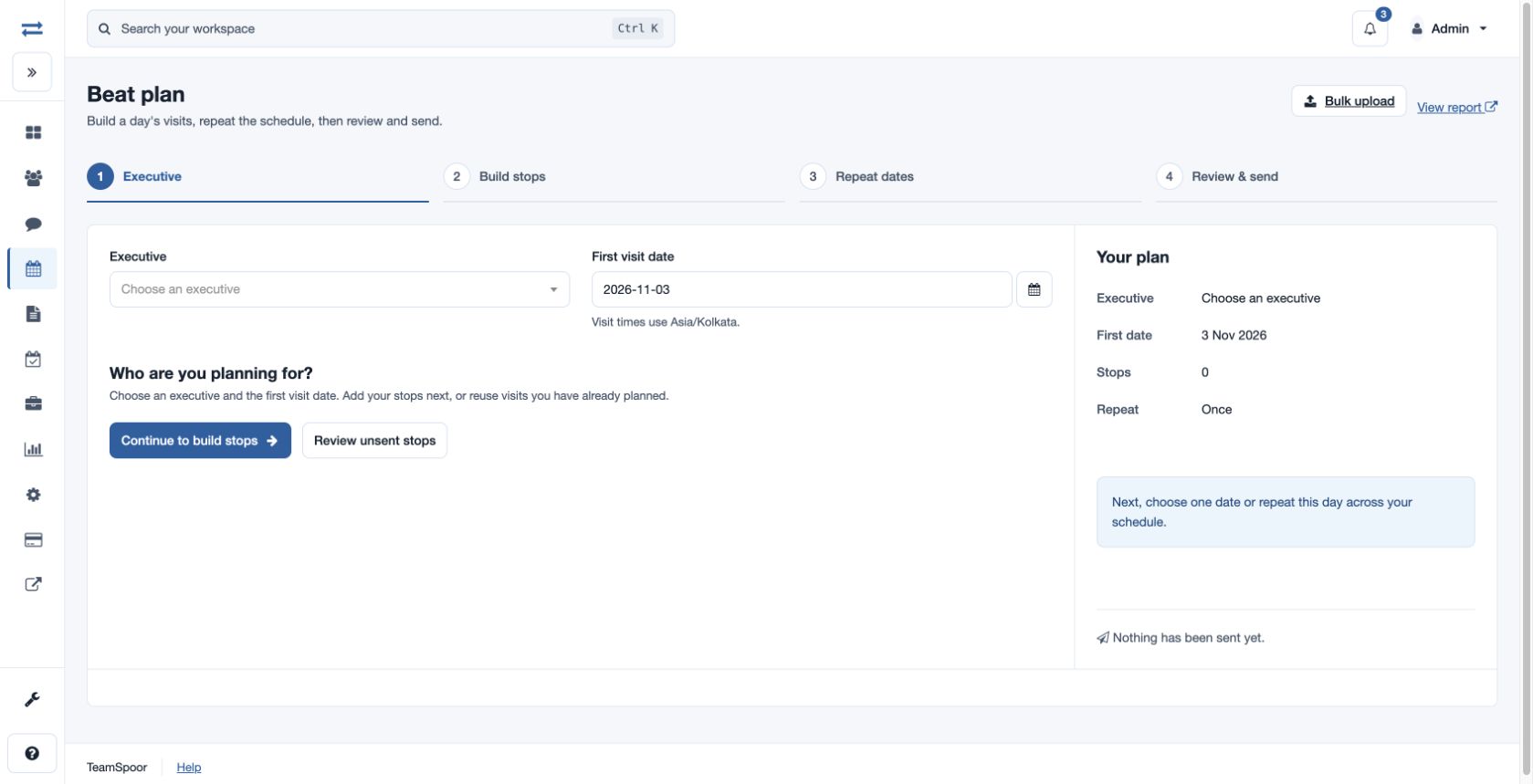
The demo can answer a real operational question.
For an existing account, describe the affected screen and the expected result. Include the role, selected date range or employee scope, and whether the issue can be repeated.
Use the report or feature title shown in TeamSpoor.
Include dates and scope where relevant, or current device evidence for an app-readiness question.
Do not send passwords or integration keys. Explain the steps and the result without unnecessary customer data.
Support desk / Reports → App readiness
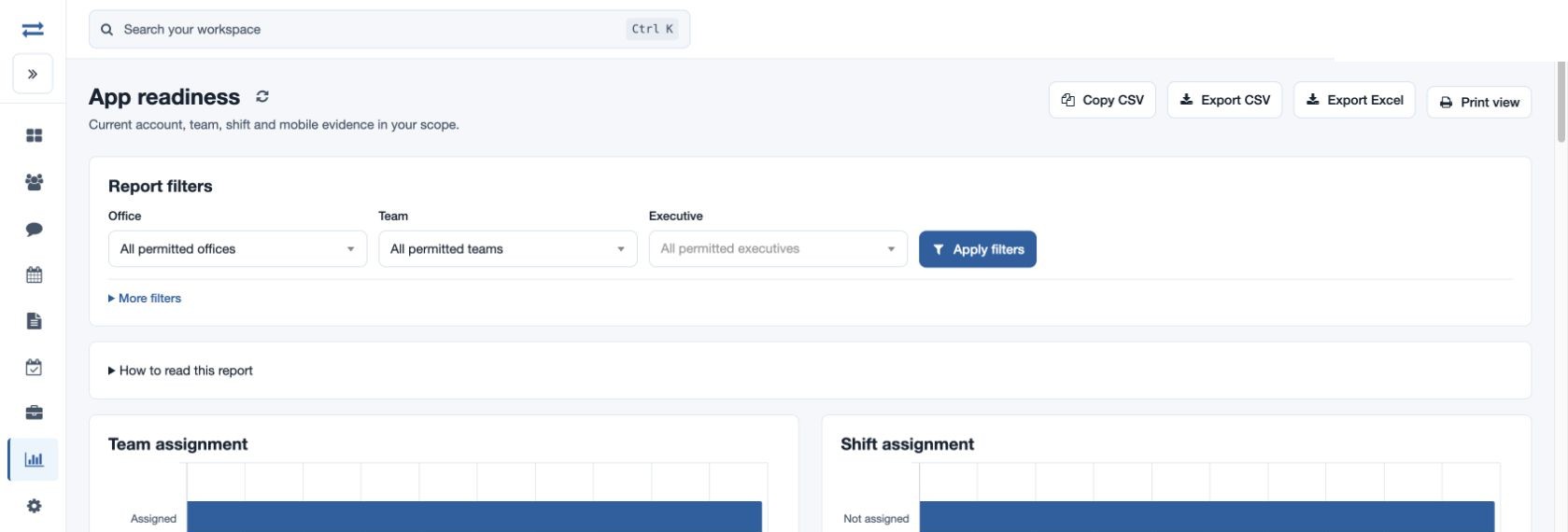
A precise request reduces the time spent identifying the issue.
Example workflow
An operations lead wants to replace scattered visit updates with a process the manager can review.
Illustrative scenario · not a customer resultBring
Choose a typical customer, visit purpose and the details the executive needs before travelling.
Walk through
Ask to see where remarks, form answers and available evidence appear for the manager.
Decide
Agree which employees and manager will test the workflow and what result they should be able to explain.
The demo leads to a specific pilot instead of an unstructured feature tour.
Pick the route that fits your request and prepare the relevant context.
Swipe across the table to compare all columns.
| Your request | Include | Use this route |
|---|---|---|
| Evaluate TeamSpoor | Team size, field process and desired outcome. | Product demo enquiry. |
| Plan a rollout | Roles, offices, first workflow and required reports. | Demo or setup discussion. |
| Resolve an account issue | Screen, role, filters, steps and expected result. | Support desk. |
| Scope an integration | Source event, receiving system and required fields. | Demo or integration support discussion. |
Use the same connected process in the customer interactions your team handles every day.
Walk through sales coverage, visit evidence, attendance or a manager reporting routine with the people who will use it.
Review offices, teams, employee roles and app readiness. Select a small pilot before asking every employee to adopt the process.
Use the support desk to report a specific issue and provide enough context for the team to investigate it without requesting unnecessary private information.
Make it practical
Keep the first conversation focused on the process or issue that matters most. If you are evaluating several modules, start with the one that gives the team a clear, testable result.
For an account issue, inspect the current record or history before repeating an uncertain action, and include what you observed in the support request.
Questions, answered
Need to walk through your own process?
Talk to the TeamSpoor teamUse the Request a TeamSpoor demo link and describe the field workflow you want to evaluate. Include the approximate team size, required features and any integration needs.
Use the support desk linked on this page. Include the affected screen, account context and steps to reproduce the issue, without sharing passwords or connection keys.
Yes. The usage guide covers quick setup, teams, app readiness and field reports. A trial lets you explore the available features for a representative workflow.
Request a demo for evaluation or use the support desk for an existing account.