Use this installation guide for WordPress, Wix, Webflow, Squarespace, HTML, PHP, and custom websites. Add the widget once, train it with approved website or knowledge-base content, connect CRM/helpdesk follow-up, and test the full visitor-to-lead path before going live.
Follow this rollout sequence so the widget appears correctly and every captured lead or support chat has a clean destination.
The method changes by platform, but the operational goal stays the same: visible widget, trained answers, captured leads, and clear escalation.
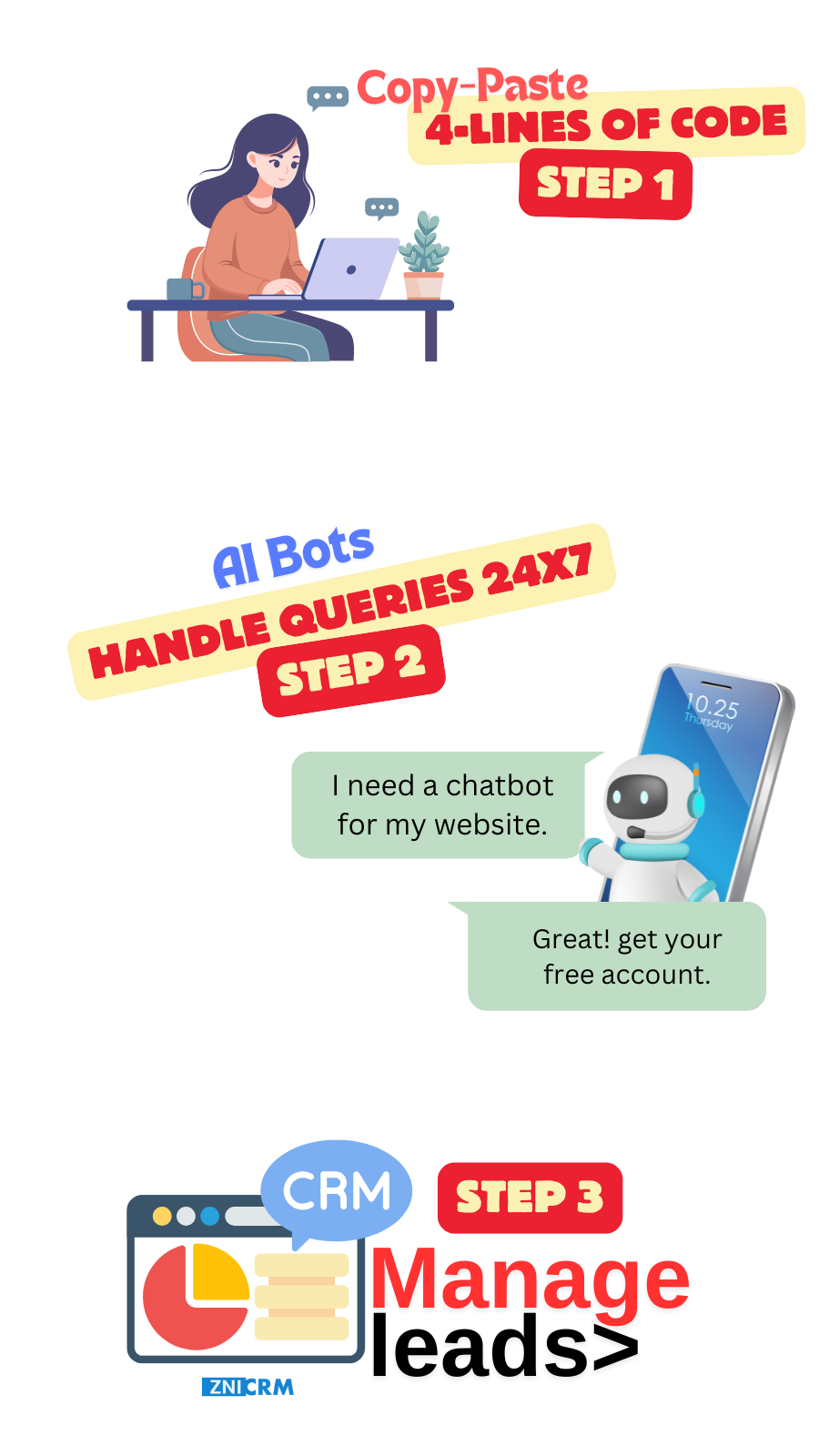
For WordPress, Wix, Webflow, and Squarespace, add the chatbot through site settings, header/footer injection, custom code, or embed blocks. This avoids theme rebuilds and keeps the setup manageable for non-developers.
For custom sites, paste the JavaScript snippet into a shared layout so it loads across pages. Use an iframe only when your environment restricts scripts or requires an embedded frame.
Train the bot on approved website content, support articles, FAQs, pricing notes, and product pages. Keep training content current so the assistant gives useful answers instead of generic replies.
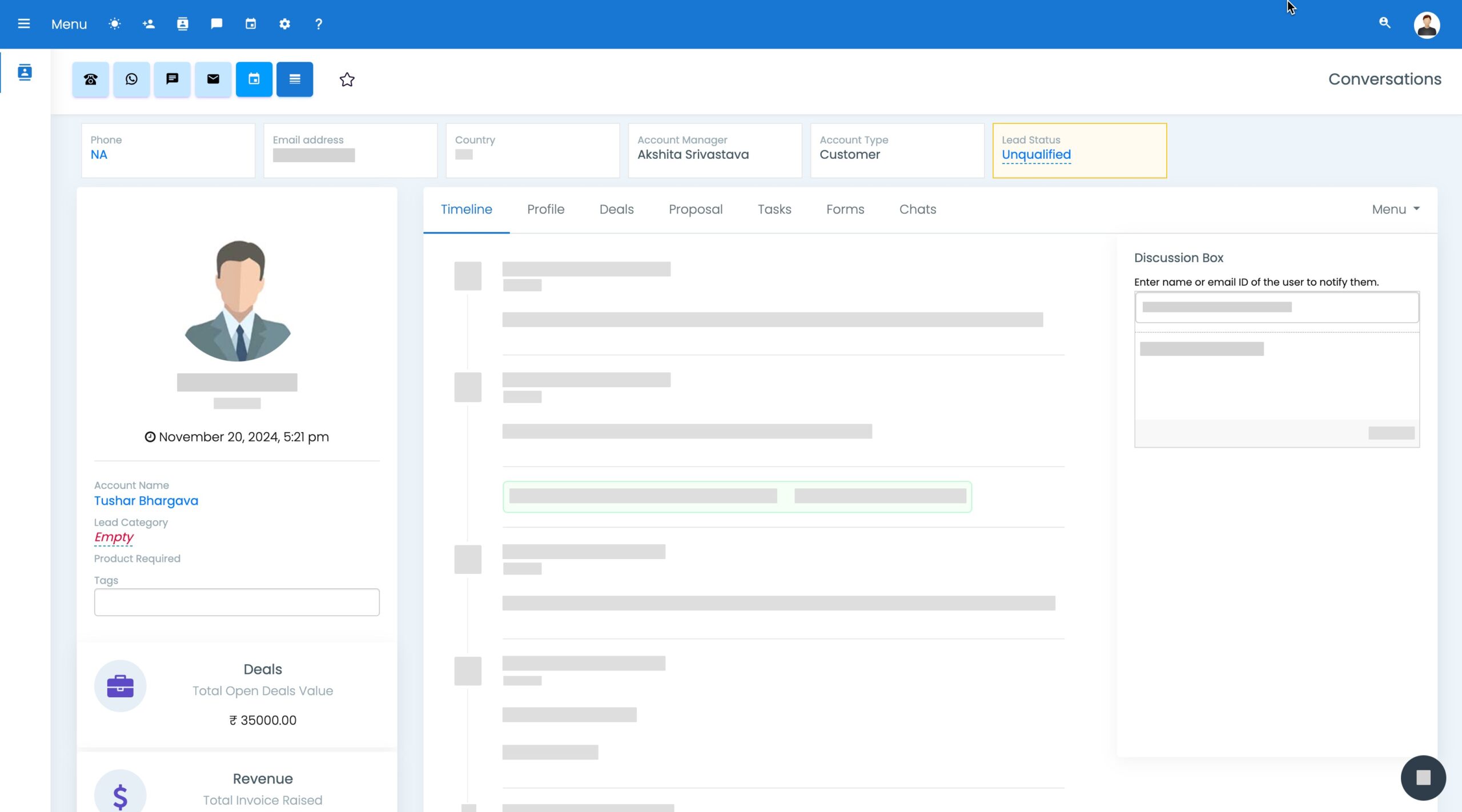
After publishing, test the widget on desktop and mobile, submit a test lead, check Chats, confirm CRM contact creation, and verify any ticket, task, or escalation rules.
A good chatbot install is more than a visible bubble. It should connect chat settings, bot behavior, AI learning content, CRM lead capture, and helpdesk escalation into one repeatable workflow.
Choose the install method that matches your platform and keep the widget easy to maintain after launch.
Add the chatbot through header/footer injection, a script manager, or a theme-level code area.
Use custom code, site settings, or embed blocks to load the widget across key pages.
Place the script in a shared template or app shell so the chatbot follows visitors across pages.
Use an iframe when script loading is restricted or an embedded frame is the safest deployment option.
Configure the widget, bot name, bot behavior, avatar, and response settings centrally instead of editing every page.
After installation, use the Chats module to verify conversations and monitor activity.
A chatbot should not create another inbox. Use the install to route visitor details into contacts, tasks, tickets, and follow-up workflows.
Collect contact, company, phone, email, source, and message details from the conversation.
Confirm the test lead appears in CRM with source and owner behavior intact.
Create tickets when the bot cannot resolve a support question or needs human follow-up.
Trigger follow-up work for sales or support teams after qualified chats.
Before deploying sitewide, test the chatbot like a visitor and like an operations manager.
Confirm the widget appears on the homepage, landing pages, blogs, and support pages.
Verify the chat button does not block navigation, forms, pricing, or checkout actions.
Ask pricing, product, policy, and support questions to validate training content.
Confirm chats, contacts, tickets, tasks, and handoffs appear in the right modules.
Instead of adding separate chat, form, CRM, ticketing, and automation tools, keep the website chat workflow connected to the business records your team already reviews.
Capture website leads and keep chat history attached to the contact.
Turn unresolved questions into tickets with context.
Use approved articles and FAQs to improve answer consistency.
Trigger reminders, assignments, and follow-ups from chat outcomes.
Simple embed paths, central chatbot settings, AI learning content, live chat operations, and CRM/helpdesk follow-up in one system.
Works through common header/footer or custom-code areas without rebuilding pages. Learn more
Use website, FAQ, and knowledge-base content so answers stay useful. Learn more
Test web lead capture all the way into CRM before launch. Learn more
Escalate to chat agents or helpdesk tickets with context. Learn more
Update bot behavior and training centrally after launch. Learn more
Answers to common questions about WordPress, Wix, Webflow, Squarespace, script embeds, iframes, CRM, and helpdesk verification.